
Best WordPDF for Confidential Documents

For confidential documents, choose a converter that processes DOCX files locally on your phone, explains whether uploads happen, and discloses privacy, retention, and app-store data practices before you trust it with sensitive files. For most users, start with Microsoft Word’s built-in PDF export or a dedicated mobile converter with offline conversion, minimal permissions, and a readable privacy policy.
A Word to PDF app is a mobile or desktop tool that converts DOCX and Word documents into PDF files. For confidential documents, the key privacy difference is whether conversion happens on the device or after the file is uploaded to a server.
- Prioritize on-device DOCX to PDF conversion over server-side upload for confidential documents.
- Check encryption, retention, account requirements, permissions, and privacy disclosures before using any safe word converter app.
- PDF conversion does not automatically encrypt, redact, or password-protect the finished PDF.
How the top words look
Side-by-side captures of the compared products. Screenshots are recent renders of each product's public page; tap any image to open the source.
Confidential DOCX to PDF app shortlist
Local processing is the strongest default for confidential documents because fewer systems touch the file. Random free online converters are the weakest fit for sensitive records, especially IDs, medical forms, tax documents, and contracts.
- Microsoft Word mobile export: A practical first choice when the DOCX file was created or edited in Word. It avoids handing the file to an unknown converter.
- Phone built-in print-to-PDF: Useful on iPhone or Android when the document can be opened and printed to PDF from the share or print flow.
- A dedicated offline converter: A focused mobile option to compare when you need clear file-handling explanations.
- Enterprise-managed converter: Often the right fit for work files because IT can review contracts, access controls, and compliance claims.
- Reputable cloud converter: Acceptable for lower-risk documents, but only after checking upload, retention, and deletion terms.
A recruiter asking for “PDF only” at the last minute is not the moment to test a mystery website.
At-a-glance private DOCX to PDF app comparison
The best Word to PDF app for confidential documents should be judged first by file handling, then by convenience. Pew Research Center found that 81% of U.S. adults say the risks of company data collection outweigh the benefits (https://www.pewresearch.org/internet/2019/11/15/americans-and-privacy-concerned-confused-and-feeling-lack-of-control-over-their-personal-information/), and Adobe reported that 73% of office workers regularly share or collaborate on PDFs (https://www.adobe.com/acrobat/resources/digital-workflows.html).
| Option | File handling | Privacy strength | Best fit | Caution |
|---|---|---|---|---|
| Microsoft Word export | Usually stays inside Word’s own workflow | High | Sensitive DOCX files already in Word | Check cloud sync settings |
| Built-in print-to-PDF | Renders from the phone’s print system | High | Quick local PDF creation | Layout may vary by app |
| Dedicated mobile converter | Depends on app design | Medium to high | Repeat mobile conversion | Verify offline mode |
| Enterprise converter | Managed by employer or vendor contract | High | HR, legal, medical, finance teams | May require account access |
| Online converter | Uploads file to server | Lower | Low-risk documents | Retention and jurisdiction matter |
For broader everyday tools, our best Word to PDF app guide covers non-confidential use cases.
Scope and privacy disclaimer
This guide gives general privacy guidance for choosing a Word to PDF app, not legal, compliance, security, or regulatory advice. Use it as a practical screening checklist before you decide whether a document belongs in a converter at all.
Some files need approval before conversion, especially if they involve patient data, employee records, legal matters, financial accounts, government IDs, or client-confidential material. An employer policy, attorney instruction, healthcare privacy rule, or IT security standard may override any app-level convenience. App behavior can also change after an update, acquisition, new analytics SDK, or revised privacy policy, so a tool that looked acceptable last month may deserve another look today.
Before using a converter with sensitive files:
- Classify the document by risk, not just by file size or deadline.
- Check whether your employer, client, school, lawyer, or IT team requires an approved tool.
- Review the app’s current permissions, privacy policy, and upload behavior after updates.
- Test with a harmless sample file before using real confidential content.
- Avoid uploading highly sensitive documents to any service you have not vetted.
How a safe Word converter app handles confidential files
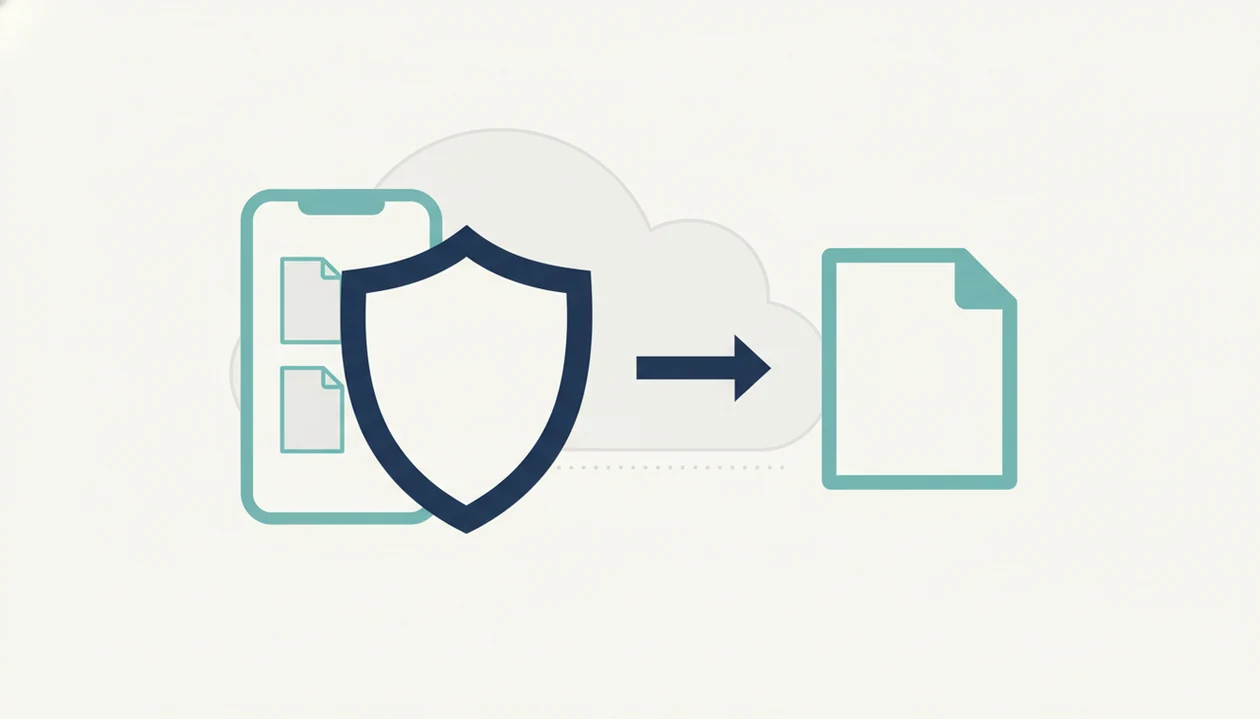
A safe Word converter app handles confidential files by making its data flow clear: local conversion opens, renders, and writes the PDF on the device, while server-side conversion uploads the DOCX, processes it remotely, and sends a PDF back.
In local conversion, the app reads the DOCX file, renders pages, then writes an exported PDF to the Files app, Downloads folder, or another chosen location. I usually open the PDF in iPhone Files preview before sending, just to check the page count and title.
Server-side conversion adds more moving parts. Look for TLS in transit, encryption at rest, retention windows, server location, and access controls. Uploads can create logs, temporary copies, support access, and different legal jurisdictions.
Good Word to PDF converter apps turn DOCX and Word documents into shareable PDF files on iPhone and Android, not into a privacy guessing game.
How to choose a private DOCX to PDF app
Choose a private DOCX to PDF app by testing how it behaves before using it with real confidential files. A sample invoice template from a shared folder is enough for the first check.
- Test offline mode by turning on airplane mode and converting a harmless DOCX file.
- Review permissions for broad file access, contacts, tracking, photos, and network use.
- Read the privacy policy for upload handling, analytics, and third-party processors.
- Check retention terms to see whether uploaded files are deleted immediately, later, or only by request.
- Avoid unnecessary accounts when one-time conversion should not require identity data.
- Compare app-store privacy labels against what the app actually needs to convert a file.
For iOS-specific flows, the best Word to PDF app for iPhone guide explains Files, share sheet, and export checks.
Five facts about the best Word to PDF app for confidential documents
These five facts matter more than star ratings when a DOCX file contains private information. They are also the checks I use before sending a converted PDF through Gmail and watching the tiny paperclip icon attach the final file.
- Local processing is safer than upload-based conversion because the document touches fewer systems.
- Server-side tools require TLS, encryption at rest, retention, and jurisdiction checks before handling confidential files.
- Medical, legal, HR, and financial files need stricter review than ordinary school forms or public templates.
- Free apps may monetize through analytics or data collection even when the conversion screen looks simple.
- PDF conversion is not PDF encryption; a normal exported PDF can still be opened unless security settings are added.
For sensitive files, local conversion usually works best when the layout is simple, while enterprise tools fit teams that need audit controls.
Best safe word converter app for medical, legal, and financial files
What is the best safe word converter app for medical, legal, and financial files? Use Microsoft Word mobile export, built-in print-to-PDF, or an enterprise-approved app before considering a public online converter.
Healthcare, legal, HR, and tax files carry higher consequences if exposed. The U.S. Department of Health and Human Services reported that more than 134 million people were affected by large healthcare data breaches in 2023 (https://www.hhs.gov/hipaa/for-professionals/breach-notification/breach-reporting/index.html). IBM reported a global average data-breach cost of $4.45 million in 2023 (https://www.ibm.com/reports/data-breach). Those numbers do not prove a converter is unsafe, but they explain why file handling matters.
Compliance claims such as HIPAA, ISO 27001, SOC 2, or an employer-approved vendor review may matter when the file contains regulated data. Unknown free converters should not receive IDs, contracts, tax records, medical forms, or signed employment documents.
For Android storage checks, our best DOCX to PDF app for Android guide names the Downloads folder and common Google Drive handoffs.
When to use an approved vendor or get professional review
Use an approved vendor or get professional review when the document is tied to work duties, regulated data, client confidentiality, or a breach that would create serious consequences. Ordinary app-selection advice is not enough for HR files, legal records, tax documents, medical forms, or anything your employer classifies as sensitive.
Before sending those files outside your phone, slow down and treat conversion like a vendor decision, not a quick formatting task.
- Use employer-approved tools first for HR, legal, finance, tax, and medical records, even if a public converter looks faster.
- Ask IT what the tool keeps, including retention periods, audit logs, administrator access, deletion controls, and vendor contract terms.
- Confirm whether the app has the right access controls for the people who can view, download, support, or recover files.
- Consult counsel or your compliance lead before uploading regulated documents, client-confidential files, discovery material, or signed agreements to an external service.
- Avoid public converters when exposure would be reportable, expensive, career-limiting, or hard to explain after the fact.
If the answer depends on policy, contract language, or law, use the reviewed tool and document the choice.
Common myths about private DOCX to PDF app security
App-store wording is not proof that a private DOCX to PDF app is safe. “Secure” can mean encrypted login, encrypted upload, or just a marketing claim.
A converted PDF is not automatically encrypted. It may look final, but anyone with the file can usually open it unless password protection or certificate security is applied separately.
Phone conversion is not always local. Some mobile apps quietly upload the DOCX to a server, then download the exported PDF. The screen may still look like a normal on-phone task.
Deleting the app does not necessarily delete uploaded files. Server copies may follow the provider’s retention policy, not your phone’s storage action.
The leak can happen after conversion too. Cloud backups, email forwarding, shared folders, and chat apps can expose the PDF after the DOCX has been converted.
Small detail. Big difference.
Honest cons of secure Word to PDF app choices
Privacy-focused Word to PDF choices usually trade some convenience for control. Local-only tools may have fewer collaboration, OCR, batch sharing, compression, or workflow features than cloud platforms.
Formatting can also shift. Fonts, tracked changes, wide tables, and page breaks may render differently on mobile than in desktop Word. I compare the Word file and PDF side by side when a quote line item or signature page must stay readable.
Enterprise-grade tools may require accounts, subscriptions, device management, or approval from IT. That can feel slow when a portal rejects a DOCX upload five minutes before a deadline.
Offline conversion is less convenient when your source file sits in Google Drive, OneDrive, or a shared folder. Security claims are also hard for non-experts to verify, especially when policies use broad legal language.
If layout is your main worry, the best Word to PDF app without losing formatting guide focuses on page breaks, fonts, and tables.
Sources and review process
This review process checks both what an app appears to do and what the vendor says it does. The goal is to separate observable behavior, like offline conversion, from trust claims that need documentation.
Source material should include government privacy or breach guidance, app-store privacy disclosures, vendor privacy policies and help pages, and public security reports when available. Local conversion can be tested directly, but retention promises, subprocessors, encryption at rest, and compliance labels usually need written vendor evidence.
- Start with a harmless DOCX file and test conversion in airplane mode to see whether the app can work without a network connection.
- Compare requested permissions with the job at hand, looking for broad storage, tracking, contacts, location, or background access that a converter does not obviously need.
- Read the current privacy policy, app-store data labels, and support documentation for upload handling, deletion timing, analytics, and third-party processors.
- Separate verified app behavior from claims that depend on the vendor’s paperwork, especially retention, security certifications, and enterprise compliance language.
- Recheck recommendations after major app updates, privacy-policy changes, acquisitions, or new permissions; for sensitive use, review at least every few months.
Limitations
A secure converter reduces exposure, but it cannot make every document safe by itself. Treat conversion as one step in the file-handling chain.
- A compromised phone can expose documents before or after Word to PDF conversion.
- A PDF is not password-protected unless security settings are applied separately.
- Cloud sync, backups, messaging apps, and email can still leak the finished PDF.
- Server-side apps may keep copies according to their retention policies.
- No universal certification exists specifically for Word-to-PDF apps.
- Some files render differently on mobile than in desktop Word.
- App-store privacy labels can be incomplete, outdated, or hard to interpret.
- Shared folders may keep older DOCX and newer PDF versions side by side.
For the safest workflow, convert locally, inspect the exported PDF, apply protection if needed, then share through the least risky channel available.
FAQ
Is DOCX to PDF conversion private?
DOCX to PDF conversion is private only if the app processes the file locally or uses a provider you trust. If the app uploads the DOCX, privacy depends on encryption, retention, access controls, and policy terms.
Can Microsoft Word convert DOCX files offline?
Microsoft Word can export or print DOCX files to PDF in many mobile and desktop workflows without using a random converter. Availability can depend on device, app version, file location, and account setup.
Are online Word converters safe for confidential documents?
Online Word converters are risky for confidential documents because they require uploading the file to a remote server. They may be acceptable for low-risk files after checking retention, encryption, and deletion terms.
Does converting a Word document to PDF encrypt it?
No. Converting a Word document to PDF creates a PDF file, but it does not automatically add password protection or encryption.
How do I test whether a Word to PDF app works offline?
Turn on airplane mode, open a harmless sample DOCX file, and try to convert it. If conversion fails or asks for network access, the app likely depends on online processing.
What app permissions are risky for a Word to PDF converter?
Broad file access, contacts, tracking, background network access, and unnecessary photo or location permissions should prompt extra review. A converter should only request what it needs to open, save, and share files.
Can I delete Word files after uploading them to a converter?
Deleting your local copy does not guarantee the uploaded copy is gone. Server deletion depends on the provider’s retention policy, account tools, and support process.
Is built-in print to PDF safer than a third-party converter?
Built-in print to PDF is often safer for sensitive files because it usually avoids unknown upload services. A vetted third-party app can also be safe if it clearly supports local conversion and minimal permissions.
Which Word documents need extra protection before PDF conversion?
Medical records, legal documents, financial files, HR forms, IDs, contracts, and tax records need extra protection. Use local conversion, review retention risks, and apply PDF security settings when needed.