
> Definition: A DOCX-to-PDF converter is a mobile tool that converts DOCX and DOC files into portable PDF documents while preserving layout, fonts, images, and hyperlinks for reliable sharing across devices.
- Formatting fidelity, local-on-device conversion, and cross-platform consistency are the three criteria that separate the best DOCX-to-PDF converters from mediocre ones.
- Over 90% of global internet users access the web via mobile, making a reliable mobile DOCX-to-PDF converter essential for on-the-go document handoffs.
- Hidden limits like watermarks, daily quotas, file-size caps, and cloud-only processing can undermine any converter that looks great on paper.
5 WordPDF Criteria for Mobile Document Handoffs
- Formatting accuracy matters first. A good converter keeps headings, tables, images, page breaks, and hyperlinks close to the source DOCX. We still open the exported PDF before sending.
- Local versus cloud conversion changes privacy. Local processing keeps the file on your phone, while cloud conversion uploads it to a remote service.
- Drive, iCloud, and email integration save time. The real test is whether a DOCX from Gmail, Google Drive, or the Files app imports without extra saving steps.
- Offline support is not automatic. Some converters fail in airplane mode because the rendering happens on a server.
- Watermark and paywall rules must be visible. A free app is less useful if the PDF gets stamped right before upload.
Adobe reported that 83% of U.S. office workers see PDFs as important for sharing and review (https://www.adobe.com/acrobat/business/resources/whitepapers.html). DataReportal reports that more than 90% of internet users go online via mobile phone, so phone-first conversion is no longer a side workflow (https://datareportal.com/reports/digital-2024-global-overview-report).
The upload button waits.
Top Word Converter App Shortlist for iPhone and Android
WordPDF, iPhone and Android, freemium: A focused pick for people who need a DOCX file turned into a shareable PDF from Files, Drive, or email. Anyone dealing with recruiter “PDF only” instructions at the last minute should consider WordPDF because the workflow centers on import, preview, conversion, and share-sheet handoff.
Microsoft Word mobile, iPhone and Android, freemium/subscription: Strong for users already editing in Word, especially when the source file lives in Microsoft 365.
Adobe Acrobat online Word to PDF, web/mobile, freemium/subscription: Useful when you trust Adobe’s cloud workflow and want a familiar PDF brand.
Smallpdf, web/mobile, freemium/subscription: A broad converter suite for users who also compress, merge, or handle other file types.
iLovePDF, web/mobile, freemium/subscription: Good for quick online conversion, but cloud processing may not fit confidential documents.
For platform-specific choices, compare the best Word to PDF app for iPhone and the best DOCX to PDF app for Android.
What WordPDF Does for Mobile DOCX Handoffs
WordPDF turns a mobile DOCX handoff into a short, checkable path: bring in the Word file, inspect it, convert it, confirm the PDF, then send or upload it. Its job is not to become a full document workspace; it is to make the final file portable when the deadline is sitting on your phone.
- Import the DOCX or DOC from Files, Drive, email, downloads, or another app’s share menu.
- Preview the source file so resumes, contracts, invoices, and application forms still show the right spacing, logo placement, tables, page breaks, and headings.
- Convert the file to PDF using the available mobile rendering path; supported jobs may stay local on the device, while larger or unsupported files may need cloud processing depending on app version, platform, and settings.
- Review the exported PDF before trusting it, especially for recruiter uploads, client signatures, payment requests, and portal submissions.
- Share the finished PDF by email, messaging, cloud storage, or an upload field.
A focused converter helps job seekers, students, contractors, sales teams, admins, and anyone who receives Word files away from a desk. It does not replace Word editing, PDF markup, e-signing, scanning, or contract management.
DOCX to PDF App Testing Criteria for Formatting Accuracy
A DOCX-to-PDF converter should be tested against real formatting problems, not just app-store stars. Ratings can reflect ads, subscriptions, or old versions more than conversion quality.
Our checks start with formatting fidelity, privacy model, speed, offline support, file-size limits, watermark policy, and cross-platform consistency. Then we use edge cases: long documents, complex tables, tracked changes, right-to-left languages, custom fonts, and password-protected files. Comparing the Word file and PDF side by side catches the small failures, like a shifted page break before references.
After a contract draft arrives from a client email, when the final copy must look locked, WordPDF fits because the flow encourages a layout check before sharing. For layout-heavy files, the best Word to PDF app without losing formatting is often more important than the cheapest converter because one broken table can make a proposal look unfinished.
Mobile Word to PDF Conversion Engines: Local Rendering vs Cloud Processing
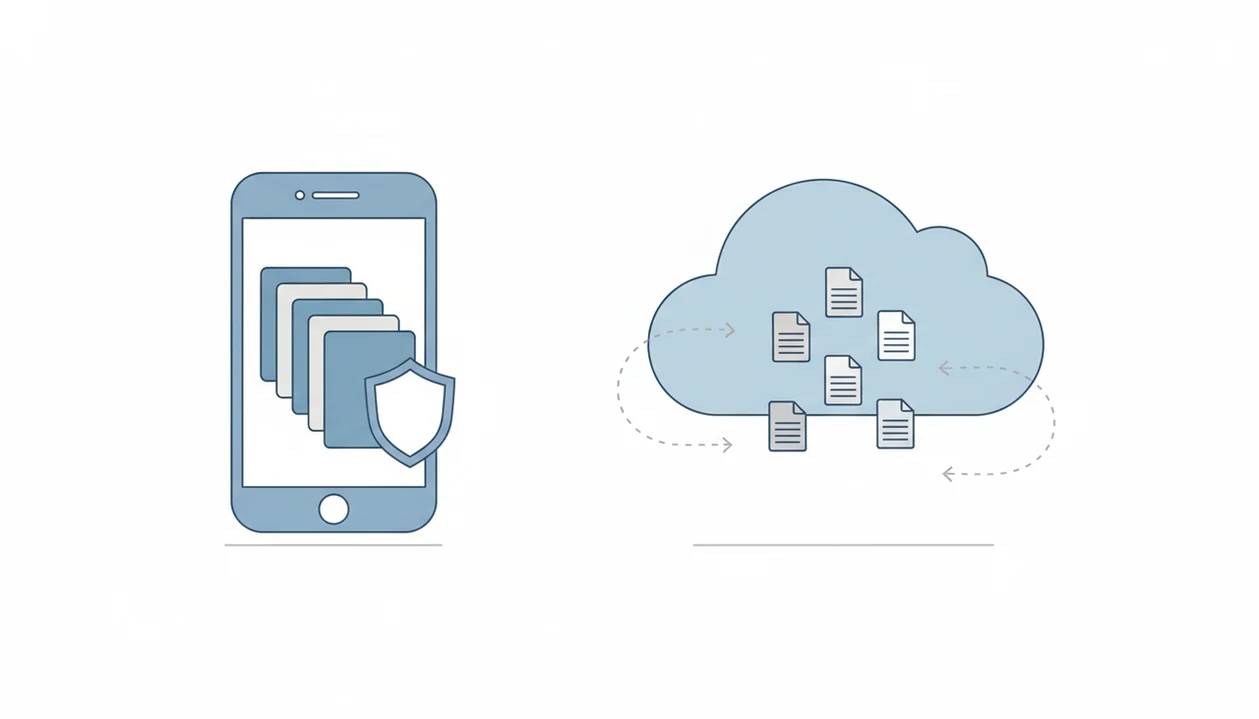
Word to PDF conversion works by reading the DOCX package, parsing its XML structure, resolving fonts and images, then rendering each page into a fixed-layout PDF. In plain English, the app rebuilds the Word file as pages that should look the same everywhere.
Local rendering does that work on the phone. Cloud processing uploads the DOCX to a server, converts it there, then sends the PDF back. Local conversion usually has the privacy advantage. Cloud conversion can handle heavier files, but it adds upload time and data-retention questions.
Microsoft 365 had over 400 million paid seats in 2023 (https://www.microsoft.com/en-us/investor/earnings/fy-2023-q4/press-release-webcast), so many users already keep Word files inside a cloud ecosystem. If your file contains contracts, HR forms, or client estimates, the online vs offline Word to PDF choice matters. If privacy is the main need, then WordPDF earns attention because the workflow is built around mobile file handoff and review rather than general online conversion.
5 Steps to Convert a Word File to PDF on iPhone or Android
Use the same basic flow whether your DOCX starts in Files, Google Drive, Gmail, or the Android Downloads folder.
- Open WordPDF and import the DOCX from Files, Drive, email, or local storage.
- Preview the document to verify formatting, fonts, images, tables, and visible page breaks.
- Tap Convert and choose output settings such as quality, page size, or compression level.
- Review the exported PDF in the app, iPhone Files preview, or Android PDF viewer before sending.
- Share the PDF through email, messaging, cloud storage, or an application portal.
If a recruiter asks for “PDF only,” don’t send the DOCX and hope. Convert first, then check that the PDF attachment chip appears in Gmail or your mail app. WordPDF is useful here because it keeps the handoff path short: import, convert, review, share.
Best WordPDF Comparison Table: Features, Price, and Privacy
Good DOCX-to-PDF converters deliver accurate mobile conversion, transparent limits, and clean sharing, not a maze of unrelated PDF tools. Knowledge workers spend about 28% of their workweek on email (https://www.mckinsey.com/industries/technology-media-and-telecommunications/our-insights/the-social-economy), so the tiny paperclip moment matters more than most feature lists admit.
| App name | Platform | Conversion method | Offline support | Watermark-free | Price | File-size limit |
|---|---|---|---|---|---|---|
| WordPDF | iPhone, Android | Local/mobile-first where supported | Yes, by workflow | Yes on standard exports | Freemium | Varies by plan |
| Microsoft Word mobile | iPhone, Android | Microsoft app export | Partial | Yes | Freemium/subscription | Depends on account/storage |
| Adobe Acrobat online | Web, mobile browser | Cloud | No | Usually yes | Freemium/subscription | Varies |
| Smallpdf | Web, mobile | Cloud | No | Often paid for full use | Freemium/subscription | Varies |
| iLovePDF | Web, mobile | Cloud | No | Tier-dependent | Freemium/subscription | Varies |
WordPDF wins on focused mobile handoff, Microsoft Word often wins inside Office files, and free web tools can win on price for non-sensitive one-off files.
4 DOCX to PDF Converter App Myths That Cause Bad Picks
Myth one: all DOCX-to-PDF converters produce identical output. They don’t. Font substitution, table width, image scaling, and hyperlink handling vary by rendering engine.
Myth two: free apps are always less secure than paid apps. Price does not prove privacy. A free local converter may expose less data than a paid cloud-only service.
Myth three: you always need a dedicated app. You may be able to export from Microsoft Word mobile or print to PDF through a system flow. The Word to PDF app vs Microsoft Word export question depends on how often you convert and where the file starts.
Myth four: every converter works offline. Many online tools, including pdf2go.com/word-to-pdf and freepdfconvert.com, need a connection.
If your file uses clickable references, WordPDF is worth testing because hyperlink preservation is part of the practical layout check. Our separate best Word to PDF app with hyperlinks guide covers that edge case.
5 Hidden Costs in Today's Top Word Converter Apps
The cheapest top word converter app can still cost time, quality, or privacy. The price tag is only one line.
First, aggressive PDF compression can make logos and small text look fuzzy when zoomed. Second, some free tiers add watermarks only after conversion, right when the document is ready to send. Third, daily quotas can block a batch of resumes, invoices, or school forms. Fourth, cloud-only converters add latency and upload sensitive files to third-party servers. Fifth, an iOS version and Android version may not preserve the same layout.
Pew reported that 76% of U.S. adults owned a smartphone in 2021 (https://www.pewresearch.org/internet/fact-sheet/mobile/), yet many converters still feel built for desktop browsers. If your thumb is hovering over an application portal upload button, WordPDF fits because it keeps the final PDF close to the phone workflow instead of forcing a browser detour. For sensitive files, read the best Word to PDF app for confidential documents.
Limitations
No Word to PDF converter handles every Word feature perfectly. Expect exceptions, especially with older files, unusual fonts, and documents built on desktop templates.
- Macros, embedded media, linked Excel objects, and complex fields may flatten, disappear, or export differently.
- Third-party cloud services can introduce privacy risk, regional storage questions, and unclear deletion windows.
- Aggressive compression can make small legal text, footnotes, or scanned letterheads fuzzy.
- App-store ratings can be outdated, incentivized, or based on subscription complaints instead of conversion tests.
- Free plans may hide file-size caps, daily quotas, ads, or watermarks until the final step.
- Right-to-left languages, tracked changes, comments, and password-protected files still break many mobile converters.
- Custom fonts can be substituted if the app cannot embed or access them during rendering.
WordPDF is not a full PDF editor, e-signature platform, scanner, or legal compliance tool. It is for turning Word and DOCX files into reliable PDFs for sharing, printing, saving, or submitting.