
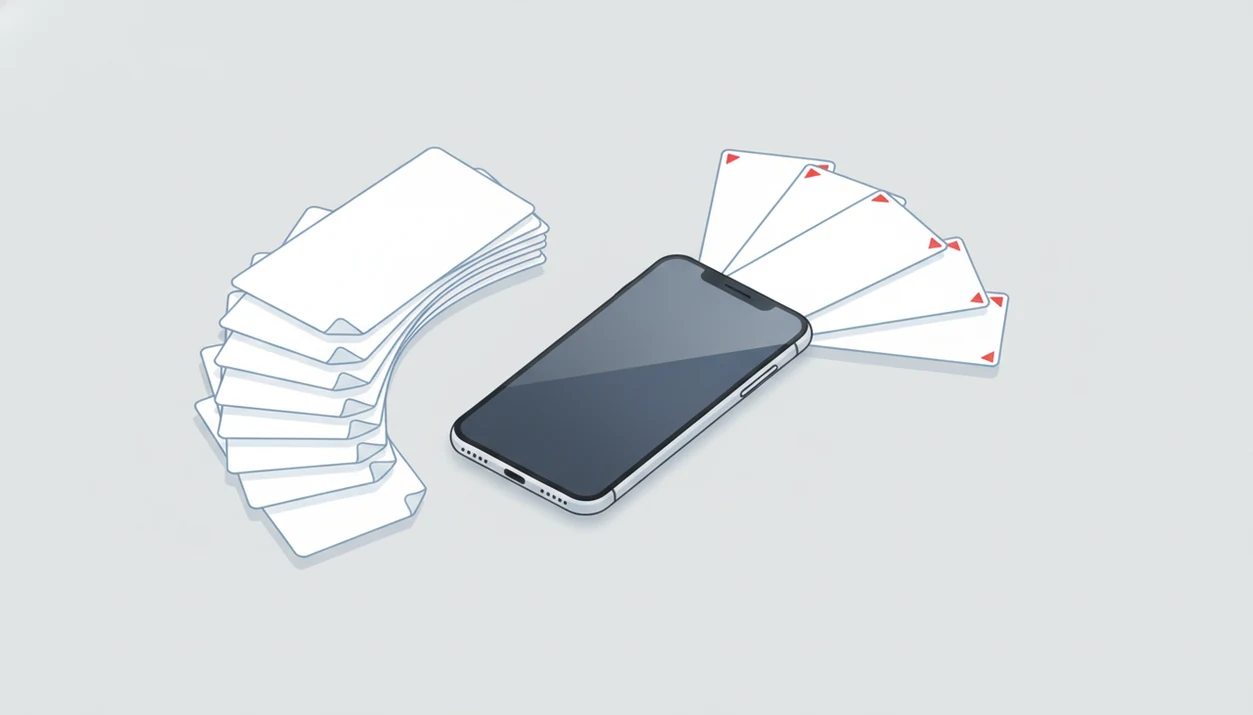
> Definition: Batch Word to PDF conversion is the process of selecting multiple DOC or DOCX files at once and converting each into a separate PDF in a single automated pass, instead of manually exporting one file at a time.
- Select dozens of DOCX files and convert them to individual PDFs in one mobile session
- On-device processing keeps documents private, with no cloud upload required
- Text, formatting, and layout are preserved across every converted file
At a Glance: What Batch Word to PDF Conversion Does
- Batch conversion means multi-select in, separate PDFs out. You choose several DOCX files, then receive one PDF for each source document.
- PDF is still the default sharing format. NIST’s Govdocs1 file-format corpus is commonly used to study real-world document formats, including PDF prevalence: https://www.nist.gov/itl/ssd/software-quality-group/govdocs1.
- Mobile document work is normal now. Pew Research Center found that smartphones are a routine tool for online tasks in the U.S.: https://www.pewresearch.org/internet/2019/06/13/mobile-technology-and-home-broadband-2019/.
- Manual export wastes attention. Opening each Word file, tapping export, naming it, and repeating the process is where errors creep in.
- A visible file queue helps batch jobs stay organized. That helps when a Word attachment is buried in an email thread and the deadline is close.
The practical difference is simple: one-by-one export asks you to manage every document as a separate task. Batch conversion turns the folder into one session.
Less tapping. Fewer missed files.
How Batch Word to PDF Conversion Works on Mobile
Batch Word to PDF conversion on mobile starts with file selection from device storage, iCloud, Google Drive, or the Files app. After selection, a rendering engine reads each DOCX file, interprets styles, fonts, tables, images, headers, and page breaks, then writes a PDF version.
The queue processes locally, so each DOCX produces a separate PDF unless you choose a merge option later. On newer phones, parts of the queue may process faster because the device has more memory and CPU headroom. On older phones, the same queue may run more slowly and feel sequential.
On-Device vs Cloud-Based Batch Processing
Local conversion keeps files on the phone, which matters for invoices, client forms, school packets, and HR documents. Cloud conversion can be convenient, but it usually requires upload bandwidth and an internet connection. Good Word to PDF converters deliver reliable PDFs, not a maze of editing, signing, scanning, and unrelated file tools.
If the priority is converting private client documents without uploading them, an on-device conversion workflow is the safer fit.
How to Convert Multiple DOCX to PDF in One Session
To convert multiple DOCX to PDF, open the batch picker, review the queue, and run one conversion session. We test this flow by saving the exported PDF in the iPhone Files preview before sending it.
- Open WordPDF on iPhone or Android.
- Tap the batch or multi-select option and choose DOCX files from device storage, iCloud, Google Drive, or the Files app.
- Review the file queue and reorder files if the output order matters for your archive folder.
- Tap Convert and let every file process before switching away from the screen.
- Share or save the resulting PDFs through AirDrop, email, Google Drive upload, or another cloud folder.
Students trying to upload several assignment files from a phone can use the visible queue to keep every selected DOCX visible before conversion. For a broader single-file walkthrough, use the guide to convert Word to PDF on phone.
When to Use a Bulk WordPDF
Use a bulk Word to PDF app when several documents need to become final, shareable files at the same time. End-of-month invoices, receipt packets, grading documents, sales reports, proposal decks, and reusable client forms are the common cases.
Pew Research Center reported in 2019 that 81% of U.S. adults owned a smartphone, making phone-based document work a normal workflow rather than a fallback: https://www.pewresearch.org/internet/2019/06/13/mobile-technology-and-home-broadband-2019/. GSMA’s Mobile Economy reports also show mobile internet adoption continuing globally, which supports mobile-first file handling: https://www.gsma.com/mobileeconomy/.
Anyone dealing with a recruiter asking for “PDF only” at the last minute needs fewer taps, not a desktop detour. A DOCX queue can be converted and shared from the same phone session.
For recurring monthly folders, batch conversion is often easier than desktop export because the file source and share destination are already on the phone.
What Batch Conversion Looks Like in WordPDF
In a batch workflow, conversion looks like a multi-file picker with thumbnail previews, a visible queue, and a progress indicator for each document. The file names carry forward, so `March-Invoice-04.docx` becomes `March-Invoice-04.pdf` instead of a mystery download.
The layout check still matters. We compare the Word file and PDF side by side when a document has tight table borders or a footer date near the page edge.
On days when a team sends proposal sections from different phones, batch conversion covers the handoff because each exported PDF can be shared all at once or individually. If you need iOS-specific behavior, the Word to PDF app for iPhone page covers that flow.
Batch Word to PDF Conversion vs Desktop Alternatives
Batch Word to PDF conversion is not limited to mobile apps. Desktop tools and web converters can work well, but the tradeoffs are different.
| Option | Good fit | Main drawback |
|---|---|---|
| Adobe Acrobat Pro | Office teams that already pay for Acrobat and use desktops | Subscription cost and desktop-centered workflow |
| PowerShell or VBA scripts | Technical Windows users converting folders repeatedly | Requires scripting knowledge and Windows setup |
| Free online converters, such as ilovepdf.com/wordtopdf or smallpdf.com/word-to-pdf | Occasional non-sensitive files | File-count limits, size caps, and upload privacy concerns |
| WordPDF | iPhone and Android users converting DOCX files on the go | Very large batches still depend on device memory |
The common misconception is that free online converters handle unlimited files. Most impose daily caps, file-size limits, or bandwidth-saving compression.
Office admins looking for a no-script mobile workflow can avoid PowerShell setup and keep conversion inside the phone. Android users can compare platform details in the Word to PDF app for Android guide.
Related WordPDF Features
Batch conversion is one part of the broader mobile conversion workflow. Single-file Word to PDF conversion is still useful when you only need to send one resume, contract, or form. Cloud storage integration helps when a DOCX file starts in iCloud or Google Drive rather than local storage.
Export options matter after conversion. You may need email, AirDrop, a Google Drive upload, or a saved copy in the Android Downloads folder. Built-in file management helps keep converted PDFs separate from drafts.
If cost is the deciding factor, the free Word to PDF app page explains what to expect from free mobile conversion.
Limitations
Batch conversion saves time, but it does not remove every document problem. Check the first few exported PDFs before sending a large batch.
- Very large batches or oversized DOCX files can slow down, especially on devices with limited RAM.
- Advanced Word features like macros, embedded video, or interactive elements do not translate into normal PDF behavior.
- Batch conversion creates separate PDFs by default; merging them requires an additional step.
- Unsupported, missing, or corrupt fonts in the original DOCX can carry layout errors into the PDF.
- Batch output does not automatically rename, tag, or sort files into a filing system.
- Free online tools may compress images or reduce quality to save bandwidth.
- Background processing may pause if the phone locks or the user switches apps on some devices.
- Password protection, compression, and no-watermark needs may require separate settings or a paid tier.
Anyone dealing with sensitive forms should avoid assuming every converter is local. WordPDF is useful here because the batch process is designed around on-device conversion, but you still need to manage file names and folders yourself. For watermark concerns, review the Word to PDF app no watermark details.