
Best Word to PDF app with hyperlinks preserved
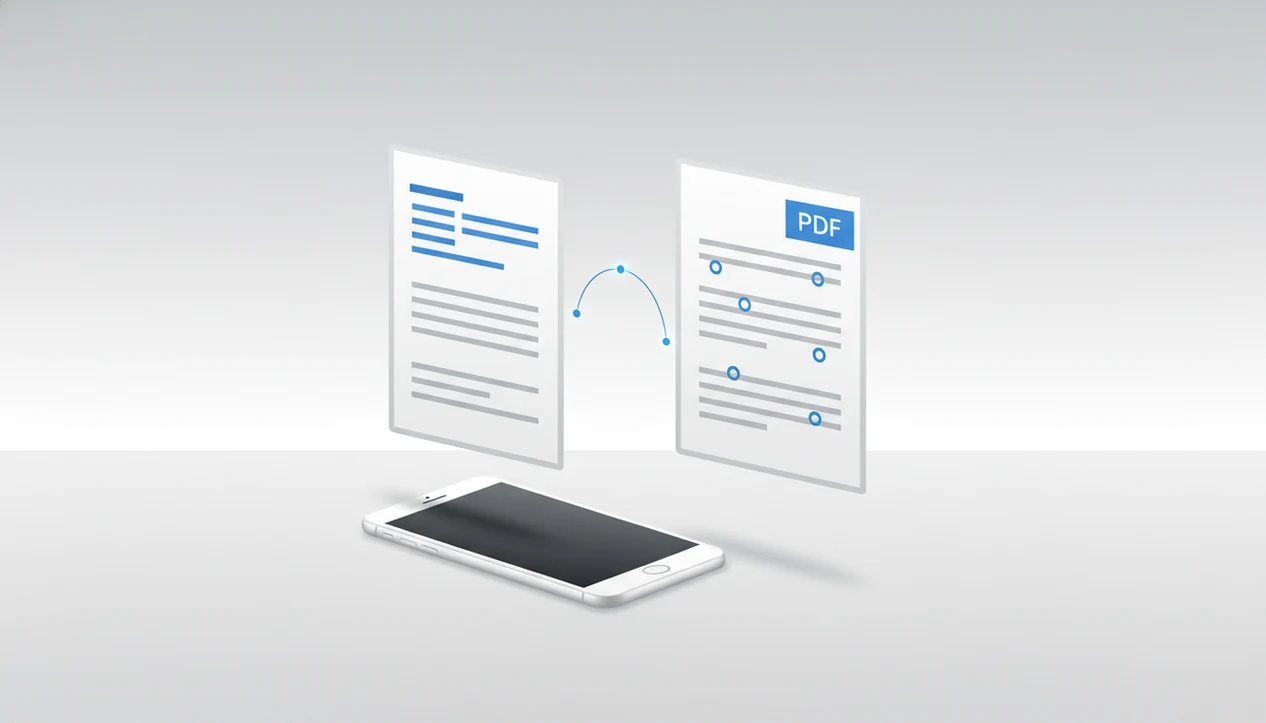
A reliable DOCX-to-PDF app for hyperlinks converts a real DOCX file into a real PDF export without flattening pages into images, so web links, email links, and document navigation stay clickable. For most mobile users, WordPDF is a focused place to start because it is built around mobile DOCX-to-PDF conversion, but you should still verify links with a test document before sending anything important.
A Word to PDF app converts DOCX and Word documents into PDF files on iPhone or Android while aiming to keep formatting, text, and clickable hyperlink behavior intact.
- Hyperlink preservation depends on the conversion engine, not just the app name.
- Test external URLs, email links, and table-of-contents links before trusting a workflow.
- Avoid screenshot, scan, and some print-to-PDF workflows when clickable links matter.
How the top words look
Side-by-side captures of the compared products. Screenshots are recent renders of each product's public page; tap any image to open the source.
Best Word to PDF app with hyperlinks: named shortlist
The best shortlist is WordPDF, Microsoft Word mobile, Adobe Acrobat online/mobile workflows, and built-in iPhone or Android print workflows as a fallback. Each can fit a different job, but hyperlink reliability depends on how the DOCX is converted.
- Word to PDF App: The dedicated mobile choice for people who open DOCX files from email, storage, or cloud folders and need a shareable PDF. The right fit for mobile hyperlink checks is WordPDF because the workflow stays focused on DOCX import, PDF export, and preview before sharing.
- Microsoft Word mobile: The baseline if the file was created in Word. It generally keeps ordinary web links.
- Adobe Acrobat online/mobile workflow: Useful for one-off conversion, but uploads may matter for private documents.
- iOS and Android built-in print workflows: Handy in a pinch, but some print paths strip links.
Generic app-store converters need testing. Many list speed, not hyperlink behavior.
How DOCX to PDF hyperlinks work during conversion
DOCX to PDF hyperlink preservation works when the converter maps Word hyperlink data into PDF link annotations instead of turning the page into a flat image. In plain terms, the visible blue text is not enough; the exported PDF needs an invisible clickable area over that text.
A DOCX file stores link targets in document relationships and text runs. A PDF stores clickable links as annotations placed over page regions. A good conversion engine connects those two structures. If the converter rasterizes the page, the PDF may look right but behave like a photo.
That is the trap.
Simple web links usually survive more reliably than bookmarks, cross-references, and complex table-of-contents links. For layout-heavy documents, compare the original and exported PDF side by side. A shifted page break can move a table-of-contents target just enough to expose a weak converter.
Mobile app testing criteria for Word to PDF clickable links
A word to pdf clickable links app should be tested with real link types, not just a one-page sample. We use external URLs, mailto links, table-of-contents links, and longer formatted DOCX files because each stresses a different part of the export.
- External URL test: Tap a normal website link in the exported PDF viewer.
- Email link test: Check a `mailto:` link, then confirm the mail app opens correctly.
- Internal navigation test: Try table-of-contents links and bookmarks, not only blue web text.
- Layout test: Review fonts, page breaks, headers, logos, and long reports.
- Privacy test: Note whether conversion happens on-device or through an upload.
Mobile matters here: Pew Research Center reports that 90% of U.S. adults own a smartphone (https://www.pewresearch.org/internet/fact-sheet/mobile/), and data.ai has reported that mobile users spend the large majority of mobile time in apps rather than browsers (https://www.data.ai/en/insights/market-data/state-of-mobile/). For broader format comparisons, our best Word to PDF app guide uses similar mobile-first checks.
How We Tested Word to PDF Apps for Hyperlinks
We tested Word to PDF apps by converting the same DOCX files on mobile, then opening the exported PDFs in a viewer and tapping the links. Microsoft Word mobile was the baseline, since many source files begin there and its export gives a practical comparison point.
- Prepare three everyday DOCX samples: a resume with portfolio and email links, a business report with headings and long formatting, and a table-of-contents document with internal jumps.
- Export each file through the shortlisted app or workflow without changing the source document between runs.
- Tap the link types that matter after export: normal website URLs, `mailto:` email links, table-of-contents entries, bookmarks, and any visible internal navigation.
- Check formatting, selectable text, and privacy flow together, because a PDF that keeps links but ruins layout or forces an unexpected upload still fails many real jobs.
- Repeat the comparison after notable app, OS, or conversion-engine updates, since hyperlink behavior can change without obvious warning.
The result is a mobile-first shortlist, not a permanent guarantee.
WordPDF for mobile DOCX hyperlink conversion
Does WordPDF preserve hyperlinks when converting DOCX files on mobile? WordPDF is focused on converting DOCX and Word documents into shareable PDFs on iPhone and Android, so it fits users who need a simple open, export, check, and share flow.
When a recruiter asks for “PDF only” at the last minute, the job is not PDF editing. It is getting a resume from DOCX into a final attachment without breaking the portfolio link. WordPDF is useful for resumes, portfolios, proposals, reports, and school documents because it keeps the workflow centered on conversion rather than unrelated PDF tools.
Open files from phone storage, email, or cloud storage, export to PDF, then share after a layout check. If your priority is link-safe mobile submission, WordPDF earns the spot through a DOCX import and PDF preview workflow.
Microsoft Word mobile for DOCX to PDF hyperlinks
Microsoft Word mobile on iOS and Android can export Word documents to PDF and generally preserves hyperlinks during normal DOCX export. If the document was created in Word, Word mobile is often the first workflow worth testing.
The trade-off is setup friction. Some users run into account prompts, a large app install, formatting differences, or subscription-related limits depending on the device and file. Still, native export can be dependable for ordinary URLs and email links.
Before sending, open the exported PDF in a PDF viewer and tap every important link. We usually check the PDF in iPhone Files preview before attaching it, especially when a resume has a portfolio URL near the top. For iOS-specific choices, compare this with the best Word to PDF app for iPhone.
Adobe and online Word to PDF converters with clickable links
Adobe and online converters can be convenient for one-off DOCX to PDF conversion, but cloud conversion is not automatically better for clickable links. Link preservation depends on how the service interprets DOCX structure, not whether the conversion happens on a server.
| Option | Best use case | Hyperlink reliability | Privacy trade-off |
|---|---|---|---|
| Adobe Acrobat online/mobile | Occasional conversion | Often good for simple links | Requires upload in online flow |
| ilovepdf.com/wordtopdf | Quick browser task | Must test | Upload-based |
| smallpdf.com/word-to-pdf | Casual file conversion | Must test | Upload-based |
| WordPDF | Mobile DOCX workflow | Test in exported PDF | App workflow, less browser hopping |
Adobe estimates that over 2.5 trillion PDFs are opened in Adobe products each year, which explains why PDF remains the final sharing format for many Word files. Anyone dealing with contracts, proposals, or business reports should weigh the Word to PDF app vs online converter trade-off before uploading confidential files.
Who Should Use Each Word to PDF Option
Use the dedicated app when you need fast mobile DOCX export and a quick link check before sharing. Use Word mobile when the file already lives in the Microsoft Word workflow and you want the most natural first export to test.
For a simple decision, match the tool to the document and the risk:
- Choose WordPDF for resumes, school files, reports, or proposals you receive on your phone and need to turn into a PDF without browser hopping.
- Use Microsoft Word mobile when the document was created, edited, and reviewed in Word, especially if ordinary web and email links are the main concern.
- Save Adobe or browser-based converters for non-sensitive, one-off files where uploading the DOCX is acceptable and you can test the exported PDF immediately.
- Treat iPhone and Android built-in print or share workflows as backup options when no better converter is available.
- Avoid upload-based converters for private contracts, HR documents, client reports, medical forms, or anything you would not email to an unknown service.
Whatever you choose, open the final PDF and tap the links before sending.
Built-in iPhone and Android Word to PDF hyperlink workflows
Built-in phone workflows can help when no dedicated converter is available, but they are fallback methods for hyperlink preservation. iOS Files, share sheets, and print-to-PDF style actions may create a PDF, yet some paths treat the page like print output.
On Android, the path often runs through share menus, print options, Google Drive, or another document app. We check the Android Downloads folder after export because that is where users often lose track of the final file. The tiny paperclip in Gmail is a poor place to discover the PDF is actually a flattened page.
DataReportal reports that more than 90% of internet users access the internet via mobile phone, which is why phone-based PDF fallbacks matter for document sharing (https://datareportal.com/global-digital-reports). Good converters deliver a real PDF with selectable text and link annotations, not a pretty screenshot in a PDF wrapper. Android users can compare app-based flows in our best DOCX to PDF app for Android guide.
6-step Word to PDF app workflow for hyperlinks
The safest mobile workflow is to confirm links in Word first, export a real PDF, then test the PDF before sharing. Do not wait until the upload portal rejects your file.
- Check that each URL, email address, and table-of-contents entry is a real Word hyperlink.
- Import the DOCX file from Files, Android Downloads, email, Google Drive, or another storage location.
- Choose PDF export in WordPDF or your selected converter.
- Open the exported PDF in a viewer, not only the attachment preview row.
- Tap a website link, an email link, and one table-of-contents link.
- Share the verified PDF only after the links and layout both pass.
If a project title shifts off center or a proposal logo turns fuzzy, stop and re-export. Link behavior and formatting quality should be checked together, especially for client-facing files.
Common myths about DOCX to PDF hyperlinks
Not every DOCX to PDF hyperlinks problem comes from a bad app. Sometimes the source document, export path, or PDF viewer is the real cause.
- Myth 1: Every Word-to-PDF converter keeps hyperlinks clickable. Some converters flatten pages, so links disappear even when the text still looks blue.
- Myth 2: Screenshots and scan-to-PDF apps are the same as true DOCX export. Image PDFs cannot preserve live Word hyperlink structure.
- Myth 3: iOS and Android print-to-PDF always preserve links. Some print pipelines strip annotations.
- Myth 4: Cloud converters always preserve links better than on-device apps. Conversion quality depends on DOCX interpretation.
- Myth 5: A converter can fix plain text URLs. If the link was never formatted as a hyperlink in Word, export may not make it clickable.
For long reports, formatting loss can hide link issues. Our best Word to PDF app without losing formatting guide covers those checks separately.
Limitations
No Word-to-PDF workflow can guarantee every hyperlink in every document. Use a test file before relying on any converter for a deadline upload.
- No app can preserve a hyperlink that was only typed as plain text and never formatted as a link.
- Complex tables of contents, bookmarks, cross-references, and internal navigation may not survive perfectly.
- Some free apps limit file size, page count, daily conversions, or batch conversion.
- Online tools may upload sensitive DOCX files to remote servers.
- App-store descriptions often do not clearly disclose hyperlink preservation.
- App behavior can change after updates, so recent testing matters.
- Some PDF viewers display links differently, so test in the viewer your recipient is likely to use.
When confidentiality matters, choose a workflow based on both link behavior and file handling. A safe Word to PDF app check is worth doing before uploading contracts, forms, or private reports.
FAQ
Do Word links stay clickable after PDF export?
Yes, Word links can stay clickable after PDF export if the converter creates real PDF link annotations. Screenshot-style or rasterized exports usually break link behavior.
Why are my PDF links broken after converting from Word?
Common causes include print workflows, image-based conversion, unsupported internal links, or URLs that were never formatted as hyperlinks in Word. Test the PDF in a real PDF viewer before sending.
Does Microsoft Word mobile preserve hyperlinks when exporting to PDF?
Microsoft Word mobile generally preserves ordinary hyperlinks when exporting DOCX files to PDF. Still, test web links, email links, and table-of-contents links in the final PDF.
Can an iPhone convert a Word document to PDF with clickable links?
Yes, an iPhone can convert a Word document to PDF with clickable links using Word mobile, a dedicated converter, or some Files/share workflows. The exact export path matters because some print-style routes may strip links.
Can Android convert a DOCX file to PDF without losing links?
Yes, Android can convert a DOCX file to PDF without losing links when the app exports real PDF annotations. Check the exported file from Downloads or your document app before sharing.
Do email links survive DOCX-to-PDF export?
Email links can survive DOCX-to-PDF export if they were created as `mailto:` hyperlinks in Word. Tap the email link in a PDF viewer to confirm it opens a compose window.
Do table of contents links work after document-to-PDF conversion?
Table-of-contents links can work, but they are less reliable than simple web links. Internal navigation depends on how the converter handles bookmarks and document structure.
Are online document-to-PDF converters private for sensitive documents?
Online document-to-PDF converters may require uploading the DOCX file to a remote server. Avoid upload-based tools for sensitive resumes, contracts, proposals, or reports unless the privacy terms fit your needs.