
Secure DOCX to PDF converter checks for private files
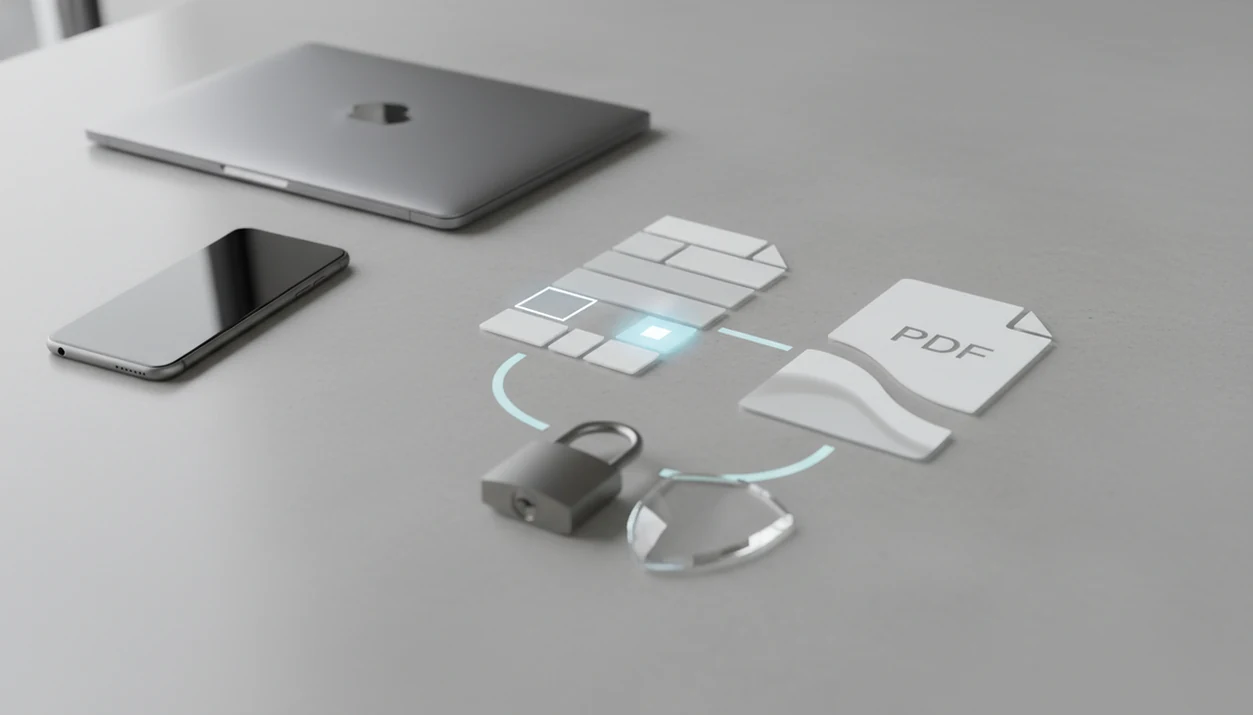
A secure DOCX to PDF converter is secure enough only when its privacy policy, upload method, retention rules, app permissions, and encryption match the sensitivity of your file. For private contracts, medical forms, IDs, or financial documents, prefer on-device conversion when possible and treat cloud upload tools as higher-risk unless their policies are explicit.
> Definition: A Word to PDF app converts DOCX and Word documents into PDF files on iPhone, Android, or the web. For private files, the safest option depends on whether conversion happens on the device, how files are transmitted, and how long any uploaded documents are retained.
TL;DR
- Check whether the converter uploads your DOCX file or processes it on your device.
- Look for clear HTTPS/TLS, retention, deletion, privacy, and AI-training statements before using any secure word converter.
- For private DOCX to PDF workflows, your phone security, file metadata, and sharing method matter as much as the converter.
Secure DOCX to PDF converter definition for private files
A secure DOCX to PDF converter is not secure in every situation; it is secure enough only for a specific file, risk level, and sharing need. A school worksheet and a signed medical intake form should not be treated the same.
For private DOCX to PDF conversion, security means five practical things: confidentiality, file integrity, encryption in transit, clear retention rules, and no unnecessary upload requirement. The exported PDF should match the Word file, but matching layout is not the same as privacy. We still open the PDF in a preview pane before sending, especially when a page break moves near a signature line.
PDF conversion also does not erase risk. A PDF can still contain names, comments, metadata, hidden text, or sensitive attachments if the original DOCX was not reviewed first.
Scope and safety disclaimer for private DOCX files
This guide is general privacy and file-handling guidance for choosing a DOCX to PDF conversion path. It is not legal, medical, tax, compliance, or workplace advice, and it should not replace rules from your employer, school, court, healthcare provider, accountant, or regulator.
If your document is governed by a formal policy, the safest converter is usually the one already approved for that environment. A public web tool may be fine for a low-risk flyer, but it may be the wrong choice for patient records, client contracts, payroll files, or identity documents.
Use this quick scope check before converting:
- Identify what the file contains, including names, account numbers, signatures, health details, or confidential business terms.
- Check whether an organization, provider, client, or law already requires a specific export or storage workflow.
- Choose on-device or approved first-party conversion for regulated, private, or identity-heavy files.
- Avoid uploading sensitive DOCX files to tools with unclear retention, reuse, or deletion terms.
- Review the exported PDF and delete extra copies when the sharing task is finished.
Document sensitivity decides the safest path, not the DOCX extension alone.
Five secure word converter facts to check first
- HTTPS/TLS protects the transfer, not the whole file lifecycle. It helps protect your DOCX while it moves to a server, but it does not answer whether the service stores, scans, logs, or reuses it.
- On-device conversion is usually safer for regulated or highly sensitive files. If a tax form, health record, legal draft, or ID document never leaves your phone, there are fewer systems that can expose it. For details, the upload tradeoff is covered in is it safe to upload Word to PDF.
- Retention and deletion policies should be visible before upload. “Deleted after conversion” is clearer than “handled securely.” Timing matters.
- Mobile permissions should fit the job. A converter may need file access. It should not need contacts, precise location, or microphone access to export a DOCX file.
- Device security still matters after conversion. A screen lock, encrypted storage, careful sharing, and optional PDF password protection reduce risk once the file exists.
DOCX to PDF workflow risks in cloud and on-device tools
How a secure DOCX to PDF converter works depends on where the conversion happens. A cloud tool usually receives your DOCX, processes it on a server, stores it briefly or longer, then returns an exported PDF. That path can be convenient, but it creates more places where the file may be logged, retained, or handled by third-party processors.
An on-device converter can use local storage, operating-system sandboxing, and encrypted device storage. In plain terms, the file stays inside your phone’s protected app area unless you share or upload it. That is why users with confidential drafts often look for ways to convert Word to PDF without uploading.
Privacy is separate from layout quality. A tool can preserve fonts and still have weak retention terms. Another tool can be private but shift a page break. We compare the Word file and PDF side by side when totals, names, or signature blocks matter.
Private DOCX to PDF risk table by document type
The right converter choice should match the document, not just the file extension. Low-risk files may be acceptable in reputable cloud tools with clear policies. Medical, legal, financial, and identity files deserve stricter handling.
| File type | Risk level | Safer converter choice | Extra check |
|---|---|---|---|
| School worksheet | Low | Reputable cloud or on-device tool | Confirm the PDF opens correctly |
| Resume or CV | Medium | On-device or trusted cloud tool | Remove old comments and author metadata |
| Business contract | High | On-device or first-party office tool | Check retention, processors, and final layout |
| Tax form | Very high | On-device or first-party tool | Avoid public upload tools |
| Health record | Very high | On-device or approved first-party workflow | Follow provider or workplace rules |
| ID document | Very high | On-device only where possible | Delete extra copies after sending |
A recruiter asking for “PDF only” at the last minute is common. A passport scan attached to the same workflow is a different risk.
Secure word converter privacy policy checks
Does this secure word converter use my documents for advertising, analytics, AI training, or product improvement? That question belongs near the top of your check, before any upload button.
Look for plain answers about retention period, deletion timing, server location, subprocessors, and whether file contents are reviewed by automated systems. Vague lines such as “we protect your data” are not enough for contracts, health forms, or finance records. A better policy says what is collected, why it is collected, how long files remain, and how users can request deletion.
Public concern is not abstract here: a 2022 Pew Research Center survey reported that 81% of U.S. adults said the risks of companies collecting their data outweigh the benefits (https://www.pewresearch.org/internet/2023/10/18/how-americans-view-data-privacy/). For iPhone-specific app labels and policy checks, our Word to PDF app privacy iPhone guide goes deeper.
Small text matters.
Mobile app checks for a private DOCX to PDF workflow
A private mobile workflow starts with the app listing, then continues inside the phone. Check these named areas before trusting a converter with private files.
- Permissions: File access may be normal. Contacts, precise location, broad photo access, microphone, or background tracking are harder to justify for a simple DOCX export.
- Developer record: Review the developer name, update history, support links, and recent user reviews. App privacy practices can change after updates.
- Phone protections: iPhone and Android both use screen locks, encrypted storage, and app sandboxing to limit exposure when configured well.
- Output handling: Save the exported PDF in a known folder, then open it before sharing. On Android, that often means checking the Downloads folder, not guessing where it went.
To use a private DOCX to PDF workflow: 1. Open the DOCX from Files, Google Drive, email, or Downloads. 2. Convert it with an on-device or policy-clear tool. 3. Review the exported PDF for layout, metadata, and missing pages. 4. Protect the file with a password if the recipient supports it. 5. Share only the final PDF, not both the DOCX and PDF.
Common secure DOCX to PDF converter myths
- Myth: Free and popular means secure. Popularity can show convenience, but it does not prove retention limits, safe storage, or careful subprocessors.
- Myth: HTTPS means the service cannot store or reuse documents. HTTPS protects the trip to the server. It does not control what happens after arrival.
- Myth: PDF conversion automatically makes files safe to share. A PDF can still reveal comments, author names, hidden text, and sensitive content.
- Myth: Every mobile app converts fully on device. Some apps send files to cloud servers while presenting a simple mobile interface.
- Myth: Security is only a software issue. Verizon’s 2023 Data Breach Investigations Report found that 74% of breaches involved the human element, including errors and social engineering.
A good word to pdf converter app that turns docx and word documents into shareable pdf files on iphone and android should deliver a reliable exported PDF, not a guarantee that every sensitive file is safe to upload anywhere.
Secure DOCX to PDF converter evidence from breach statistics
Breach statistics do not prove that a specific DOCX to PDF converter is unsafe. They do show why casual upload habits deserve more attention, especially when documents contain IDs, health details, contracts, or financial records.
IBM X-Force reported that 6.4 billion records were breached worldwide in the second half of 2023 (https://www.ibm.com/reports/threat-intelligence), with web-based applications and services remaining a major attack vector. IBM’s 2023 Cost of a Data Breach Report placed the global average breach cost at 4.45 million USD, up 15% over three years (https://www.ibm.com/reports/data-breach).
Those numbers are not a reason to panic before sending a resume. They are a reason to slow down before uploading a client contract from a hotel lobby or a tax form from public Wi-Fi. For lower-risk files, reputable cloud tools may be reasonable. For regulated or identity-heavy files, local conversion is usually the more cautious path.
When to use an approved professional workflow
Use an approved professional workflow when the document is governed by an employer, provider, court, bank, school, agency, or other formal process. In those cases, the safer choice is not the most convenient converter; it is the tool or portal the responsible organization expects you to use.
This matters most when a file contains client terms, protected health information, identity documents, tax details, or legal drafts. A public converter may handle a simple flyer well, but it can be the wrong place for a signed contract, insurance form, passport scan, or pleading draft that is still confidential.
- Check the sender’s instructions before converting, especially for court filings, bank forms, school records, and agency paperwork.
- Use employer-approved tools for client contracts, internal reports, and confidential business files.
- Follow healthcare provider or patient portal steps for medical forms, test results, and health records.
- Avoid public upload converters for IDs, tax forms, protected health information, and unfinished legal work.
- Ask the organization for a permitted PDF workflow if the instructions are unclear.
When in doubt, pause before upload. The deadline may be real, but so is the risk of sending the file through an unapproved path.
Limitations
No converter can guarantee 100% security. A careful tool choice reduces exposure, but it does not remove every file-handling risk.
- A compromised, unlocked, or shared phone can expose DOCX and PDF files regardless of the converter.
- Cloud converters may be unsuitable for regulated health, finance, legal, or identity documents.
- Some tools advertise encryption without documenting retention, logging, server location, or document reuse.
- Conversion may preserve metadata, author names, comments, hidden text, or tracked changes.
- Privacy policies and app behavior can change after updates, so one check is not permanent.
- A password-protected PDF may still be mishandled if the password is sent in the same email thread.
- Formatting preservation and privacy are separate checks; a clean-looking PDF can still contain sensitive data.
- Workplace, school, court, or healthcare rules may require approved tools, not a general converter.
Microsoft Word, Adobe Acrobat, built-in mobile export tools, and reputable web converters should still be judged against the file in front of you. The tiny paperclip in Gmail is the last checkpoint, not the first.
FAQ
Is DOCX to PDF conversion secure for private files?
DOCX to PDF conversion is secure only when encryption, upload handling, retention, permissions, and file sensitivity line up. Private files should use on-device conversion where possible.
Are online DOCX to PDF converters safe to use?
Online converters can be acceptable for low-risk files, but they require uploading your DOCX to a third-party server. Read the privacy and deletion terms first.
Is on-device DOCX to PDF conversion safer than uploading online?
On-device conversion usually reduces exposure because the DOCX does not need to leave your phone or computer. This is better for private, regulated, or identity-heavy documents.
Does HTTPS protect my DOCX document during conversion?
HTTPS protects the file during transfer to the service. It does not prevent storage, scanning, logging, or reuse after upload.
Can a DOCX to PDF converter read my document contents?
A server-side converter technically receives the document contents to process the file. Policy transparency matters because it explains retention, reuse, and processor access.
Should I password-protect a PDF after converting from DOCX?
Password protection can help when the PDF contains private information and the recipient can open encrypted files. Send the password through a separate channel.
Can DOCX to PDF conversion expose metadata or tracked changes?
Yes, comments, tracked changes, author names, hidden text, and other metadata may remain unless reviewed before or after conversion. Check the DOCX and exported PDF before sharing.
Which app permissions are suspicious for a DOCX to PDF converter?
Suspicious permissions include contacts, precise location, microphone, camera, or broad photo access when the app only needs to convert files. Any DOCX to PDF converter should be checked against that same standard.