
Word to PDF Conversion Timeline: From DOCX File to Shareable PDF
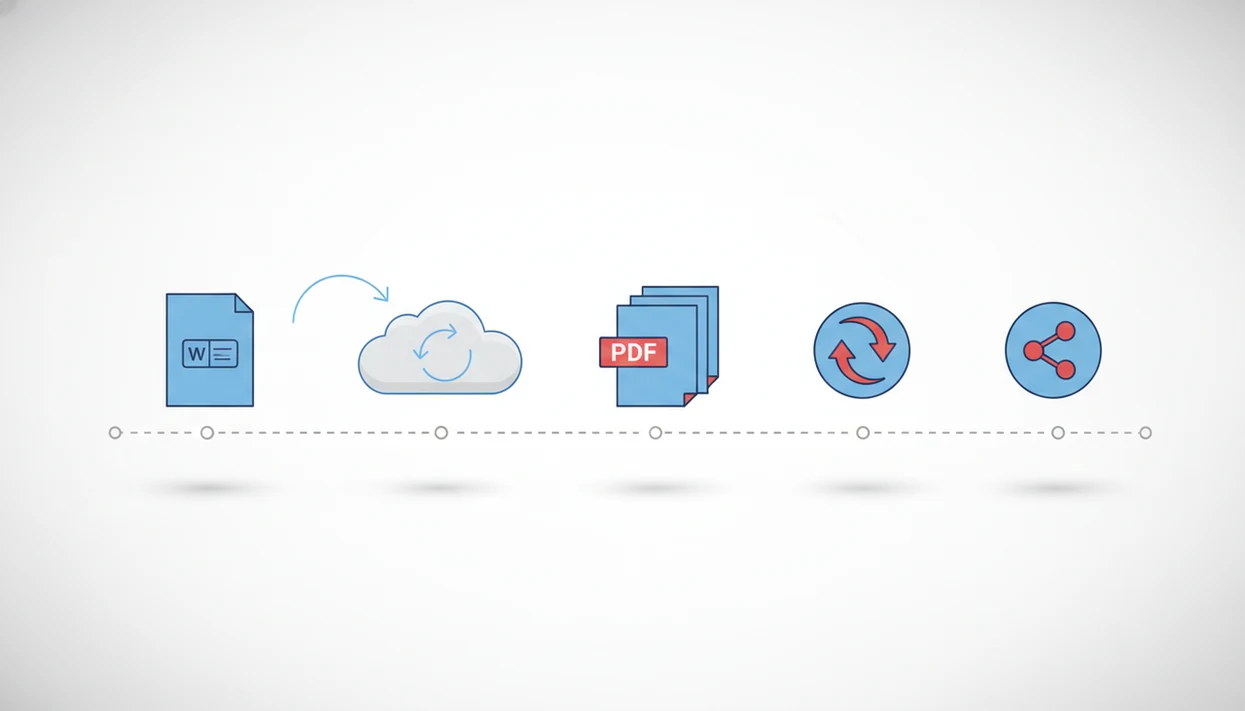
A Word to PDF conversion timeline usually runs from selecting the DOCX, exporting or uploading it, processing the file, checking the finished PDF, compressing if needed, and sharing it. Simple text documents can convert in seconds, while long files with images, tables, or complex formatting can take minutes.
Definition: A Word to PDF conversion timeline is the ordered sequence of steps and waiting periods between choosing a Word document and delivering a ready-to-share PDF.
TL;DR
- The main docx to pdf steps are file selection, export or upload, conversion, review, optional compression, and sharing.
- Most simple DOCX files convert quickly, but images, long page counts, poor internet, or formatting issues can extend the conversion process timeline.
- On iPhone and Android, a dedicated Word to PDF app can reduce hands-on time by keeping the workflow focused on selecting, converting, checking, and sharing the PDF.
Word to PDF conversion timeline at a glance
The typical timeline is: choose the DOCX, export or upload it, wait for conversion, open the PDF, check the layout, compress if needed, then share or save it. A plain one-page letter may finish almost instantly. A 40-page proposal with images and tables may need more time.
On mobile, the timeline matters because the file may start in the Files app, Gmail, Google Drive, Word, or a chat thread. That extra handoff is often where delays begin. According to Pew Research Center, 89% of U.S. adults used a smartphone and 53% used a tablet in 2023 (https://www.pewresearch.org/internet/fact-sheet/mobile/), so phone-based document work is no longer rare.
For mobile users, local files usually start faster than cloud files because there is no download step before conversion.
Word-to-PDF conversion process timeline mechanics
A Word document becomes a PDF when the converter reads the DOCX structure and renders it into fixed pages with stable text, images, margins, and layout. In plain terms, the file changes from an editable document into a page-by-page output meant for viewing, printing, or sharing.
Local conversion happens on the device or inside the app handling the file. Cloud conversion sends the DOCX to a server, then returns the exported PDF. Cloud tools add upload, queue, processing, and download time. That matters at an airport gate or checkout counter, where the network may be uneven.
During conversion, the tool interprets fonts, images, tables, headers, footers, hyperlinks, and page breaks. If a font is missing, substitution can shift spacing. If a table is wide, it may wrap differently. The deeper file behavior is covered in what happens when you convert Word to PDF.
A good word to pdf converter app that turns docx and word documents into shareable pdf files on iphone and android should deliver a reliable exported PDF, not a bundle of unrelated editing tools.
How to Use a Word to PDF Conversion Timeline
Use a Word to PDF conversion timeline as a quick checklist before you send the file. The goal is to reduce surprises: wrong draft, bad layout, broken links, or an oversized attachment.
- Find the final DOCX first, whether it is in Files, Android Downloads, Word, email, Google Drive, or a chat thread. Check the filename and modified date so you do not convert an older draft.
- Choose local app conversion when privacy matters or the file is already on your phone. Choose cloud conversion only when the connection is stable and you are comfortable uploading the document.
- Convert the Word file, then open the finished PDF before attaching, uploading, or forwarding it. Do not treat the export confirmation as the final quality check.
- Review the PDF page by page for page breaks, fonts, hyperlinks, tables, images, headers, footers, and signature lines. These are the places where small formatting shifts are easiest to miss.
- Compress the PDF only if an email limit, upload portal, chat app, or storage limit makes the file too large. After compression, open the PDF again to confirm the text is still clear.
DOCX-to-PDF requirements before conversion starts
Before conversion starts, confirm the file, connection, storage, version, and privacy risk. These checks take less time than fixing a bad PDF after it has already been sent.
- File type: The source should be a DOCX or Word-compatible file, not a screenshot or unrelated attachment.
- Connection: Cloud converters need stable internet for upload and download, especially on mobile data.
- Storage: iPhone and Android need enough free space for the exported PDF and any temporary file.
- Latest version: Save the final Word document before conversion, especially after edits in Word or Google Drive.
- Privacy: Avoid uploading sensitive contracts, school records, or client documents to unknown free converters.
The tiny detail that saves time: check the modified date before tapping convert. The wrong draft creates rework later.
Mobile Word-to-PDF conversion timeline on iPhone and Android
Use this mobile conversion process timeline when you need a dependable PDF from a phone, not a desktop workaround.
- Select the DOCX from Files, Android Downloads, Word, email, Google Drive, or a chat attachment.
- Convert the document using Word’s export option, a share sheet action, or a dedicated converter.
- Review the exported PDF in preview before attaching it, paying attention to page breaks and links.
- Compress the PDF only if email limits, chat upload limits, or storage make the file too large.
- Share the finished PDF by email, message, cloud link, upload form, or saved file copy.
For many iPhone and Android users, a focused app flow is faster than hunting through menus because each screen supports one job. Tools like WordPDF, Adobe Acrobat online, and Smallpdf can fit this stage, depending on whether you prefer an app or browser workflow.
Step 1: Select the Word file for DOCX to PDF conversion
Where does the DOCX file come from? It may come from the iPhone Files app, Android Downloads, an email attachment, a cloud drive, a chat attachment, or Microsoft Word itself.
File choice is the first real timeline risk. A Word attachment buried three replies deep in an email thread may not be the final version. A cloud link may open an older copy if edits were not synced. We have seen the delay happen right before a deadline upload, when the filename still says “resumedraft2.”
Local files usually start faster because the converter can read them immediately. Cloud files may need to download first. Rename or mark the final version before converting, such as “ProposalFinal2026.docx,” then compare it with the saved PDF name.
For a broader mobile setup, the DOCX to PDF guide for mobile explains common file-source paths.
Step 2: Export or upload the DOCX in the conversion process timeline
The export or upload stage is where the DOCX is handed to the tool that creates the PDF. Desktop Word commonly uses File → Save As → PDF, but mobile workflows often use Share, Export, Print, or Open In.
| Flow | What happens | Timeline effect |
|---|---|---|
| Word Share/Export | Word creates or sends the PDF from the open document. | Often direct, but menu location varies by app version. |
| Dedicated converter app | You select the DOCX, then the app converts and saves the PDF. | Less menu searching, especially for repeated mobile jobs. |
| Cloud web converter | The DOCX uploads, converts on a server, then downloads. | Adds network time and possible queue time. |
| Batch/background flow | Multiple files convert after selection or in a watched folder. | Reduces hands-on time, even if total processing continues. |
Background or batch workflows help when several files need the same output. The wait still exists. You just don’t have to babysit every file.
Step 3: Wait while the converter processes the file
Processing time is the waiting period after the DOCX has been submitted and before the finished PDF appears. It is not the same as hands-on time; you may wait 90 seconds but only spend 10 seconds tapping.
- Text-only DOCX files are usually fastest because the converter has fewer layout objects to render.
- Images and long page counts increase processing because every page must be drawn into fixed PDF output.
- Tables, embedded objects, and custom fonts can slow conversion or trigger layout substitution.
- Weak networks and server queues affect cloud converters even when the document itself is simple.
- Large DOCX volume is normal: Microsoft said in 2024 that Microsoft 365 and Office apps had more than 1 billion users worldwide (https://www.microsoft.com/en-us/investor/reports/ar24/index.html).
The final PDF should be judged by output, not just speed. If you are comparing tools, does Word to PDF conversion work is a useful question to ask before relying on any workflow.
Step 4: Check the PDF for formatting before sharing
After conversion finishes, open the PDF and check page breaks, fonts, images, tables, headers, footers, and hyperlinks. This review step prevents sending a flawed file that looks finished but reads wrong.
We usually open the converted PDF in the iPhone Files preview before sending it. On Android, opening the PDF from Downloads catches many obvious issues. The practical check is simple: compare the Word file and PDF side by side if the document has page numbers, section headings, or a signature line.
Small shifts matter. A quote line item that wraps to the next page can make an estimate look sloppy. Poor converters can also break hyperlinks or change spacing, which adds another conversion round instead of saving time.
Step 5: Compress and share the finished Word to PDF file
Compression is useful when the exported PDF is too large for email limits, chat apps, mobile storage, or a slow upload form. It should reduce file size without making text fuzzy or images unusable.
For resumes, invoices, proposals, and class submissions, review the compressed PDF before sharing. A recruiter asking for “PDF only” at the last minute does not want a blurry resume. We check the thumbnail preview of the first PDF page, then open the saved copy beside the original Word file when the file is important.
You can share by email, messaging app, cloud link, upload portal, or saving to Files or Android Downloads. Pew found in 2023 that 78% of employed U.S. adults said technology is essential for doing their jobs, which fits the need for cleaner document handoffs.
The benefits of converting Word to PDF usually show up at this stage, when the file is easier to send and harder to accidentally edit.
Common DOCX-to-PDF timeline mistakes that slow conversion
Most timeline delays come from preventable choices before or after conversion, not from the conversion engine alone. These are the mistakes we see most often in mobile Word to PDF workflows.
- Wrong draft: Converting “final-final-old.docx” creates a second round of editing, export, and sharing.
- Unstable connection: Cloud conversion over weak Wi-Fi can stall during upload or download.
- Missing layout check: Fonts, spacing, tables, and page breaks can shift without warning.
- Unknown free site: Sensitive files should not be uploaded to a converter you do not trust.
- Skipped preview: Sending without opening the PDF is how broken links and blank pages reach someone else.
If speed matters, shorten the loop: final DOCX, known converter, quick preview, then send.
Limitations
A Word to PDF conversion timeline is predictable only when the file, device, converter, and network behave normally. Some delays are outside the user’s control.
- Poor internet can slow both upload and download stages in cloud-based conversion.
- Very large DOCX files can take much longer, especially with many images or embedded media.
- Complex Word layouts may not preserve perfectly when rendered into fixed PDF pages.
- Macros, embedded objects, tracked changes, forms, or interactive content may not translate into a static PDF.
- Mobile storage limits can interrupt saving, especially if the phone is already near capacity.
- Background-app restrictions on iPhone or Android may pause uploads or processing when you switch apps.
- Free web converters can raise privacy, confidentiality, or compliance concerns for sensitive documents.
- Compression can reduce image quality if the settings are too aggressive.
Apps such as WordPDF can simplify the mobile path, but they cannot fix every source-file or network problem.
FAQ
How long does DOCX-to-PDF conversion take?
Simple DOCX-to-PDF conversion often takes seconds. Long DOCX files with images, tables, custom fonts, or weak internet can take minutes.
Why is my Word to PDF conversion slow?
Slow conversion is usually caused by large file size, heavy images, complex layout, unstable internet, or a cloud server queue. Try a stable connection and confirm the DOCX is not unusually large.
Can iPhone and Android phones convert DOCX files to PDF?
Yes, iPhone and Android phones can convert DOCX files to PDF through Word, share/export options, cloud tools, or apps such as WordPDF. The exact steps depend on where the file is stored.
Does Word to PDF formatting always stay the same?
No, formatting does not always stay identical. Fonts, spacing, tables, images, headers, footers, and hyperlinks should be checked after conversion.
Is online Word to PDF conversion faster than using an app?
Online conversion can be fast, but it adds upload and download stages. An app may feel faster for local files because the file does not always need a browser upload.
Should I compress the PDF after converting from Word?
Compress the PDF if it is too large for email, messaging, upload portals, or phone storage. Do not compress so much that text becomes hard to read or images become unusable.
What causes missing fonts after DOCX to PDF conversion?
Missing fonts usually happen when the converter or device does not have access to the font used in the Word document. The converter may substitute another font, which can shift spacing.
Can I batch convert multiple DOCX files to PDF?
Yes, some tools and apps such as WordPDF support batch or repeated conversion workflows. Batch conversion can reduce hands-on time even when total processing time still varies.