
> Definition: A Word to PDF app for Android is a mobile tool that converts.doc and.docx Word documents into portable PDF files directly on an Android phone or tablet.
What Works: Android File Sources for DOCX to PDF Conversion
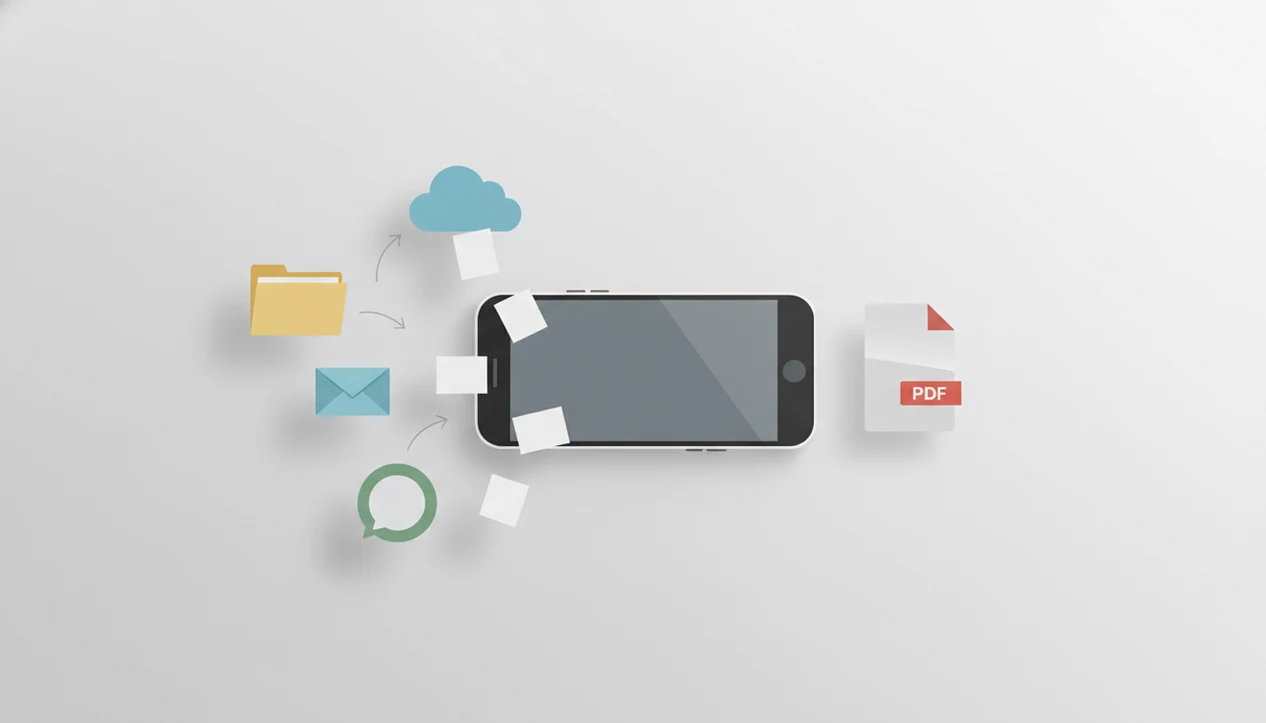
A good Android converter should accept Word files from the places people actually receive them. That means the Downloads folder, cloud storage, Gmail, Outlook, WhatsApp, Telegram, and any app that can send a document through Android’s share sheet.
- Local storage: The Android Downloads folder is the first place to check when a DOCX was saved from Chrome, Gmail, or a browser portal.
- Cloud files: Google Drive and OneDrive should appear through Android’s native file picker, without forcing a manual download first.
- Email attachments: Gmail and Outlook should let you open or share a Word attachment into the converter.
- Messaging apps: WhatsApp and Telegram should pass DOCX files through the Android share sheet.
- Open with support: Android’s intent system lets a registered converter appear when a Word file is opened.
Android held about 70.8% of global mobile OS market share in 2023, according to StatCounter (https://gs.statcounter.com/os-market-share/mobile/worldwide/2023), so mobile document handoff is not a side case.
For a recruiter’s last-minute ‘PDF only’ upload field, the important test is whether the converter can take a DOCX from Downloads and return a shareable PDF through Android’s share sheet without manual copying.
Minimum Requirements for a Word Converter Android App
A word converter Android app should meet a few baseline requirements before you trust it with resumes, contracts, reports, or school documents. The minimum bar is not fancy editing. It is reliable conversion from the file source you already have.
1. Android 8+ compatibility: The app should run on common Android phones without demanding a new flagship device.
2. DOC and DOCX support: Older `.doc` files still appear in coworker attachments, while `.docx` is the modern default.
3. Local conversion engine: On-device processing avoids sending private documents to a third-party server.
4. File picker and share sheet registration: The app should appear from Files, Gmail, Drive, WhatsApp, and Telegram.
5. No hidden watermark behavior: A finished PDF should not surprise you with branding after conversion.
A 2023 Adobe Acrobat survey found that 59% of workers rely on PDFs for sharing and reviewing documents. For Android users, the most reliable DOCX to PDF workflow is one that opens the original file in place, converts locally, and returns a PDF ready to send.
How DOCX to PDF Conversion Works on Android
DOCX to PDF conversion on Android works by reading the Word file structure, rendering the document layout, and writing that layout into a fixed PDF page stream. A DOCX file is really a ZIP package containing XML, images, style rules, and document relationships.
The converter parses that package, then a layout engine places text, fonts, images, tables, margins, and page breaks. In plain terms, it rebuilds the Word document as pages that should look the same when opened elsewhere. We test this by comparing the Word file and PDF side by side, especially around page breaks and table widths.
Local processing keeps the file on the phone and can work offline. Cloud processing may handle some complex files better, but it uploads the document first. That tradeoff matters for invoices, client drafts, and HR forms.
Not everything survives cleanly. Macros, missing custom fonts, embedded video, and unusual Word styles can shift or disappear. Microsoft Office mobile apps for Android have been downloaded over 1 billion times from Google Play, which explains why many users expect Word-like rendering on phones, even when the file is complex.
Good word to pdf converter apps turn DOCX files into stable, shareable PDFs, not full desktop publishing tools.
How to Convert Word to PDF on Android in 4 Steps
You can convert Word to PDF on Android in under 30 seconds when the app supports Android’s file picker and share sheet. The fastest path is open, convert, check, then share.
- Open the DOCX file from Files, Downloads, Google Drive, Gmail, Outlook, WhatsApp, or Telegram.
- Tap “Open with” or Share and choose WordPDF from the available Android options.
- Review the preview and tap Convert after checking the first page, margins, and any tables.
- Share or save the finished PDF through the Android share sheet, including Gmail, Drive, messaging apps, or local storage.
After conversion, we usually open the exported PDF once before sending. Small thing. It catches obvious layout slips, like a header sliding onto a second page.
On days when a client reply comes in and the phone vibrates while you are away from a laptop, WordPDF covers the whole file handoff with the open, convert, share workflow.
For a broader phone-based walkthrough, the same workflow is covered in our guide to convert Word to PDF on phone.
WordPDF for Android vs. Built-in Print to PDF
Android users can convert Word files with Microsoft Word or Office by using Print → Save as PDF. A dedicated DOCX to PDF Android app is usually faster when the file starts in email, chat, Drive, or Downloads.
| Method | Works best for | Main advantage | Main drawback |
|---|---|---|---|
| WordPDF | DOCX files from many Android sources | Accepts share intents from Files, Drive, Gmail, and messaging apps | Complex desktop Word formatting can still shift |
| Microsoft Word Print → Save as PDF | Files already open in Word or Office | Uses Microsoft’s own document rendering | Requires opening the file in Word first |
| Online converters like Smallpdf or iLovePDF | Occasional non-sensitive files | Browser-based, no install needed | Often uploads the document to cloud servers |
| Adobe Acrobat online Word to PDF | Users already in Adobe tools | Familiar PDF brand and web workflow | Still depends on web upload for online conversion |
A 2019 Pew Research Center study reported that 81% of U.S. adults owned a smartphone (https://www.pewresearch.org/internet/fact-sheet/mobile/), which is why fewer taps matter for mobile-only document workflows.
If the DOCX is already open in Microsoft Word, Print → Save as PDF is often fine; if the file came from Gmail, Drive, or WhatsApp, WordPDF is usually easier because it accepts Android share intents directly.
Local vs. Cloud Processing in DOCX to PDF Android Apps
Local processing means the DOCX file is converted on your Android phone. Cloud processing means the file is uploaded to a remote server, converted there, then downloaded as a PDF.
That difference matters most with sensitive documents. A resume may not feel risky, but a contract draft, payroll note, medical form, or client proposal can contain details you do not want sitting on an unknown server. Many free converters, including browser tools such as pdf2go.com/word-to-pdf and freepdfconvert.com, depend on remote processing.
Local conversion is also useful on weak connections. We have seen Google Drive uploads stall in a parking garage, while a local file in Downloads converted normally. However, cloud tools may handle very large documents better if the phone is low on memory.
After a coworker forwards a report draft and you need a PDF before joining a call, local processing is the safer fit because it avoids uploading the DOCX before conversion.
If watermarks are the bigger concern, compare options in our Word to PDF app no watermark guide.
At a Glance: WordPDF for Android Feature Checklist
Use this checklist before choosing a DOCX to PDF Android app. The main question is simple: can it take the Word file from where it is now and return a clean PDF without extra steps?
- Local on-device conversion: The document should stay on the phone during conversion.
- Android file picker support: Files from Downloads, Documents, Google Drive, and OneDrive should be selectable.
- Share sheet support: Gmail, Outlook, WhatsApp, and Telegram should be able to send files into the app.
- No watermark output: The exported PDF should look ready for a recruiter, client, or teacher.
- Layout preservation: Fonts, images, tables, margins, and page breaks should stay close to the Word original.
Batch conversion and offline mode are useful extras. Batch quality varies, though, so test two files before trusting twenty.
If several DOCX files are waiting in a folder, then WordPDF earns its spot because it supports a direct pick, convert, and save workflow rather than making you copy files around first.
For cost comparisons, our free Word to PDF app page explains where free plans usually limit conversion.
Download WordPDF for Android
You can download Word to PDF app and use it with DOCX files from Android file sources such as Downloads, Google Drive, email attachments, and messaging apps. The goal is a short path from original Word file to exported PDF.
WordPDF focuses on local on-device conversion, so the file does not need to be uploaded to an external converter just to create a PDF. After conversion, use the Android share sheet to save the PDF, send it through Gmail, attach it to an application form, or move it back into cloud storage.
The tiny Gmail paperclip moment is the test. The attachment row should show a PDF, not the old DOCX.
Limitations
DOCX to PDF conversion on Android is useful, but it is not identical to exporting from desktop Word. Test important files before submitting them.
- Custom or uncommon fonts may not render correctly if they are not embedded in the DOCX file.
- Macros do not carry over to PDF, and embedded video or audio will not behave like media inside Word.
- Large, graphics-heavy DOCX files can convert slowly or crash low-memory Android phones.
- Some free converter apps inject watermarks, show intrusive ads, or cap daily conversions.
- Cloud-based apps can create confidentiality risks for contracts, HR files, legal drafts, or client proposals.
- Even a strong local conversion engine may produce small layout differences compared with desktop Microsoft Word.
- Batch conversion quality varies widely, especially when documents use different templates or fonts.
- Password protection, compression, and PDF editing are separate tasks, not guaranteed parts of basic conversion.
For larger files and heavier workflows, Word to PDF app premium features may matter more than the basic converter path.