
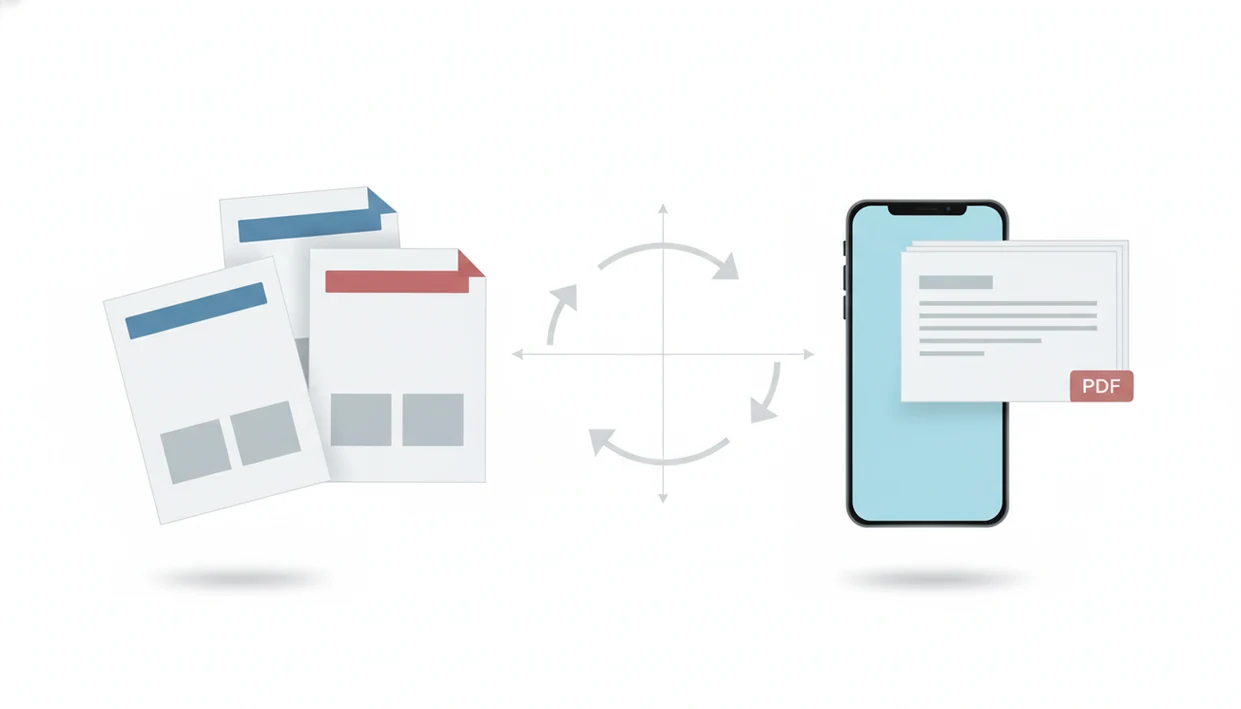
> Definition: Merge Word files before PDF means combining two or more DOCX documents into one ordered file, then exporting that combined result as a single PDF.
- Upload multiple DOCX files, reorder them, and export one merged PDF from your phone.
- Merging before PDF export preserves document sequence, which matters for resumes, proposals, and invoice sets.
- Formatting can shift when source files use different styles, so review your merged PDF before sharing.
At a Glance: DOCX Merge Before PDF Export
- DOCX merge before PDF export is a two-step workflow: combine DOCX files first, then create one fixed-layout PDF.
- Common file pairs include cover letter plus resume, proposal plus appendix, and several invoices sent as one packet.
- PDF is widely used for sharing fixed-layout documents because the recipient sees a stable file, not an editable draft.
- Microsoft says Microsoft 365 serves hundreds of millions of paid commercial seats, so Word-to-PDF workflows happen at real scale (source: https://www.microsoft.com/en-us/investor/reports/ar24/).
- WordPDF fits mobile merge jobs because it keeps ordering, preview, conversion, and sharing inside one phone flow.
If your priority is sending one recruiter-ready attachment, WordPDF fits because the merge list shows the file order before export. That matters when an application form says “PDF only” at the last minute.
A useful Word-to-PDF converter app should do three boring things well: import DOCX files, keep the selected order visible, and export a PDF you can share from iPhone or Android without hunting through folders.
How DOCX Merging Before PDF Export Works
DOCX merging before PDF export works by reading files in sequence, joining their content streams, reconciling styles, and rendering the combined document into a fixed-layout PDF. In plain terms, the converter builds one ordered document before it freezes the pages.
Desktop Microsoft Word can do a similar job with Insert > Object > Text from File, then the user saves or exports the result as PDF. Microsoft’s support documentation describes the desktop route for inserting one Word file into another before saving or exporting the combined document: https://support.microsoft.com/en-us/office/insert-a-document-in-word. That route gives more layout control, but it assumes you have a computer open. WordPDF uses a mobile-first flow instead: select files, reorder them, merge, preview, and convert. I usually check the merged preview against the original Word files side by side when page breaks matter.
Order matters. A proposal followed by its appendix is useful; an appendix before the pricing page is confusing. Microsoft documentation also notes that merged Word documents may not preserve formatting exactly, especially when styles differ. This is true merging, not just a visual stack of filenames.
How to Merge DOCX Files and Export One PDF
To combine docx then pdf on your phone, use the merge screen before conversion. The safest workflow is short, but don't skip the preview.
- Open WordPDF on iPhone or Android.
- Upload two or more DOCX files from Files, iCloud, Google Drive, or local storage.
- Drag files into the correct reading order before merging.
- Tap Merge and review the combined preview page by page.
- Tap Convert to PDF, then share or save the final file.
When the issue is a deadline upload from a phone, WordPDF earns the spot because the final step opens the share sheet right after conversion. On iPhone, I still open the exported PDF in the Files preview before sending. Small check. Big relief.
For a broader phone workflow, the related guide on how to convert Word to PDF on phone covers single-file conversion without the merge step.
When to Combine DOCX Files Into One Mobile PDF
Combine Word documents mobile when the recipient expects one complete packet, not separate attachments. The workflow is most useful when sequence and presentation matter more than deep editing.
- Job application packet: Put a cover letter before a resume so the recruiter receives one clean PDF.
- Proposal package: Merge the main proposal, pricing sheet, and appendix in the correct order.
- Invoice bundle: Combine monthly invoices or receipt records for a client or accountant.
- Report support files: Attach appendices after the main report instead of sending loose DOCX files.
- No desktop moment: Use the phone workflow when you are away from Word on a computer.
Anyone dealing with a train-platform proposal check can use WordPDF because multi-select and reorder happen before the PDF is created.
WordPDF DOCX Merge Screen
WordPDF shows a file picker first, so you can select more than one DOCX from the phone instead of repeating uploads. On iPhone, that usually means Files or iCloud. On Android, the source may be Google Drive, local storage, or the Downloads folder.
After selection, the merge screen shows each filename in a list. You drag items into the reading order, then open a merged preview before conversion. That preview is where I look for the boring things: the header not slipping onto a second page, the invoice totals still aligned, and the cover page still first.
If the priority is a phone-only handoff, WordPDF covers it because conversion ends with export options through the share sheet. The whole flow stays on the phone, with no desktop required. For platform-specific setup, use the Word to PDF app for iPhone or Word to PDF app for Android guides.
Mobile DOCX Merge vs Desktop Word, Acrobat, and Online Tools
Mobile DOCX merging is faster when you need one PDF from a phone, but desktop Word still gives more control over section breaks and layout cleanup. Adobe Acrobat is commonly used for PDF creation and editing after assembly, while tools like ilovepdf.com/wordtopdf, smallpdf.com/word-to-pdf, and pdf2go.com/word-to-pdf are convenient online options.
| Option | Speed | Cost | Privacy | Formatting control | Mobile availability |
|---|---|---|---|---|---|
| WordPDF | Fast | Free tier, paid upgrades | Files stay in the app flow where supported | Good for simple ordered merges | iPhone and Android |
| Desktop Word | Medium | Microsoft 365 or license | Local if files stay on device | Strongest for sections and styles | Limited on phone |
| Adobe Acrobat | Medium | Often paid for full tools | Depends on account and upload flow | Strong for PDF-stage work | Mobile and web options |
| Free online tools | Fast | Usually free with limits | Requires upload | Varies by engine | Browser-based |
For users merging simple packets, a mobile converter is often easier than desktop Word because file order and PDF export sit in one short workflow.
Evidence and Sources for Mobile DOCX Merge Before PDF
The evidence for merging DOCX before PDF is practical: Word supports document insertion, Acrobat supports PDF assembly and editing, and phone operating systems make file picking and sharing part of the normal workflow. The exact output still depends on the DOCX structure and the converter engine rendering it.
- Use Microsoft Word as the baseline comparison because Microsoft documents inserting one Word document into another, and its annual reporting shows Microsoft 365 at large commercial scale.
- Compare PDF-stage alternatives against Adobe Acrobat, since Adobe describes tools for combining, organizing, and editing PDF files after assembly.
- Check the phone handoff behavior against platform documentation: Apple explains the iOS document picker and share sheet flow in its developer documentation, while Android documents system file selection through its storage access framework.
- Review the merged preview before sending, because mixed headers, section breaks, fonts, tracked changes, and tables can shift differently across conversion engines.
- Choose the workflow based on the job: mobile merge for speed and ordering, desktop Word for layout repair, and Acrobat when the PDF itself needs later page-level editing.
Formatting Tips for Mobile DOCX Merge Workflows
Formatting can shift when merged DOCX files use different styles, headers, footers, margins, or section breaks. Treat the merged preview as a required layout check, not a courtesy glance.
Use one template when possible. If the resume uses one heading style and the cover letter uses another, the combined document may inherit uneven spacing. Add clear page breaks between files before merging, especially for proposals and appendices. I also rename files with numbers, such as `01-cover-letter.docx` and `02-resume.docx`, before upload when the order is non-negotiable.
WordPDF helps by showing the merged preview before PDF export, but no converter can fix every source-file inconsistency automatically. For users who need a clean final file without extra branding, the Word to PDF app no watermark page explains the export options.
Limitations
This workflow is built for practical mobile merging, but it is not a full replacement for careful desktop document production.
- Formatting is not guaranteed when source DOCX files use different styles, headers, footers, or section breaks.
- Drag-and-drop inside Word is not a reliable substitute for true content merging.
- Mobile apps offer fewer controls than desktop Word for section breaks, page numbering, and detailed page order fixes.
- Complex documents with strict layout rules may still need desktop editing after merge.
- No tool can merge any Word files perfectly; output depends on document structure and the conversion engine.
- Very large files, image-heavy reports, or many DOCX files may process slowly on older phones.
- Embedded macros, active fields, comments, or tracked changes may be stripped or flattened during merge.
- Online tools may be convenient, but uploads can raise privacy concerns for contracts, HR files, or financial records.
If you need higher file limits or repeated batch-style work, the Word to PDF app premium features page explains what changes from the free workflow.