
Preserve Hyperlinks Word to PDF for Clickable Links
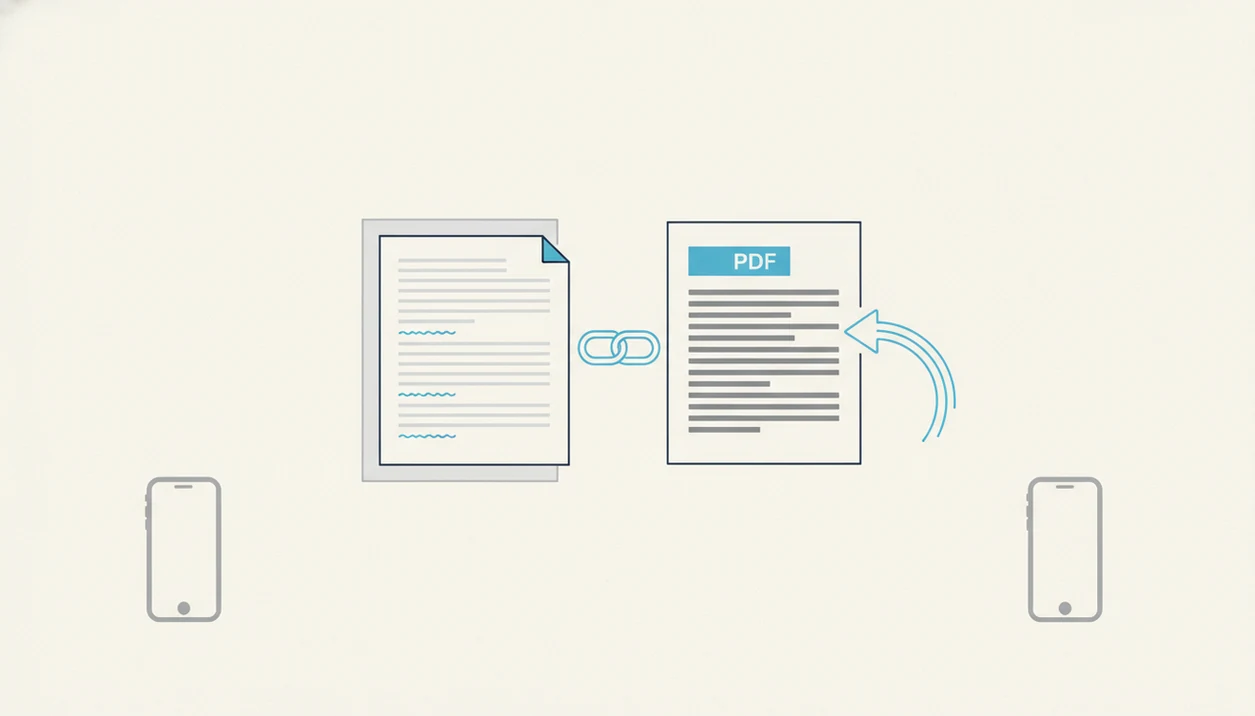
To preserve hyperlinks Word to PDF, use Word’s Save as PDF or Export to PDF option, or a converter that keeps document structure instead of printing, scanning, or screenshotting the file. Before sharing the PDF, open it and tap-test each website, email, and internal document link.
> Preserving hyperlinks from Word to PDF means keeping Word’s real link data active so URLs, email links, and document jumps remain clickable after conversion.
- Use Save as PDF, Export to PDF, or a reliable Word to PDF app; avoid print-to-PDF and image-based workflows when links matter.
- Make sure the original Word file uses real hyperlinks, not just blue underlined text.
- Always test the finished PDF in the viewer your recipient is likely to use, especially on iPhone or Android.
What preserve hyperlinks Word to PDF means
Preserving hyperlinks from Word to PDF means the PDF keeps clickable link annotations, not just text that looks like a link. A preserved link should open a website, start an email, jump to a heading, or move to a bookmark when tapped or clicked.
That includes web URLs, email links, table of contents jumps, bookmarks, and cross-references. In a resume, it might be a portfolio URL. In a proposal, it might be a pricing appendix. In a report, it might be a footnote or internal section jump.
Mobile sharing makes this easy to miss. A recruiter asking for “PDF only” in an application form at the last minute will not care that the link looked blue in Word.
WordPDF is a word to pdf app that converts DOCX and Word documents into PDF files on iPhone and Android while preserving layout, tables, and images.
At-a-glance rules to keep links in PDF files
Use these five rules before you convert. They catch most link failures before the PDF leaves your phone or laptop.
- Export beats print: Save as PDF or Export to PDF is safer than Print to PDF because export can carry document structure into the PDF. Microsoft’s own Word guidance separates saving/exporting to PDF from ordinary printing workflows, which is why export should be the first choice when document structure matters source.
- Images flatten links: Screenshots, scans, and image-based PDFs usually turn the page into static visual content.
- Style is not link data: Blue underlined text is not enough unless it is a real Word hyperlink.
- Apps vary: Converter apps handle DOCX structure differently, so test a sample before using one for client, school, or business documents.
- Tap before sending: Open the finished PDF and tap every critical link before attaching it.
The quick check is simple: if the PDF icon appears in a chat bubble, open it there too. That is often where the recipient will test it.
How Word to PDF clickable links work
Word stores hyperlinks as document metadata attached to text, images, bookmarks, headings, or references. In plain language, the visible words and the hidden destination are separate pieces of information.
A proper PDF export writes that link data into the PDF as link annotations. Those annotations define the clickable area and the action, such as opening `https://example.com` or jumping to page 6. That is why clickable PDF links depend on the conversion method, not only on how the page looks.
Printing, scanning, and screenshots can break this chain. They may render the document as a flat page image, where the link text remains visible but no clickable region exists.
Looks right. Still broken.
For layout-heavy files, link preservation should be checked alongside Word to PDF without losing formatting, because shifted text can make a link harder to tap accurately.
Requirements before converting Word to PDF clickable links
Does the Word file already contain real hyperlinks? Before conversion, right-click or tap each important link in Word and confirm it was inserted with Word’s link feature, not typed as blue underlined text.
Check the destination too. Website links should include the full address when needed, such as `https://`. Email links should behave like email links, often using `mailto:` behind the visible address. If the document uses a table of contents, bookmarks, headings, or cross-references, test those in Word before exporting.
Internal navigation is fussier than a normal web URL. A class notes draft saved as Word may have heading links that work in Word but fail after a weak mobile conversion.
Save a clean DOCX copy before experimenting. That gives you a safe original if one converter compresses, renames, or changes the file. For visual consistency, link checks often belong beside preserve fonts Word to PDF testing.
How to use Word export to keep links in PDF
Use export, not print, when links matter. For most Word documents, this is the most reliable workflow because it keeps real document structure available during conversion.
- Open the DOCX in Microsoft Word or a reliable Word to PDF app.
- Review each hyperlink in the Word file, including text links, image links, email addresses, and table of contents entries.
- Choose Save as PDF or Export to PDF instead of Print.
- Save the PDF locally before sharing, such as in Files on iPhone or Downloads on Android.
- Open the PDF and tap-test links on the target device or viewer.
For phone users, saving first matters. We often catch issues by opening the exported PDF in the iPhone Files preview before sending it through Gmail.
A good converter app that turns docx and word documents into shareable pdf files on iphone and android should preserve links and layout, not try to replace a full PDF editor.
iPhone and Android workflows for Word to PDF clickable links
Mobile workflows differ in how much document structure they keep. Productivity apps reached over 3.46 billion mobile productivity app users worldwide by 2021, according to Statista source, so these phone-based conversions are not edge cases.
| Mobile workflow | Link preservation | Best use | Watch for |
|---|---|---|---|
| Microsoft Word mobile export | High | Resumes, reports, proposals | Check internal links separately |
| Dedicated Word to PDF app | Medium to high | Fast DOCX to PDF conversion | Test one sample first |
| Browser-based converter | Mixed | Occasional files | Upload quality and connection stability |
| iOS Files print trick | Low to mixed | Simple visual PDFs | Links may flatten |
| Android Print to PDF | Low to mixed | Printing copies | Link data may be stripped |
| Scanner apps | Low | Paper documents | Usually image-based |
Tools like WordPDF, Adobe online tools, and Smallpdf can be useful, but the finished PDF still needs a tap test. If the proposal logo stays sharp on preview, that says nothing about whether the link on it survived.
Common myths about keeping links in PDF files
Several link problems come from choosing a conversion method based on how the PDF looks, rather than what data it contains.
- Myth 1: Any PDF creation method keeps hyperlinks. Print-to-PDF, screenshots, and scans may create a PDF without preserving clickable annotations.
- Myth 2: Blue underlined text automatically becomes clickable. Word must contain a real hyperlink behind the styled text.
- Myth 3: Every online converter preserves links equally. Some browser tools handle simple URLs well but drop bookmarks or cross-references.
- Myth 4: All mobile converter apps behave the same. Apps differ in how they read DOCX structure, images, headings, and link metadata.
- Myth 5: A non-clicking link always means conversion failed. Sometimes the link exists, but the PDF viewer blocks, ignores, or misreads it.
For business files, link checks should sit next to margin and header checks. The same final review that catches a shifted page break can catch a dead portfolio link.
Verification checklist for Word to PDF clickable links
Always test the exported PDF before sending it. A 2022 Pew Research Center survey found that 76% of U.S. adults use a smartphone to send or receive email, so many recipients will open your PDF attachment on a phone source.
- Open the PDF in a common viewer: Use a mobile PDF viewer, browser preview, Apple Files, Google Drive preview, or Adobe Acrobat.
- Test each link type separately: Tap website links, email links, image links, and table of contents links.
- Check the clickable area: Confirm the tap zone matches the visible text or image.
- Use the recipient’s likely device: If the client uses Android, test on Android when possible.
- Inspect layout near links: Crowded columns, compressed pages, and tight footers can make links harder to tap.
For proposals and invoices, we also compare the Word file and PDF side by side. Boring, but useful.
Troubleshooting Word to PDF hyperlinks not working
PDF hyperlinks not working usually means one of four things: the Word file had fake links, the file was printed instead of exported, the viewer is blocking the link, or the layout shifted the clickable area. Microsoft’s mobile Office app footprint is large enough that Android recipients may test the same DOCX in Word mobile before blaming the converter; Microsoft 365 is listed on Google Play with 1B+ downloads source.
Links visible but not clickable
If links are visible but not clickable, return to Word and reinsert them with the link tool. Then export again using Save as PDF or Export to PDF. Avoid scanner apps, screenshots, and print workflows for link-heavy documents.
A school submission box refusing Word files is annoying, but rushing the conversion can create a PDF that passes upload and fails the actual link check.
Links clickable in one viewer only
If links work in Acrobat but not in Apple Files, a browser preview, or an Android viewer, the PDF may contain valid annotations that one app handles poorly. Test another viewer before reconverting.
For dense documents, also review preserve margins Word to PDF, since tight margins can place clickable areas near page edges.
Limitations
No Word to PDF conversion method can guarantee every interactive element survives. Basic web URLs are usually easier to preserve than complex internal navigation.
- No converter can preserve hyperlinks that were never real hyperlinks in the Word file.
- Macros, interactive buttons, embedded widgets, and advanced form-like elements may not survive mobile conversion.
- Free or ad-supported converters may compress or optimize PDFs in ways that break or misplace clickable areas.
- PDF viewers differ, so a link may work in Acrobat but not behave the same in Apple Files, browser preview, or some Android viewers.
- Browser-based converters can fail on unstable mobile connections and produce partial or damaged PDFs.
- Internal links, bookmarks, and table of contents jumps are more fragile than basic web URLs.
- Security settings or organizational device policies can block links even when the PDF contains valid link annotations.
If the document is client-facing, treat the link test like a final proofread. For larger files, the same review can include business document PDF checks.
FAQ
Do hyperlinks work in PDF?
Yes. PDFs can contain clickable hyperlinks when the conversion method preserves link annotations.
Why did my links disappear after conversion?
Common causes include Print to PDF, fake blue underlined text, screenshots, scanner-style conversion, or a converter that drops link data. Reinsert the links in Word and use Save as PDF or Export to PDF.
Does Print to PDF keep links?
Print to PDF is less reliable for hyperlinks because it may treat the document like a printed page. Use Export to PDF or Save as PDF when clickable links matter.
Can blue text become clickable in a PDF?
Blue text becomes clickable only if Word contains real hyperlink data behind it. Styling alone does not create a PDF hyperlink.
Do email links survive Word to PDF conversion?
Email links can survive when they are inserted as proper mail links in Word. Test them separately because some viewers handle email actions differently.
Do table of contents links work after Word to PDF conversion?
Table of contents links can work after conversion, but they depend more on the converter and PDF viewer than basic web links. Export from Word and test each jump.
Which PDF viewer should I use to test clickable links?
Use the viewer or device your recipient is likely to use. If unsure, test in a mobile viewer, browser preview, and Adobe Acrobat.
Can mobile converters keep hyperlinks when converting Word to PDF?
Yes, good iPhone and Android Word to PDF converters can keep links in PDF files. Results vary, so open the exported PDF and tap-test the links before sharing.