
Preserve margins Word to PDF for clean, shareable pages
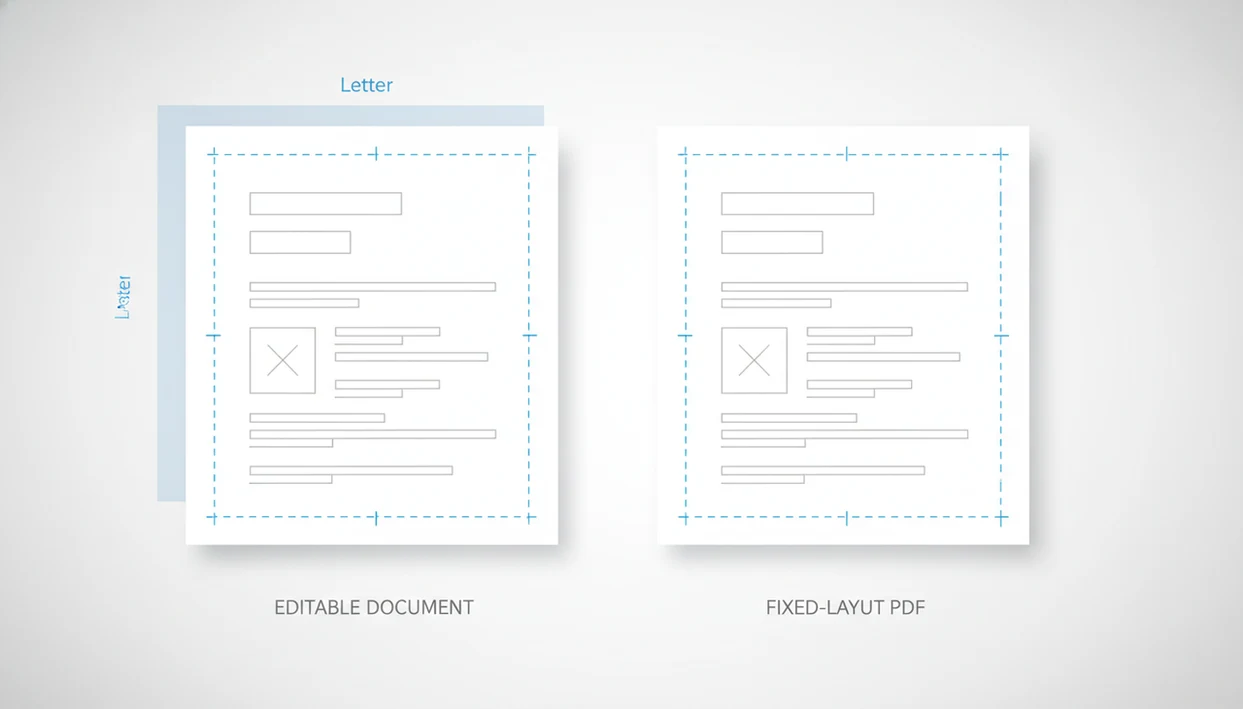
To preserve margins Word to PDF, match the Word page setup to the final paper size, use real page or section breaks, confirm fonts, and check print preview before sharing. Most margin shifts come from paper-size mismatches, font substitution, floating objects, or converters that do not render the Word layout exactly.
> Preserving margins from Word to PDF means keeping the document’s page size, margin spacing, line wrapping, and pagination stable when a DOCX or Word file becomes a fixed-layout PDF.
- Set paper size, margins, orientation, and section breaks in Word before conversion.
- Use real page breaks, not blank lines, if you need to keep page breaks in PDF.
- Check mobile print preview because it is usually the closest preview of the final PDF margins.
Word to PDF margins changed: the usual causes
Word to PDF margins changed means the exported PDF shows different white space, wraps text onto another page, or cuts off content that looked safe in Word. The Word file sets the starting layout, but the converter, fonts, printer defaults, and PDF viewer can still affect the final result.
Common triggers include Letter versus A4 paper size, missing fonts, section breaks, tracked changes, images, tables, and text boxes. A proposal logo may look sharp in Word preview, then sit too close to the edge after export.
PDF is designed for fixed-layout sharing, but it is not magic. The PDF only preserves the layout that the conversion engine actually renders. For a wider formatting checklist, compare this with Word to PDF without losing formatting.
Before you start: margin settings to check in Word
Before you convert, check the Word file’s page setup and layout details that control where content lands on the page. A few minutes in Word can prevent the most common PDF margin shifts.
- Confirm the page size first, especially whether the file is set to Letter, A4, or a custom size. If the final PDF will be printed or uploaded to a form, match that expected size before export.
- Inspect section breaks throughout the document. Each section can carry its own margins, orientation, headers, footers, and page setup, so one hidden break can make a later page look different.
- Turn on formatting marks to reveal empty paragraphs, tabs, and spacing that may be acting like fake page breaks. Replace fragile blank-line stacks with real page breaks where needed.
- Check custom fonts before exporting. If a font is missing on the device or not embedded by the workflow, text can rewrap and change the apparent margins.
- Review logos, signatures, tables, and text boxes near page edges. These edge-positioned objects show small layout changes first.
Five facts about preserve margins Word to PDF
- Margins and page breaks begin in the original Word page setup, including paper size, orientation, margins, and section rules.
- Different converters can render the same DOCX file differently, especially when fonts, tables, or floating objects are involved.
- Real manual page breaks and section breaks are safer than repeated blank lines because converters can interpret them as layout instructions.
- Print preview is usually the best predictor before export or upload on mobile, especially when using a print-to-PDF workflow.
- Non-embedded or missing fonts can cause text reflow, new line endings, and unexpected page breaks.
A NIST format-comparison study found that DOCX-to-PDF conversion preserved page layout and formatting more consistently than conversion to editable formats; if you cite this claim, link directly to the NIST report or remove the named attribution. The U.S. Government Publishing Office also treats PDF as a standard format for official electronic documents because it preserves layout and pagination across devices source.
How Word to PDF margins work during conversion
A Word to PDF converter preserves margins by reading the DOCX structure, page size, margin settings, fonts, styles, images, and section rules, then rendering that content into fixed PDF pages. In plain terms, it rebuilds each page before locking it.
The key step is layout rendering. Text is placed line by line into a page box, so a font substitution or paper-size mismatch can change wrapping. One extra line can push a signature block to the next page. Annoying, but common.
True Word layout rendering usually handles sections, headers, and floating images better than simple text-based engines. Mobile conversion can still be accurate when it uses print-based rendering or a reliable document layout engine. A dedicated converter can help when it uses Word-style layout rendering rather than extracting text and rebuilding the file from scratch.
How to use a Word to PDF converter without changing margins
To use a Word to PDF converter without changing margins, clean up the Word layout first, then convert with a fixed-layout workflow and inspect the PDF before sharing. The goal is to remove anything that can reflow when the document is rendered.
- Confirm the Word file’s paper size, orientation, and margin settings before you export. Check each section if the document has different chapters, forms, or landscape pages.
- Replace repeated blank lines with manual page breaks when you only need a new page, or section breaks when margins, headers, footers, columns, or orientation need to change.
- Review fonts, headers, footers, tables, images, and text boxes, especially near page edges or around signature blocks. These are common places where small shifts become obvious.
- Convert the document with a reliable fixed-layout workflow, such as Word export, print-to-PDF, or a converter that renders the Word layout instead of rebuilding plain text.
- Open the finished PDF and compare page count, margins, and break-sensitive pages against the Word file before you email, upload, or print it.
6 preserve margins Word to PDF checks before export
Use this workflow before exporting if the document must look finished for upload, print, or email.
- Set paper size, orientation, and margins in Word before conversion.
- Replace blank-line spacing with manual page breaks or section breaks.
- Use standard fonts, or embed fonts where the source app allows it.
- Review headers, footers, images, tables, and text boxes near page edges.
- Convert with a trusted Word-to-PDF workflow, such as WordPDF, Microsoft Word export, or a print/save-as-PDF option on iPhone or Android.
- Open the PDF and compare the first page, last page, and any page-break-sensitive pages.
For mobile users, this check matters most when a recruiter asks for “PDF only” in an application form at the last minute. Open the exported PDF in iPhone Files preview or the Android Downloads folder before submitting.
Page setup settings that keep Word to PDF margins stable
Which Word page setup settings affect PDF margins? Paper size, orientation, normal or custom margins, gutter margins, mirrored margins, columns, and section-specific margins all affect the exported PDF page.
Letter versus A4 is the quiet problem. A DOCX made on a U.S. Letter template can reflow on a phone or printer set to A4, and the reverse is also true. If page size matters, review preserve page size Word to PDF before export.
One section can also have different margins from the rest of the document. Inspect invoices, forms, resumes, contracts, and chapter starts. Printer defaults may influence previews if you print the PDF instead of only sharing it. A good word to pdf converter app that turns docx and word documents into shareable pdf files on iphone and android should preserve the final page layout, not rewrite the document like a word processor.
How to keep page breaks in PDF exports
How do you keep page breaks in PDF exports? Use real manual page breaks for simple page starts, and use section breaks when the next part needs different margins, columns, headers, footers, or orientation.
Blank lines are fragile. They can shrink, expand, or reflow when fonts change. Use Word paragraph settings instead: keep with next, keep lines together, widow/orphan control, and page break before. These settings tell the layout engine what belongs together.
To keep page breaks in PDF, check fonts and line spacing too. A substituted font with wider letters can move the final paragraph to another page. If the file uses brand or school fonts, the related guide on preserve fonts Word to PDF is worth checking before export.
Mobile print preview checks for Word to PDF margins
Print preview or save-as-PDF preview usually shows the page box, margins, and breaks closest to the final PDF file. On a phone, it is the last practical layout check before you open, share, print, or submit.
Look at the top, bottom, left, and right margins. Then check page count, headers, footers, and anything close to the edge. We usually compare the Word file and PDF side by side to catch a shifted page break before sending the final attachment.
Pew reported that 85% of U.S. adults owned a smartphone in 2021, so mobile document review is now normal source. That makes phone-based PDF preview a normal final check, especially for resumes, forms, school documents, and deadline-driven uploads.
Common myths about Word to PDF margins changed
Myth: If it looks right in Word, every converter will match it exactly. Different layout engines, fonts, and paper sizes can produce slightly different PDFs.
Myth: Blank lines are the same as page breaks. Blank lines are just empty paragraphs; manual page breaks are actual pagination instructions.
Myth: Mobile Word to PDF apps always preserve layout worse than desktop workflows. Some mobile workflows use print-based rendering and can match the intended layout closely.
Myth: Once exported, there is no way to fix margins or page breaks. The cleanest fix is usually to adjust the original Word file and export again.
If pictures or logos are near the edge, inspect them separately. Our Word to PDF images guide covers the image-specific layout checks.
Limitations
Perfect margin matching is not always possible. Expect these tradeoffs:
- Tiny differences in font metrics, line spacing, hyphenation, or rendering engines can move text by one line.
- Some mobile or lightweight converters may not embed every font.
- Complex layouts with columns, floating images, tables, text boxes, and tracked changes are more fragile.
- Offline mobile conversion may depend on the app’s built-in rendering engine.
- Online or cloud conversion may improve fidelity, but it can raise privacy concerns for sensitive documents.
- Different PDF viewers, printer drivers, zoom settings, and paper trays can change how a PDF appears or prints.
- Headers and footers can shift if sections use different first-page or odd/even-page settings.
The safest fix is boring: correct the Word source, export again, and preview the PDF before sending. For edge cases, Word to PDF headers footers is often the next place to check.
FAQ
Why did my PDF margins change after converting from Word?
PDF margins usually change because of page size mismatch, printer defaults, font substitution, section settings, or converter rendering differences. Letter versus A4 is one of the most common causes.
How do I keep Word margins when converting to PDF?
Set the paper size, margins, orientation, and section breaks in Word first. Then verify the exported PDF in print preview or a PDF viewer before sharing.
Do fonts affect PDF margins?
Yes. Substituted fonts can change line wrapping, which can shift page breaks and make margins look different.
Should I use page breaks to keep PDF pages the same?
Yes. Manual page breaks are more reliable than repeated blank lines for controlling pagination in a PDF export.
Why does A4 change margins after export?
A4 and Letter have different page dimensions. That difference changes the available text area, line wrapping, and sometimes the page count.
Does print preview show PDF margins before export?
Print preview is usually the best predictor of final PDF margins and page breaks. It shows the page box before the file is saved or printed.
Can mobile Word to PDF conversion preserve layout?
Yes. Mobile conversion can preserve layout well when the app or workflow uses reliable rendering, such as print-based PDF creation or a dedicated converter like WordPDF.
Can I fix margins after creating a PDF?
Sometimes, but the cleanest fix is usually to adjust the Word source file and export again. WordPDF is meant for conversion, not full PDF editing.