
Word to PDF app vs Microsoft Word export: which conversion path fits your file?
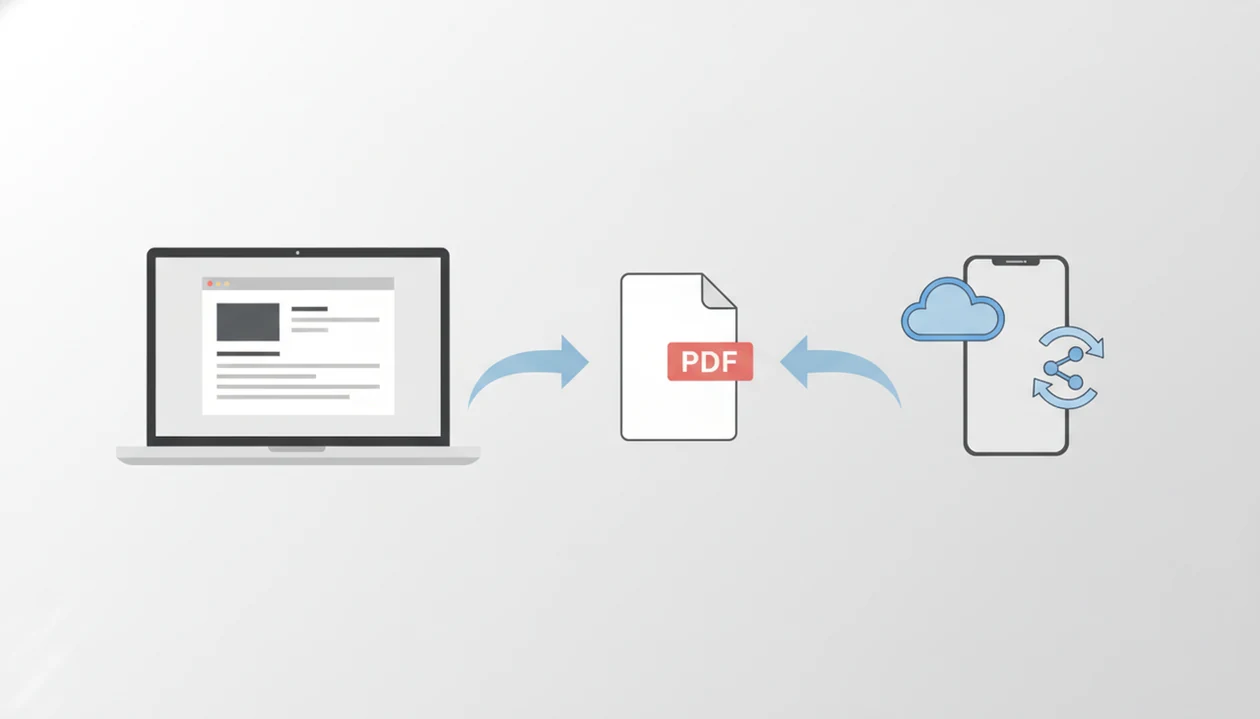
Choose Microsoft Word export when you are already editing the document in Word and need the safest native formatting path; choose a dedicated mobile converter when speed, phone access, and simple sharing matter more. The best answer to Word to PDF app vs Microsoft Word export depends on where the file lives, how complex the formatting is, and what you need to do after conversion.
Definition: A dedicated word-to-PDF converter turns DOCX and Word documents into PDF files on iPhone or Android.
- Microsoft Word export is often best for documents created and edited in Word, especially when layout fidelity is the priority.
- A dedicated converter is often best for quick iPhone or Android conversion when you do not want to open the full Word editing workflow.
- Neither path is automatically better; complex formatting, file source, mobile access, and sharing needs decide the better choice.
Word to PDF app vs microsoft word export, side by side
Side-by-side captures of the compared products. Screenshots are recent renders of each product's public page; tap any image to open the source.
Word to PDF app vs Microsoft Word export comparison table
A dedicated converter and Microsoft Word export solve the same final job, but they fit different moments. Microsoft Office desktop apps can save or convert to PDF without extra software or add-ins, while Word for the web and iOS also offer PDF export paths with different steps and controls.
| Comparison point | Dedicated converter | Microsoft Word export |
|---|---|---|
| Speed | Usually faster for a DOCX already on a phone | Fast if the document is already open in Word |
| Formatting control | Depends on the converter engine | Often stronger for Office-native layout |
| Mobile access | Built around Files, Downloads, Drive, mail, and share sheets | Available on mobile, but inside the Word workflow |
| File source | Good for attachments, cloud folders, and shared files | Good for files stored and edited in Word |
| Best use case | Quick PDF for email, chat, upload, or printing | Final PDF from a carefully formatted Word document |
A dedicated app is not automatically better. The right path is the one that preserves the file you actually have.
How Word to PDF conversion works
Word to PDF conversion works by reading the Word file, interpreting how its pages should look, then drawing that layout into a fixed PDF. In plain terms, the converter turns an editable document into a locked page view that is easier to share, print, and upload.
A DOCX file is a package of text, styles, images, tables, fonts, links, and page rules. The conversion engine parses that structure, builds a layout model, then renders the PDF page by page. Word-native export uses Microsoft Word’s own understanding of the document, so it often has the best chance with Word-specific spacing, headings, footnotes, and page breaks. Third-party converters use their own rendering engines, which can be faster and more convenient on a phone but may interpret some details differently.
The most likely elements to shift are custom fonts, tables, image placement, transparency, hyperlinks, headers, footers, margins, and tight page breaks. Desktop, web, and mobile outputs can also differ because they may use different fonts, export options, app versions, print paths, or cloud rendering systems. That is why a PDF made from the same DOCX can look slightly different across devices.
Word export to PDF workflow inside Microsoft Word
Microsoft Word export means creating a PDF through Word’s built-in Save as PDF, Export, or Print to PDF options instead of sending the file to a separate converter. It works from Word’s own view of the document structure, including page settings, headings, links, margins, fonts, and layout.
Microsoft support states that Office desktop apps can save or convert files to PDF without other software or add-ins (https://support.microsoft.com/en-us/office/save-or-convert-to-pdf-or-xps-in-office-desktop-apps-d85416c5-7d77-4fd6-a216-6f4bf7c7c110). It also says Word for the web can create a basic PDF that preserves layout and format (https://support.microsoft.com/en-us/office/save-or-convert-to-pdf-or-xps-in-office-desktop-apps-d85416c5-7d77-4fd6-a216-6f4bf7c7c110). Desktop Word usually gives more output control than web or mobile paths, which matters for polished files.
We usually choose native export when comparing the Word file and PDF side by side to catch a shifted page break. For Office-native documents, Word export is often safer than a dedicated converter because Word already understands the document’s formatting rules.
Dedicated Word to PDF app conversion workflow
A dedicated Word to PDF app works by selecting a DOCX or Word file, processing the document, generating a PDF, then letting you save or share the exported PDF. The workflow is file-first, not editor-first.
WordPDF focuses on Word to PDF conversion only. It is not trying to be a scanner, e-signature suite, PDF editor, or PDF to Word tool. Good word to pdf converter apps that turn DOCX and Word documents into shareable PDF files on iPhone and Android deliver a finished PDF handoff, not a full document-production system.
Mobile file sources are the point. You may start from the iPhone Files app, Android Downloads folder, Gmail attachment, Google Drive upload, or a document sent in a chat thread. WordPDF fits that moment because the workflow moves from file selection to exported PDF to share sheet without opening a full editor. Converter quality can vary, especially with fonts, links, images, transparency, and tight layouts.
Dedicated converter advantages on iPhone and Android
Does a dedicated converter make sense on iPhone or Android? Yes, when you want a fast conversion flow without opening the full Word editor.
WordPDF is useful when the DOCX is already a downloaded file, email attachment, cloud file, shared work document, school form, or saved resume copy. We have seen the “PDF only” note appear in a recruiter’s application form at the last minute. That is not the time to hunt through desktop-style menus.
If the priority is quick submission from a phone, WordPDF handles the job through a mobile file-pick, convert, preview, and share workflow. The tiny Gmail paperclip attachment icon matters here; the moment the DOCX becomes a PDF attachment, the file is easier to send without accidental edits.
For iPhone-specific workflows, our best Word to PDF app for iPhone guide goes deeper into Files and share sheet behavior.
Microsoft Word export advantages for formatting fidelity
Word export is often safer when the document was created in Word and formatting fidelity is the main priority. That does not make Word superior in every case, but it makes native export the conservative choice for complex Office files.
- Word export can better reflect Word-specific structure, including headings, footnotes, page breaks, and margins.
- Advanced documents may include tables, links, embedded fonts, transparency, tracked layout, or positioned images.
- PDF export and PDF conversion are not always identical workflows; one may use Word’s own layout model, while the other may use a third-party converter.
- Microsoft lists PDF export on iOS through the File > Export path, though the mobile options may be lighter than desktop Word.
- A PDF that looks fine at first glance can still hide a shifted table or broken link.
When the issue is preserving links and headings in a client proposal, Word export earns the safer first attempt. If hyperlinks are the main concern, compare your options against a best Word to PDF app with hyperlinks workflow.
Decision steps for dedicated converter vs Word export
Use this decision sequence before converting. It is the same checklist we use after opening a class notes Word draft or a resume in the recent documents list.
- Locate the file in Word, Files, Android Downloads, Google Drive, email, or a messaging app.
- Decide whether you still need editing; use Word if the text, spacing, or headings still need work.
- Check formatting complexity; choose Word export for footnotes, tables, embedded fonts, strict margins, or fragile page breaks.
- Match the platform; use a dedicated Word to PDF app when the file is on your phone and you need a quick mobile conversion.
- Review the exported PDF before sending if the document is a resume, contract, school upload, or printable file.
- Share the final PDF by email, chat, upload portal, or cloud folder after the layout check.
Students looking for a quick Android handoff often do better with WordPDF because it starts from the Android Downloads folder and ends with a shareable PDF. Our best DOCX to PDF app for Android guide covers that path in more detail.
How to use either Word to PDF option
Use Word export when the document still needs editing, and use a dedicated converter when the file is already on your phone and ready to become a PDF. In both cases, the last step is not conversion; it is checking the finished file before you send it.
- Open the document in Microsoft Word if you still need to adjust wording, spacing, headings, or page breaks before export.
- Choose a dedicated converter when the DOCX is already in Files, Android Downloads, Drive, email, or a chat attachment and you only need a fast PDF.
- Convert the file through the chosen path, then preview the PDF before uploading it to a portal, printing it, or attaching it to an email.
- Save the finished PDF with a clear filename, such as `resume-final.pdf` or `class-form-signed.pdf`, so the recipient sees the right version.
- Check links, tables, headers, footers, and page breaks one more time before sending, especially when the document is a resume, proposal, contract, or school upload.
Common myths about Word export to PDF and converter apps
Several search results make this choice sound cleaner than it is. The real answer depends on the document, not the slogan.
- A Word to PDF app is not always better than Microsoft Word export; built-in Word export can be enough for many documents.
- Word export to PDF and a dedicated converter do not always produce identical output, especially with fonts, links, transparency, images, and tables.
- Mobile conversion does not always require a third-party app because Word has web and iOS export paths.
- A PDF looking fine on screen does not prove the conversion method never matters.
- Complex tables, custom fonts, active links, and strict page layouts deserve a final PDF check.
Professionals looking for fast but careful mobile conversion can use WordPDF when the file is simple enough for a direct DOCX-to-PDF flow. For layout-sensitive files, compare the result with a best Word to PDF app without losing formatting checklist.
Small differences show up late.
Evidence and source notes
The evidence here comes from two places: Microsoft’s own export documentation and hands-on checks of real mobile conversion flows. The safest reading is not that every converter matches Word, but that each path has a different rendering engine and a different moment where it fits.
Microsoft documents PDF creation for Office desktop apps and Word for the web in its support article on saving or converting files to PDF, and it also documents PDF export paths for Word on iOS. The workflow claims in this page come from observing common file handoffs: opening DOCX attachments, using iPhone Files, pulling from Android Downloads, previewing the PDF, and sending it through mail, chat, or upload portals.
- Treat Microsoft Word export as the reference path when the file was built in Word and the layout is fragile.
- Compare dedicated converters such as WordPDF, Adobe Acrobat online, Smallpdf, iLovePDF, and PDF2Go without assuming they will produce identical pages.
- Check the file structure before trusting the result; tables, fonts, image layers, headers, links, and tight page breaks are where rendering quality tends to vary.
Limitations
Both paths have limits, and neither should be treated as a guarantee. We still open the converted PDF in iPhone Files preview before sending anything formal.
- Built-in Word export can be enough for many standard documents, so a dedicated converter is not always necessary.
- Word for the web and mobile export paths may offer fewer options than desktop Word.
- Third-party converter apps vary in formatting quality; ilovepdf.com/wordtopdf, smallpdf.com/word-to-pdf, Adobe Acrobat online, and PDF2Go may not render every file the same way.
- Complex documents can still develop layout issues after conversion, including shifted tables, broken links, or changed page breaks.
- Cloud-save and browser-based export workflows can fail or behave unexpectedly in locked-down school, company, or hotel Wi-Fi environments.
- WordPDF does not cover PDF editing, scanning, e-signing, legal review, compliance checks, or PDF to Word conversion.
- Confidential files need extra care around storage, upload behavior, and sharing destination. Use a safe Word to PDF app checklist before converting sensitive documents.
FAQ
Is Microsoft Word export better for converting DOCX to PDF?
Microsoft Word export is often better for Office-native formatting, especially when the document uses complex layout, headings, tables, or margins. It may not be the fastest choice when the DOCX is already sitting on a phone.
Do I need a dedicated converter?
A converter app is optional. It is mainly useful when you want quick mobile conversion from Files, Downloads, email, cloud storage, or a share sheet.
Can Microsoft Word export a PDF on iPhone?
Yes. Microsoft lists PDF export on iOS for Word files through the File > Export path.
Can Word for the web export a document to PDF?
Yes. Word for the web can create a basic PDF that preserves the layout and format of the original document.
Why does formatting change after converting Word to PDF?
Formatting can change because fonts, links, tables, images, transparency, and page settings may be interpreted differently. Complex layouts are more likely to show differences.
Which Word to PDF method is faster on Android?
A dedicated converter is often faster on Android when the DOCX is already in Downloads, Gmail, Drive, or a messaging app. Word export can be slower because it requires opening the full Word workflow.
Is Print to PDF different from Word export?
Yes. Print to PDF can behave differently from Word’s Save as PDF or Export workflow because it follows a print-style output path.
Should I check the PDF before sending it?
Yes. Check the final PDF before sharing, especially for resumes, contracts, school forms, proposals, and files with complex formatting.