
Word to PDF headers, footers, and page numbers
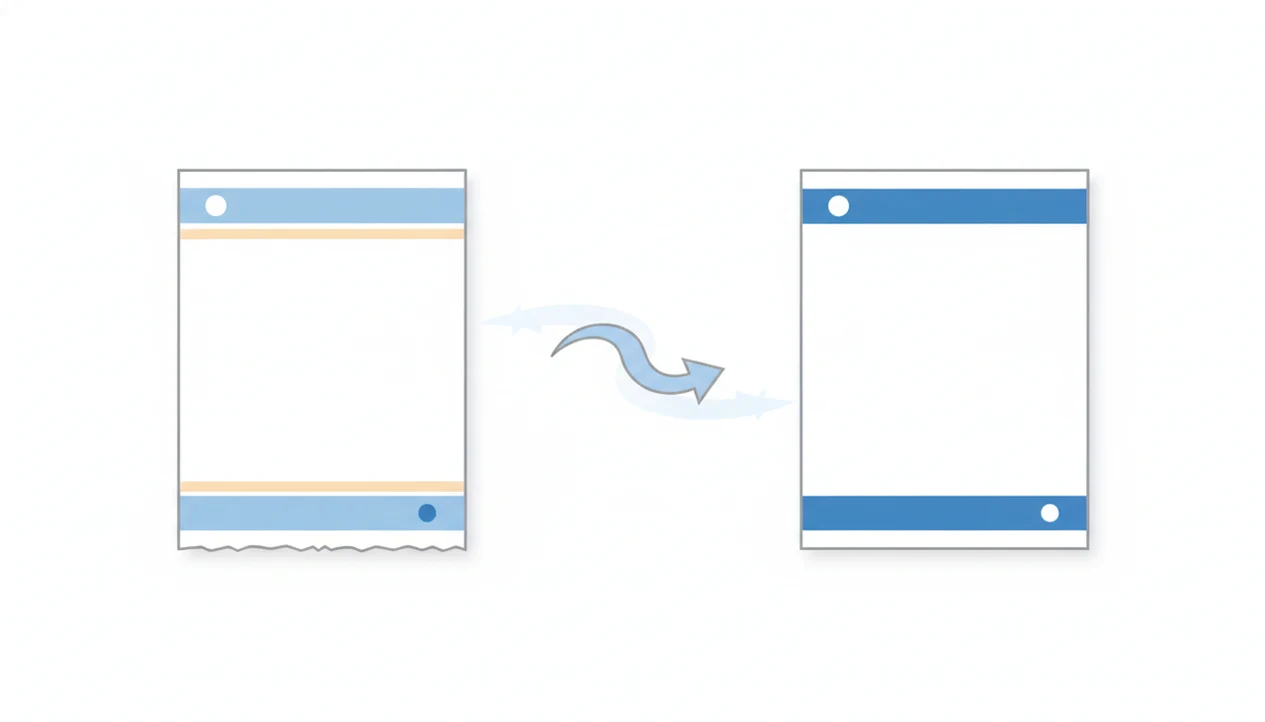
Word to PDF headers footers usually carry into the PDF visually, but page numbers, logos, dates, and legal footer text can shift or disappear when Word sections, margins, page size, or conversion settings do not match. Preview the PDF page by page before sharing, especially if the document uses different first-page headers, odd/even pages, or multiple sections.
> Scope: This guide explains how headers, footers, page numbers, logos, dates, and legal footer text behave when a DOCX or Word document is converted to PDF on mobile or desktop.
TL;DR
- Headers, footers, and Word page numbers usually appear in the PDF, but complex section formatting is the main cause of unexpected changes.
- Top and bottom margins, page size, printer-style export settings, and mobile rendering engines can clip or move header and footer content.
- Visual preservation does not always mean accessibility preservation because repeated headers and footers may be treated as artifacts in the PDF.
Word to PDF headers footers: what usually happens
Most simple Word headers, footers, and page numbers appear visually in the PDF after conversion. The key difference is that the PDF preserves page appearance, not Word’s editable header and footer behavior.
That matters when the file is a contract, invoice, branded report, proposal, or resume. A footer with “Confidential” on every page is part of the reader’s trust signal. So is a page number that proves the attachment has all pages.
PDFs are common in work because they travel well. Adobe reported in a 2019 Document Cloud survey that 72% of U.S. office workers said PDFs are important for sharing and reviewing documents (https://blog.adobe.com/). IDC also reported, in an Adobe-sponsored 2020 study, that more than 80% of business professionals regularly use PDFs in document workflows (https://www.adobe.com/documentcloud/business/reports/idc-digital-document-processes.html).
The PDF is the version people judge.
Word and PDF layout models for headers and footers
Word is a flowing document model that calculates each page from sections, margins, fonts, page size, spacing, and header or footer rules. PDF is a fixed page model where the converted header and footer become positioned content on each page.
In plain terms, Word keeps asking, “Where does this text belong now?” A PDF says, “This is where it sits on page 3.” That is why conversion acts a lot like printing to a virtual page. If the page size, margin, font, or scaling setting changes, the top and bottom areas can move.
Page number fields also change meaning. In Word, a page number can be a live field that updates when pages are added. In the exported PDF, it usually becomes static page content. You can see it, but it is no longer a Word field.
For layout-heavy documents, the broader checklist in Word to PDF without losing formatting is worth using before the final export.
Before you convert a Word document with headers and footers
Before you convert, make the Word file stable enough that the PDF has no reason to reinterpret the page. The goal is to lock down page setup, fonts, and section behavior before the header and footer become fixed PDF content.
- Confirm the final page size, such as Letter or A4, before adjusting headers, footers, or page numbers.
- Install the fonts used in the document, or embed them when your Word version and export path allow it, so line breaks do not change during conversion.
- Turn on formatting marks to expose hidden section breaks, extra paragraph marks, and page breaks that can affect header and footer rules.
- Check whether “different first page” and odd/even headers are deliberate in every section, not just on the cover page.
- Save a separate copy before flattening fields, dates, page numbers, or form content into static PDF text.
That copy gives you a safe editable version if the final preview shows a shifted logo, missing number, or wrong footer.
Word page numbers PDF behavior in sections
Word page numbers in a PDF often change because Word sections carry separate numbering and header/footer rules. A hidden section break can make page 6 restart at page 1, or make a footer vanish only on one page.
- Word sections can continue page numbering, restart numbering, or use a different number format.
- Roman numerals in front matter and Arabic numbers in the main body usually come from separate sections.
- Title pages often use “different first page,” which can hide a header or footer.
- Landscape pages may sit in their own section with separate footer placement.
- Each section can have primary, first-page, and odd/even headers and footers.
Different first-page page numbers
Check the first page of every section. A title page can intentionally suppress the number, but a later section can do the same by accident.
Odd and even page numbers
Odd/even settings can place page numbers on alternating sides. That looks correct in a booklet, but strange in a one-sided PDF preview.
Section breaks and restarted numbering
Turn on formatting marks if the numbering looks random. One quiet section break can explain the whole problem.
Header and footer settings to check before conversion
Check four Word settings before conversion: top margin, bottom margin, header distance, and footer distance. Then confirm the page size, usually Letter or A4, before exporting.
A practical pre-conversion check has five parts:
- Top margin: Give the header enough space so logos, text, and divider lines do not crowd the page edge.
- Bottom margin: Leave room for page numbers, legal footer text, and signature block references.
- Header and footer distance: Check how far each area sits from the page edge, not just from the body text.
- Page size: Confirm Letter, A4, or the required size before conversion.
- Header/footer objects: Inspect logos, lines, shapes, tables, and images placed in those areas.
Tight margins raise clipping risk, especially with print-style conversion. If your issue is mainly edge spacing, use a dedicated preserve margins Word to PDF check before sending the file.
Word to PDF headers footers workflow on iPhone and Android
Use this mobile workflow when the header, footer, or page number must survive the DOCX to PDF conversion. It works for iPhone and Android, whether the Word attachment came from email, Files, Google Drive, or the Android Downloads folder.
- Set the Word page size first, such as Letter or A4, before you export.
- Check section breaks, different first-page settings, and odd/even page rules in the Word file.
- Convert with a reliable mobile converter or Word export flow that respects page size and layout.
- Preview the exported PDF page by page, including the first, second, last, and section-change pages.
- Share only after the PDF preview confirms the header, footer, logo, and page numbers are correct.
A focused mobile converter can fit this workflow when you need a simple phone-based conversion path. The key test is whether the converter preserves page size, margins, section rules, and the visible header/footer layout without forcing unrelated editing steps.
Headers footers in PDF preview checklist
What should I check in the PDF preview before sending a converted Word file? Check the exact pages where headers, footers, and page numbers are most likely to change: first page, second page, odd pages, even pages, last page, and every section transition page.
Look for page numbers, branding, dates, file names, confidentiality labels, legal notices, and signature block references. If the file has a cover page, appendix, or landscape table, inspect those pages slowly.
The PDF preview is the source of truth because recipients will see the fixed PDF, not the Word editing view. We usually open the exported PDF in the iPhone Files preview before sending, then compare the Word file and PDF side by side if a page break looks suspicious.
Same screen, fewer surprises.
When possible, preview on the same kind of device the recipient will use. A recruiter reading a “PDF only” upload may never open your Word file.
Common Word to PDF headers footers mistakes
The most common mistakes come from assuming every conversion path uses the same layout engine. Print-to-PDF, export-to-PDF, and app-based conversion can produce different results because they may use different page size, scaling, margin, and font rules.
- Print-to-PDF can apply printer margins or scaling, while export-to-PDF often follows Word’s document layout more closely.
- Important text placed too close to the page edge can be clipped in the final PDF.
- Header or footer text should not be the only place where critical legal, deadline, or identity information appears.
- Font substitution can change line length, pushing a header or footer into a new position.
- Images, linked-to-previous settings, hidden section breaks, and mobile converter differences can all change the output.
If a logo or stamp shifts, inspect the image behavior too. The same problem often appears in body graphics, which is covered in Word to PDF images.
PDF accessibility for repeated headers and footers
Visible header and footer content in a PDF is not automatically meaningful reading-order content. Repeated headers and footers are often treated as artifacts so screen readers can skip the same material on every page.
That can be helpful. Nobody using a screen reader wants the same company name, file path, and page footer read aloud forty times. However, it creates a risk when the only important notice appears in the footer. A confidentiality label, legal disclaimer, or deadline instruction may be visually present but not announced as main content.
In WebAIM’s Screen Reader User Survey #9, 39.3% of respondents rated PDF documents as difficult or very difficult to access (https://webaim.org/projects/screenreadersurvey9/#pdf). HHS PDF accessibility guidance also notes that repetitive header and footer content is commonly treated as artifact content so it does not interrupt the reading order (https://www.hhs.gov/web/section-508/making-files-accessible/pdf-required-fixes/index.html).
Visual preservation is not accessibility preservation. If accessibility matters, put critical information in the document body as well as in the repeated page area.
Limitations
No Word-to-PDF converter can guarantee exact preservation of every complex header or footer design. Conversion depends on the Word file, fonts, page setup, section structure, rendering engine, and final PDF settings.
- Custom shapes, overlapping images, uncommon fonts, and tight margins can still shift or clip.
- Some mobile converters use simplified rendering or operating-system print frameworks.
- Page number fields often become static text or image-like page content in the final PDF.
- Automatic conversion does not guarantee a fully tagged, accessible PDF.
- Printer-style settings may apply scaling, page size changes, or extra margins.
- Critical legal, accessibility, or submission information should not exist only in repeated header or footer areas.
- A PDF that looks right on your phone may still deserve a desktop preview before formal filing.
For business files, especially contracts and client reports, treat the final preview as a required layout check. The same habit applies to Word to PDF for business documents.
FAQ
Do Word headers convert to PDF?
Yes, Word headers usually appear visually in the PDF. They may shift if the file uses complex margins, sections, page sizes, fonts, or conversion settings.
Do Word footers convert to PDF?
Yes, Word footers normally convert to PDF. They can be clipped or moved when margins are tight, page size changes, or print-style settings add scaling.
Why are my Word page numbers missing in the PDF?
Word page numbers may disappear because of section breaks, different first-page settings, hidden fields, or converter rendering problems. Check each section’s header and footer settings before converting again.
Why did my Word header move after converting to PDF?
A Word header can move after conversion because the PDF process recalculates layout using margins, page size, scaling, fonts, and virtual printer behavior. Even a small font substitution can change header spacing.
Are PDF page numbers editable after conversion from Word?
Usually, Word page numbers become static PDF page content after conversion. They are not live Word fields inside the PDF.
Can Word headers and footers be accessible in a PDF?
Yes, but accessibility depends on the PDF tag structure. Repeated headers and footers are often marked as artifacts, so important information should also appear in the main document body.
Should I use print to PDF for Word headers and footers?
Print to PDF can work, but it may apply printer margins, scaling, or page size changes. Export or a focused converter such as WordPDF is often safer when you need headers, footers, and page numbers to match the Word layout.