
Preserve Page Size from Word to PDF for Upload Portals
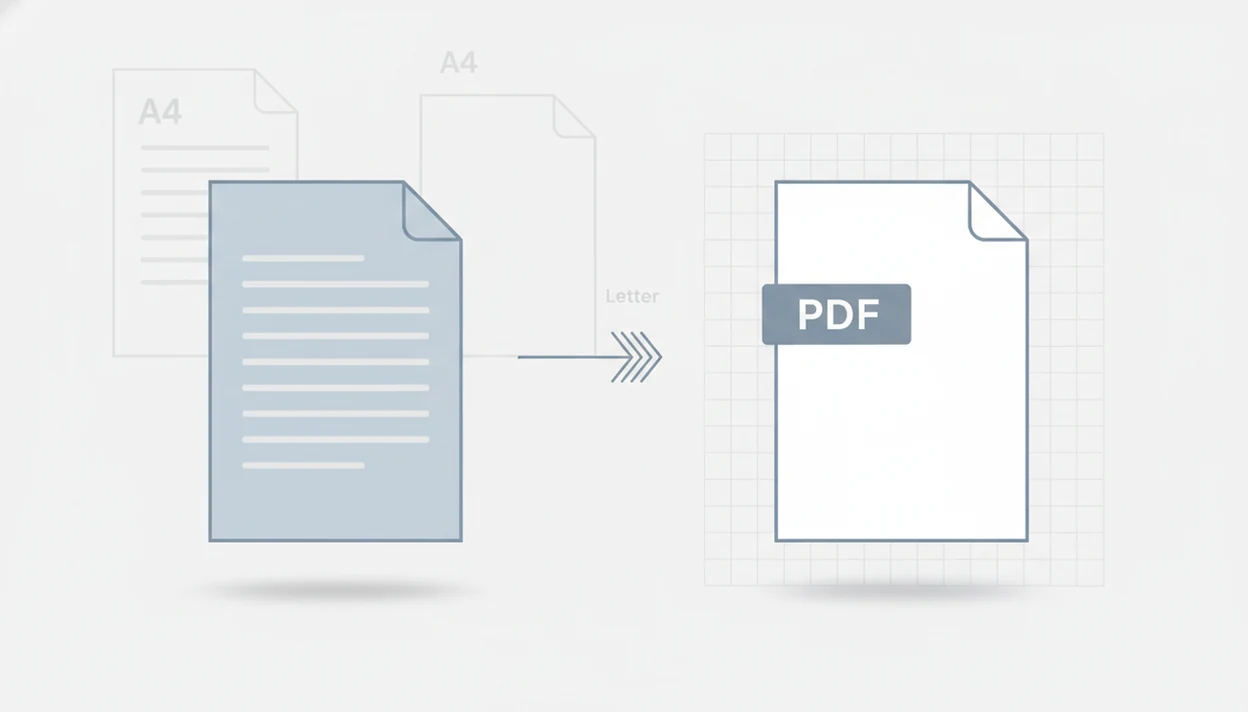
To preserve page size Word to PDF, set the correct paper size in Word first, convert with a tool that keeps the document’s page setup, then verify the PDF size before uploading or printing. The key checks are A4 vs Letter, margins, page breaks, and print preview scaling.
> Preserving page size from Word to PDF means converting a DOCX or Word document into a PDF without changing its original paper dimensions, such as A4, Letter, or a custom size.
- Check the Word document’s page size before conversion, especially A4 versus Letter.
- Use a Word to PDF conversion path that preserves page setup instead of auto-fitting to a default page.
- Open the finished PDF and confirm its page size or print preview before portal submission.
Word to PDF page size preservation for upload portals
Page size preservation means the PDF keeps the same paper dimensions defined in the Word file. A Letter document should export as Letter, and an A4 document should export as A4.
PDF is built for fixed document presentation. The ISO PDF format is designed to preserve layout and appearance across devices, which is why portals, printers, and email workflows often prefer it source. Still, page size is not the same as file size, image quality, or compression. A small PDF can have the wrong paper size.
A mobile DOCX-to-PDF converter should create a shareable PDF from the Word file’s existing page setup instead of guessing a new page format during export.
A portal rejecting a DOCX at 4:55 p.m. is usually a format problem. A portal rejecting a PDF after upload may be a page setup problem.
A4 and Letter page size checks for Word to PDF
A4 and Letter are not interchangeable, even when the page preview looks close on a phone screen. A mismatch can shift margins, move page breaks, crop headers, or create an extra blank page.
| Page size | Dimensions | Common use | Word to PDF risk |
|---|---|---|---|
| A4 | 210 × 297 mm | Many countries outside North America | Letter output can shorten or widen the layout |
| Letter | 8.5 × 11 inches | United States and Canada | A4 output can change pagination |
| Custom | Varies | Forms, labels, court packets, templates | Some converters may fall back to a default |
Match the portal or printer requirement before exporting. If an application form says “PDF only” and the instructions mention Letter, set Letter in Word first. For broader formatting checks, the related Word to PDF without losing formatting guide covers spacing, objects, and page flow.
How preserving page size from Word to PDF works
Preserving page size works because the converter reads the page setup already stored in the Word file and writes those dimensions into the PDF. The PDF then becomes a fixed-layout file, meaning each page has a defined size instead of reflowing like an editable document.
In Word, page setup controls the paper size, margins, and orientation, and those choices shape where text, tables, headers, and footers land. During conversion, those settings are mapped into PDF page boxes, which are the fixed boundaries a viewer uses to display and print each page. A4, Letter, and custom sizes can fail when the Word file uses the wrong setup, a section has different settings, or the converter falls back to a default size. Even after a correct export, the PDF viewer, printer driver, or upload portal can still apply fit-to-page or scaling rules that make the output look smaller, larger, or clipped.
- Set the required paper size, margins, and orientation in Word.
- Convert only after the layout matches the portal or printer instructions.
- Check the exported PDF’s page size and print scaling before sending.
Rule: fix Word setup before reconverting.
Word page setup data inside PDF conversion
Word to PDF conversion works by carrying Word’s page setup instructions into fixed PDF pages. In practical terms, the converter reads the document layout, then writes PDF page boxes that define the final page dimensions.
- Word stores paper size, margins, orientation, headers, footers, and section settings.
- A converter should transfer those values into the exported PDF’s page boxes.
- A valid PDF can still be wrong if the converter applies a default page size.
- Auto-fit behavior can shrink content without warning.
- Mobile conversion can preserve page setup when the source file and export path both respect it.
The mechanism is simple, but the failure is easy to miss. We usually catch it by opening the exported PDF in the iPhone Files preview before sending it, then checking whether the page break moved.
5 Word to PDF page size checks before upload
Use this mobile workflow before you upload a Word file as a PDF. It is short enough to run from a bus seat before submitting a resume.
- Check the Word page size in Layout or Page Layout before converting.
- Confirm margins, orientation, headers, footers, and section breaks.
- Convert the DOCX file using a path that keeps the document page setup.
- Open the exported PDF in Files, Downloads, Drive, or your PDF viewer.
- Verify page properties or print preview at 100% before uploading.
For phone users, the most reliable check is often visual and technical together: compare the Word file and PDF side by side, then inspect print preview. If the margins are the main concern, use a focused preserve margins Word to PDF check before the final upload.
Word page setup requirements before PDF conversion
Microsoft Word supports page size settings such as A4 and Letter in its Layout or Page Layout tools, and those settings affect the exported PDF’s dimensions source. Confirm these items before conversion.
- Paper size: Set A4, Letter, or the required custom size in Word before export.
- Orientation: Check portrait versus landscape, especially in forms and tables.
- Margins: Review top, bottom, inside, and outside margins, not just the visible text area.
- Headers and footers: Confirm page numbers, logos, and dates are not near the printable edge.
- Section breaks: Watch for mixed page sizes or section-specific settings.
Mixed sections are the quiet troublemaker. One landscape table in the middle of a report can export correctly, but still surprise a portal that expects every page to be the same size. Related checks are covered in Word to PDF headers footers.
4 page size myths in Word to PDF conversion
These myths cause many failed uploads and bad prints. The practical truth is less dramatic, but more useful.
- Myth: every Word to PDF converter automatically preserves page size. Some converters default to A4, Letter, or auto-fit output.
- Myth: A4 and Letter are basically the same. They are different sizes, so margins and page breaks can change.
- Myth: the PDF viewer is always responsible for changed layout. The issue often starts in Word page setup or export settings.
- Myth: mobile apps cannot preserve print-ready formatting. iPhone and Android workflows can preserve page size when the source document and converter keep page setup intact.
- Fact: page size is only one part of output fidelity. Fonts, images, and hyperlinks can still need separate checks.
A good mobile DOCX converter should turn Word documents into shareable PDF files on iPhone and Android while preserving the document’s page setup, not behaving like a general PDF editor.
PDF verification before portal upload or printing
“Is my PDF safe to upload or print?” Open it first, then check page size, scaling, and visible edges before submission.
Use the PDF viewer’s document properties if available. Adobe’s PDF tools expose document properties such as page size, which makes the exported file easier to verify before print or submission source. If not, open print preview and look for paper size, fit-to-page settings, and any warning about clipping. A 100% view helps reveal cropped headers, shifted tables, or a footer sitting too close to the edge. The tiny paperclip in Gmail is a poor place to discover that the attached PDF is not the size the client requested.
Upload portals and printers can still apply their own scaling rules. If the PDF size is wrong, fix the Word page setup and reconvert instead of trying to patch the PDF afterward. For link-heavy files, also check preserve hyperlinks Word to PDF before sending.
Limitations
Page size preservation is dependable only when the Word file, converter, viewer, printer, and portal all handle the document consistently. There are real exceptions.
- Not every converter preserves page size perfectly.
- Auto-scaling or a default output paper size can alter the layout.
- Custom margins, headers, footers, fonts, embedded objects, and mixed sections can still shift.
- Preserving page dimensions is not the same as preserving exact visual appearance.
- Printers and upload portals can force scaling after the PDF is created.
- Phone share sheets and print systems may behave differently across iPhone and Android versions.
- A PDF can pass visual inspection but still fail a portal rule for file size, security, or metadata.
Tools like WordPDF can help with mobile conversion, but the final responsibility is the page setup check. Boring, yes. Necessary, also yes.
FAQ
Does PDF export keep page size?
PDF export should keep page size when the Word page setup and converter both preserve the original dimensions. Check the PDF after export to confirm.
Why did my PDF change size?
A PDF may change size because of wrong Word page setup, an A4 versus Letter mismatch, auto-fit conversion, or printer scaling. Recheck the Word file first.
Is A4 the same as Letter?
No. A4 and Letter are different paper sizes, and the mismatch can change margins, page breaks, and printing results.
How do I check Word page size?
Open the document’s Layout or Page Layout settings and review the paper size before exporting. Confirm whether the file is set to A4, Letter, or a custom size.
Can phones preserve PDF page size?
Yes. iPhone and Android workflows can preserve PDF page size if the source document and conversion method keep page setup intact.
Do margins change in PDF conversion?
Margins should carry over from Word to PDF. They can shift if page size, section settings, fonts, or converter behavior changes.
How do I verify PDF size?
Use PDF document properties, viewer information, or print preview to confirm the final page dimensions. Also check the preview at 100% for cropping.
Why does my portal reject PDFs?
Portals may reject PDFs because of page size, file rules, scaling, security settings, or formatting requirements. WordPDF can create the PDF, but the portal’s rules still control acceptance.