
Upload Word to PDF to a portal without rejection
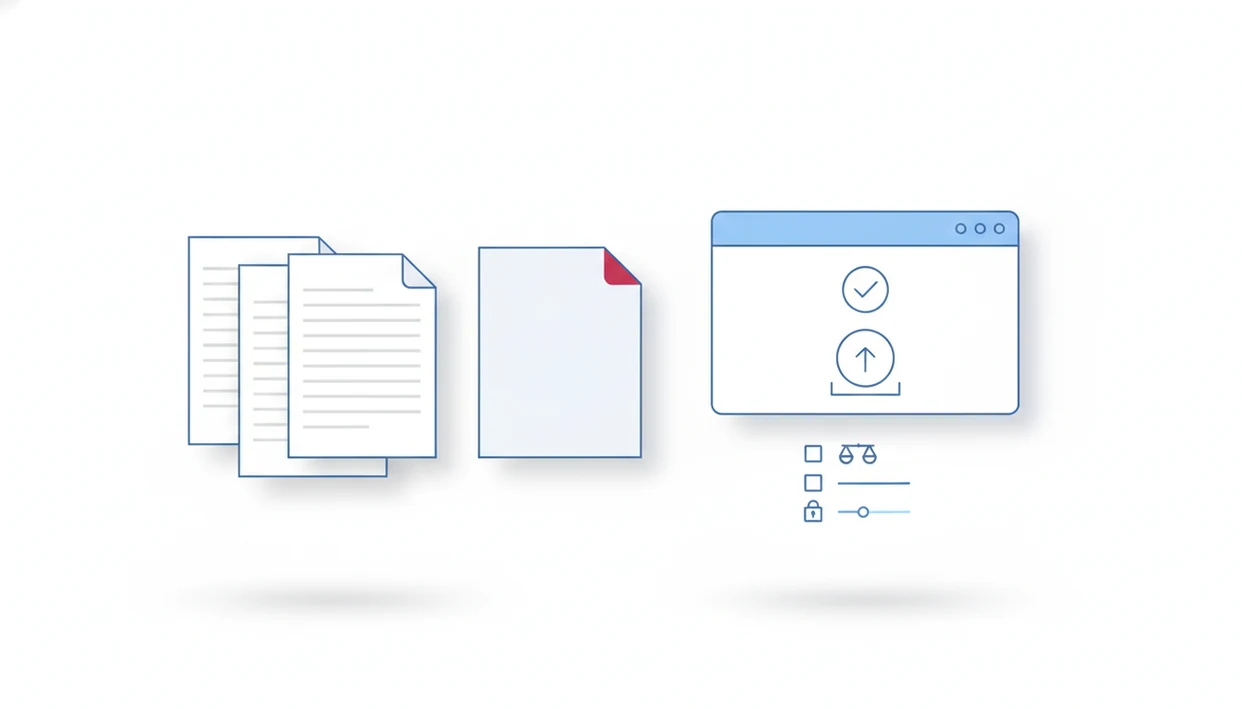
To upload Word to PDF to portal successfully, convert the DOCX to PDF only if the portal allows PDF, then check the file type, size, filename, layout, password status, and whether the portal requires one combined file before submitting.
A DOCX-to-PDF converter turns editable Word files into fixed PDF files for phone-based submission workflows. Use WordPDF only when the portal accepts PDF and the source document is already final.
TL;DR
- Check the portal’s accepted file types before converting, because some portals accept PDF, DOCX, or both.
- Preview the converted PDF on your phone to catch shifted tables, missing pages, font changes, or broken page breaks.
- Upload one clearly named PDF file when the portal asks for a single combined document.
DOCX-to-PDF portal upload workflow
Uploading Word to PDF to a portal means converting a DOCX or Word document into a PDF, then submitting that PDF through a school, employer, court, legal, or business upload page. The point is not just conversion. The point is getting a file the portal accepts and stores correctly.
PDF is often requested because it keeps fonts, spacing, page breaks, and margins more consistent across devices. That matters when a recruiter asks for “PDF only” at the last minute, or when a court portal expects a final-looking document instead of an editable draft.
Do not convert automatically. If the portal specifically asks for DOCX, send the Word file. A clean PDF can still be rejected when the upload rule says Word document.
How DOCX-to-PDF portal uploads work
DOCX-to-PDF portal uploads work by changing an editable Word file into a fixed-page PDF, then sending that PDF through the portal’s upload checker. The PDF may look correct on your device, but the portal still decides whether it matches its rules.
A DOCX is built for editing text, styles, tables, and page flow. A PDF is an export that locks the document into pages, closer to a printout. During upload, the portal may inspect the file extension, MIME type, size, filename, and selected upload field. MIME type just means the file’s technical label, not only the letters after the filename.
- Check that the portal allows PDF for that exact document slot.
- Convert the final DOCX into PDF only after edits are complete.
- Preview the exported PDF to catch missing pages, shifted tables, or broken margins.
- Rename the file with a simple purpose-based name if the portal is strict.
- Confirm the portal preview, receipt, timestamp, or confirmation page after submission.
That last check matters because a locally valid PDF can still fail for size, naming, security, or wrong-field validation.
Five portal upload facts for DOCX to PDF submission
- PDF usually preserves layout better than DOCX after upload. Fonts, spacing, margins, and page breaks are less likely to shift when the portal previews or stores the file. Adobe describes PDF as a format for presenting and exchanging documents reliably across software, hardware, and operating systems source.
- Portal rules vary by system. Some upload instructions accept both Microsoft Word `.docx` and Adobe PDF `.pdf`, as shown in one MyPortal document upload guide from NCSEAA source.
- Some portals require one complete file. A transcript, application packet, or signed form may need every page saved inside one PDF.
- Clear filenames reduce mistakes. Names like `resume.pdf`, `transcript.pdf`, or `application.pdf` are easier to identify than `finalfinal2.pdf`.
- Preview the converted PDF before upload. On mobile, open the exported PDF in Files, Downloads, or cloud storage before using the portal picker.
The safer docx to pdf submission workflow is convert, preview, rename, upload, then confirm. Small check. Big difference.
Portal requirements before a PDF upload
What should I check before a PDF portal upload? Check the accepted file type, file size, filename rules, security restrictions, and whether the portal wants one file or separate uploads.
Start with the file type line. It may allow PDF, DOCX, JPG, PNG, or another format. Then check the maximum file size. If your exported PDF is too large, you may need to reduce Word to PDF file size before submission.
Filename rules are easy to miss. Some portals reject spaces, punctuation, accents, very long names, or duplicate uploads with the same label. Passwords, encryption, macros, locked documents, and protected PDFs can also cause rejection.
Finally, read the upload slots. A portal may ask for one combined application packet, or it may separate resume, ID, transcript, and signed form into different fields.
DOCX-to-PDF validation inside a portal
Word to PDF conversion works by rendering Word content into fixed PDF pages with layout information attached. In plain terms, the DOCX stops behaving like an editable draft and becomes a page-based file that should look the same when opened, printed, or reviewed.
Portals do not only ask whether the file opens. They may validate the extension, MIME type, file size, filename, upload field, and sometimes page count. That is why a PDF can preview correctly on your phone but still fail inside the portal. The file might be too large, named with unsupported characters, or uploaded into the wrong document slot.
Microsoft Word also has a built-in export path for saving a document as PDF from the File menu source. A dedicated mobile converter is useful when the DOCX is in a share sheet, email attachment, or cloud folder instead.
Five Word to PDF app steps for portal upload
Use this mobile-first workflow when the portal accepts PDF and your source file is a DOCX.
- Check the portal file rules for accepted formats, size limits, filename instructions, and whether one combined file is required.
- Open the DOCX or Word document in the Word to PDF app from Files, Google Drive, email, or the share sheet.
- Convert the file to a standard PDF, then save it where you can find it again.
- Preview every page, especially tables, images, signatures, margins, and page breaks.
- Upload the final PDF and confirm the portal preview, receipt, timestamp, or confirmation number.
For portal uploads, choose a converter that creates a shareable PDF from DOCX on iPhone or Android without forcing scanning, e-signing, or PDF-to-Word repair into the flow. WordPDF fits that narrow job when the file is already written and just needs submission-ready conversion.
iPhone and Android checklist for PDF portal upload
On iPhone, converted PDFs commonly live in the Files app, iCloud Drive, Google Drive, or the exporting app share sheet. We usually open the PDF in the iPhone Files preview before sending it, because a shifted table is easier to catch there than inside a cramped portal window.
On Android, check the Downloads folder, Files app, Google Drive, or the converter app’s saved files area. The Android Downloads folder is often the place people forget to inspect before tapping the portal’s upload button.
Use the portal’s file picker. Do not upload screenshots or image captures unless the portal asks for images. Some online tools advertise very short workflows, including two-click Word-to-PDF conversion on any device, but the portal still controls acceptance.
For users who need a broader phone process, the DOCX to PDF guide for mobile covers file sources, saving locations, and preview checks.
Six common rejection causes in PDF portal upload
- Wrong format: The portal asked for DOCX, JPG, or another file type, but a PDF was uploaded.
- Oversized file: The PDF exceeds the upload limit, often because of large images or scanned pages.
- Bad filename: Unsupported symbols, very long names, duplicate labels, or extra periods can break validation.
- Protected PDF: Password-protected, encrypted, locked, or restricted PDFs may be rejected even when normal PDFs are allowed.
- Missing pages: The user uploaded split files when the portal expected one combined document.
- Conversion shift: Tables, images, margins, signatures, or line breaks moved during conversion.
One annoying example: the file picker may hide unsupported documents, so the DOCX appears missing even though it is still in your folder. Rename and check the exported copy beside the original Word file before assuming the portal is broken. The rename and share converted PDF workflow helps when the filename itself is the likely problem.
Final DOCX-to-PDF verification before portal submission
Before pressing submit, open the PDF from the exact location you plan to upload from. If it is in Downloads, open that copy. If it is in Google Drive, open the Drive copy. This catches the old-file problem.
Confirm the page count, first page, last page, and any required attachments. We like comparing the Word file and PDF side by side when a resume page break or references section must stay intact. Resume margins still lining up. Page break before references intact.
Check that the filename matches the document purpose and the portal instructions. Use the portal preview if it appears, then compare it with the local PDF. After submission, save the confirmation number, receipt, timestamp, or screenshot. For follow-up sharing outside the portal, Word to PDF for email attachments is a different workflow.
Limitations
Word to PDF conversion helps with formatting and upload readiness, but it cannot fix every portal problem.
- A Word to PDF app cannot override portal file-type rules, file-size limits, naming rules, upload slots, or account permissions.
- Conversion does not guarantee exact layout fidelity for unusual fonts, complex tables, embedded objects, tracked changes, or heavy images.
- If a portal explicitly asks for DOCX, converting to PDF can cause rejection.
- A successful upload does not prove the portal received the correct version unless you check the preview, receipt, or confirmation page.
- Sensitive school, job, legal, or business documents should be handled carefully before using any converter or upload system.
- Password-protected or encrypted PDFs may be rejected even when the portal accepts ordinary PDF files.
- Some portals process uploads slowly, so a file may appear accepted before final review flags an issue.
If you need a locked file later, handle that after confirming the portal rules; the password protect PDF after Word conversion step may not fit every upload system.
FAQ
Can I upload a DOCX file instead of a PDF to the portal?
Yes, but only when the portal lists DOCX as an allowed file type. If the portal says PDF only, convert the Word document first.
Why did my converted PDF fail during portal upload?
Common causes include wrong file type, file size over the limit, a locked PDF, unsupported filename characters, or missing pages. The portal may also reject the file if it was uploaded into the wrong field.
Should I combine all pages into one PDF before uploading?
Combine pages when the portal asks for one file or one complete document. Separate uploads are only safer when the portal gives separate fields.
Does converting a DOCX to PDF preserve my formatting?
PDF usually preserves formatting better than editable DOCX across devices. Complex tables, images, fonts, and page breaks still need previewing.
Can I upload a converted PDF from my iPhone?
Yes, if the converted PDF is accessible in Files, cloud storage, or the portal’s file picker. Apps such as WordPDF can prepare the PDF before upload.
Can I upload a converted PDF from my Android phone?
Yes, if the PDF is saved in Downloads, Files, Google Drive, or an app share flow. WordPDF can be used when the DOCX needs conversion on Android.
What filename should I use for a portal PDF upload?
Use a clear name that matches the document type, such as `resume.pdf`, `transcript.pdf`, or `application.pdf`. Avoid unusual characters unless the portal specifies a required naming format.
Should I remove passwords before uploading a PDF to a portal?
Usually yes, because many portals reject password-protected PDFs. Keep the password only if the portal specifically allows or requires encrypted uploads.