
Reduce Word to PDF file size for uploads
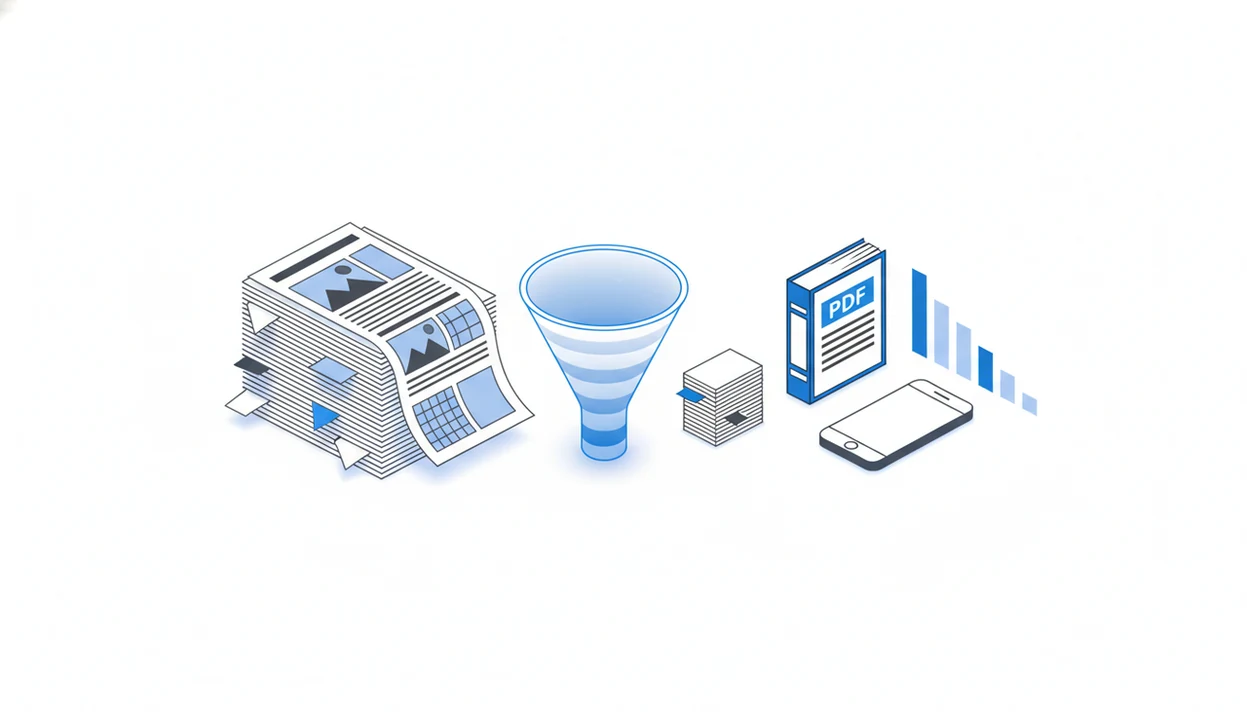
To reduce Word to PDF file size, shrink or downsample images, avoid unnecessary embedded fonts, choose a smaller PDF export setting, and then compress the finished PDF if it is still too large. This usually fixes a converted PDF that is too large for email, forms, portals, or mobile sharing.
> Reducing a Word-to-PDF file size means making a PDF created from a DOC or DOCX smaller while keeping the document readable and shareable.
- Large Word-to-PDF files are usually caused by high-resolution images, embedded fonts, screenshots, scanned pages, or hidden document content.
- The best fix is to optimize the Word document before conversion, then use a reduced-size export or PDF compression option after conversion.
- Use lighter compression for client-facing or image-heavy files, and stronger compression for uploads where readability matters more than perfect image detail.
At-a-glance fixes when a converted PDF is too large
Images, fonts, and export settings are the main drivers when a converted PDF is too large. Microsoft reported in 2023 that over 80% of business email attachments by volume were PDF or Office file types, so this problem shows up constantly in real sharing workflows source.
| Symptom | Likely cause | Practical fix |
|---|---|---|
| PDF is huge after adding photos | Full-resolution images | Compress pictures in Word before export |
| Small resume becomes several MB | Embedded fonts or logos | Use common fonts and reduce logo image size |
| Portal rejects the file | File limit is strict | Export at minimum size, then compress PDF |
| Email upload stalls | Large attachment | Use medium compression before sending |
| Mobile share sheet fails | App or network limit | Save locally, then retry the smaller PDF |
We usually check the exported PDF in the Files app before attaching it, especially when a recruiter form says “PDF only” at the last minute.
5 facts about DOCX-to-PDF compression
- High-resolution images are the most common reason a Word-created PDF becomes too large.
- Word export settings often matter more than the converter brand, because they control image quality and PDF optimization.
- Fonts can increase PDF size when the PDF embeds full font files instead of only the used characters.
- Mobile converter apps may require a separate reduced-size or compress option after the DOCX becomes a PDF.
- Aggressive compression can make screenshots, charts, and small text harder to read.
For most users, image downsampling gives the biggest size drop with the least visible damage. Font choices come next. The tiny paperclip icon in Gmail is where the problem becomes obvious: the DOCX attaches quickly, but the exported PDF may sit there uploading.
A reliable mobile converter should turn DOCX and Word documents into shareable PDFs on iPhone or Android without promising advanced editing, legal review, or guaranteed acceptance by every upload portal.
How Word-to-PDF file size reduction works
Word-to-PDF file size reduction works by shrinking the objects that conversion places inside the PDF, especially images, font data, metadata, and repeated document structures.
A DOCX file can hold compressed media, fonts, XML, metadata, and layout instructions. During conversion, those pieces become fixed PDF objects. Photos and screenshots may be embedded or rasterized at a chosen resolution, such as screen-friendly or print-friendly quality. In plain terms, Word stops describing an editable document and starts packaging a finished page.
Fonts matter too. Font subsetting embeds only the characters used in the document, while full embedding stores more of the font file. Subsetting is usually smaller. PDF compression then reduces duplicate data, lowers image resolution, and cleans object overhead. It helps, but it cannot remove size without tradeoffs every time. For image-heavy files, smaller often means softer detail.
Before you compress a Word-to-PDF file
Save a backup copy before changing images, fonts, or document content. Then write down the current DOCX size and exported PDF size, so you can tell whether each change actually helped.
Look for the usual size sources: photos, screenshots, scanned pages, logos, charts, and pasted graphics. A scanned report inside Word behaves like a stack of images, not like editable text. Remove unused pages, duplicate images, old comments, tracked changes, and hidden metadata when appropriate.
Small cleanup first.
For sensitive business files, be careful with cloud compressors. If the document includes contracts, payroll, medical notes, client records, or internal pricing, read the tool’s privacy terms before uploading. A local workflow may be safer, even if it takes one extra step.
How to reduce Word to PDF file size
Follow this workflow when you need a smaller PDF from a DOC or DOCX file. For mobile handoffs, it pairs well with a broader Word to PDF workflow after conversion.
- Duplicate the Word document so you can revert if compression damages quality.
- Compress pictures inside Word, choosing a lower resolution for email, web, or screen use.
- Remove unused pages, duplicate graphics, comments, tracked changes, and unnecessary metadata.
- Export the file using “minimum size,” “reduced size,” or a similar PDF setting when available.
- Convert the DOCX with a focused mobile converter if you are working from your phone instead of a desktop app.
- Compress the finished PDF only if it is still too large, then open it, zoom in, and confirm the upload works.
For job applications and forms, minimum-size export is often better than heavy post-compression because it preserves layout before the PDF is finalized.
Compression levels for email, upload portals, and printing
Choose compression based on what the recipient must do with the file. A smaller PDF is not always better if someone must read a chart, signature line, or fine print.
| Compression level | Use it for | Watch for |
|---|---|---|
| Light | Client-facing files, diagrams, proposals, image-heavy reports | File may still be too large |
| Medium | Most email attachments and upload portals | Usually the safest balance |
| Strong | Strict file-size limits and low-detail uploads | Blurry screenshots or tiny text |
FCC mobile network research notes that at typical 4G speeds, a 25 MB attachment can take 20 seconds or more to upload source. That delay feels longer in an elevator before an interview submission.
For routine sending, medium compression usually works best because it cuts size while keeping text and basic images readable. For print-ready files, use Word to PDF for printing guidance instead of chasing the smallest file.
Common mistakes when compressing a DOCX PDF
The most common mistake is treating compression as a final panic button instead of preparing the Word file first. A smaller PDF only helps if the file still looks right and is safe to share.
- Shrink photos and pasted graphics inside Word before export, because post-compression has less control once everything is already packaged as a PDF.
- Avoid strong compression on screenshots, charts, signatures, scanned stamps, or small text unless the upload limit leaves no other choice.
- Check privacy before using an unfamiliar cloud compressor, especially for contracts, financial records, HR files, medical notes, or client work.
- Compare the compressed PDF against the original for page count, layout, links, form fields, headers, footers, and any page breaks that matter.
- Choose the right target quality instead of chasing the smallest possible number. If the recipient needs to print, review design detail, or read fine chart labels, a slightly larger PDF is the better result.
A good compressed file is not just under the limit. It is readable, complete, and acceptable for the exact place you are sending it.
Common myths about a converted PDF too large
- “The converter is broken.” A large PDF usually points to oversized images, embedded fonts, or export settings, not a failed converter.
- “Save as PDF always makes the smallest file.” Default export often favors quality over size.
- “Compression always ruins quality.” Moderate compression can shrink many files without obvious screen-viewing damage.
- “Desktop software is required.” Mobile tools can convert and compress many DOCX files from iPhone or Android.
- “Online compression is always safe.” Confidential documents should not go through unknown upload services.
A focused mobile converter is most useful when the job is to open, share, print, or submit a DOCX as a PDF, not manage unrelated PDF editing tasks. For sending workflows, Word to PDF for email attachments covers naming, attaching, and checking the final file.
How to check a compressed DOCX PDF before uploading
“How do I check a compressed DOCX PDF before uploading?” Compare the original and compressed file sizes, then open the smaller PDF on the same device you plan to use for upload.
Zoom into small text, signatures, screenshots, tables, charts, and any stamped or scanned pages. Confirm the page count, layout, links, and form fields if the PDF includes them. We like a side-by-side check when page breaks matter, especially if a header might slip onto a second page.
Then test the real upload or email attachment step. Adobe has reported that 72% of business professionals say PDF problems, including large file sizes and compatibility issues, hurt productivity. That matches the practical risk: you do not want to discover a broken PDF after the portal deadline. If a form is involved, use the steps in upload Word to PDF to portal.
Limitations
Word-to-PDF compression has real limits. Some files cannot become tiny without becoming hard to read.
- Extremely image-heavy documents may remain large after compression.
- Scanned reports pasted into Word behave like images, not editable text.
- Strong compression can blur screenshots, diagrams, photos, and small type.
- Some apps or online tools impose file limits, page limits, watermarks, or paid tiers.
- Confidential documents should not be uploaded to unknown cloud compressors.
- Embedded video, 3D objects, and complex elements may be flattened or removed during PDF conversion.
- Print-quality PDFs may need to stay larger than screen-only PDFs.
- Password protection can add another step after compression, so plan it after the final size check.
If you need security after shrinking the file, handle that separately with a password protect PDF after Word conversion workflow.
FAQ
Why is my PDF so large after converting from Word?
Your PDF is usually large because the Word file contains high-resolution images, screenshots, scanned pages, embedded fonts, or quality-focused export settings.
How do I compress a DOCX PDF after conversion?
Optimize the Word file first, export with a smaller PDF setting, then compress the finished PDF if it is still over the email or portal limit.
Can Microsoft Word reduce PDF size before export?
Yes. Word can reduce PDF size by compressing pictures and using minimum-size or reduced-size export settings where available.
Do images make PDFs bigger?
Yes. High-resolution photos, screenshots, scanned pages, charts, and logos are often the largest contributors to PDF file size.
Should I embed fonts in a PDF?
Embed fonts when appearance must stay exact across devices. Avoid unnecessary full font embedding when file size matters more than exact typography.
Can I compress a Word PDF on iPhone or Android?
Yes. Many mobile converters can convert DOCX files and may offer PDF compression, but you should still open the final PDF and check text, images, and page breaks before uploading.
Does compression lower PDF quality?
Compression can lower quality, especially for screenshots, photos, charts, and small text. Lighter compression usually preserves readability better than strong compression.
What PDF size can I email?
Email attachment limits vary by provider, workplace policy, and mail server. Check the exact limit before sending, then compress the PDF below that size.