
Word to PDF Workflow After Conversion on iPhone and Android
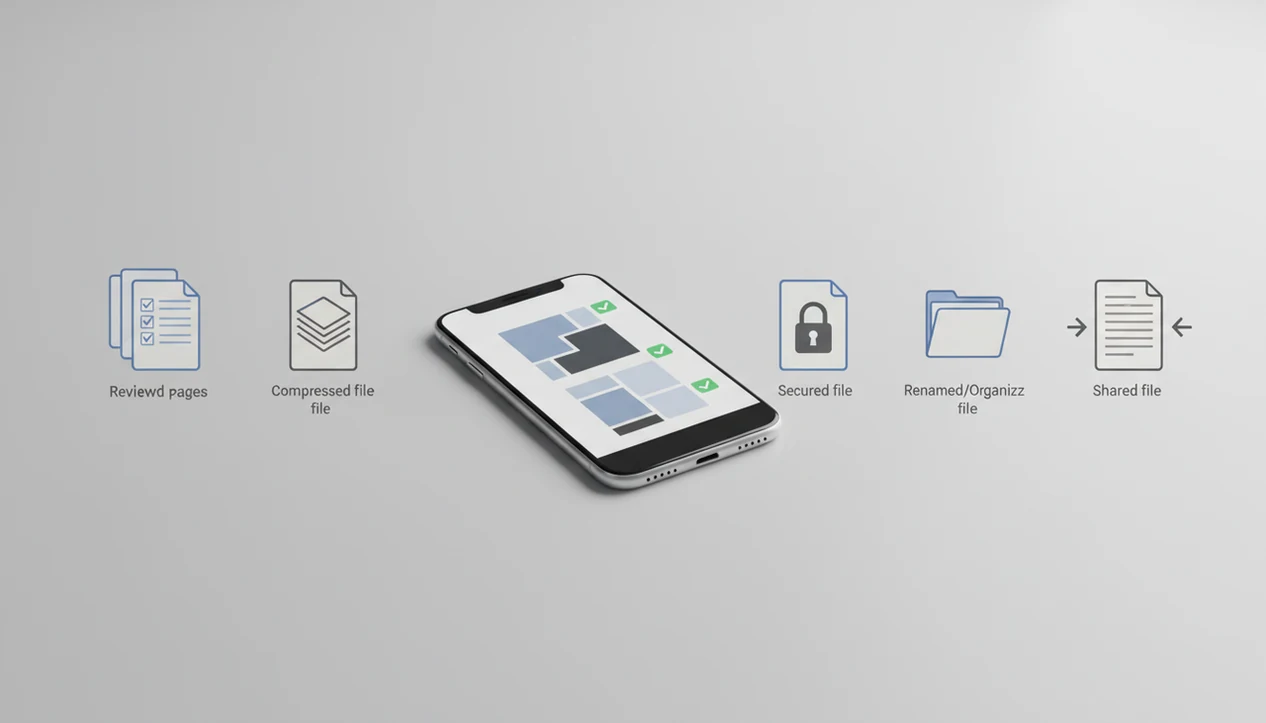
A Word to PDF workflow after conversion is the checklist you follow after exporting a DOCX: review the PDF, reduce file size, add security if needed, rename it, and send or upload the final version. On mobile, the goal is to finish every post-conversion task before the file reaches email, chat, print, or a portal.
> Definition: A post-conversion PDF workflow is the review, optimization, security, naming, sharing, and verification sequence that happens after a DOCX becomes a PDF.
- Review the converted PDF first, because page breaks, fonts, images, and tables can shift after docx to pdf conversion.
- Compress, rename, password-protect, and organize the PDF before sharing it through email, messaging apps, cloud storage, print, or a portal.
- Use a repeatable mobile PDF sharing workflow for invoices, forms, reports, applications, contracts, and other documents you send often.
Word to PDF workflow after conversion at a glance
- A post-conversion workflow means review, optimize, secure, organize, share, and verify the exported PDF.
- The checklist begins after docx to pdf conversion, when the file exists but may not be ready for delivery.
- A successful export does not prove the PDF is readable, small enough, correctly named, or accepted by a portal.
- Common mobile destinations include email, messaging apps, cloud folders, printers, and upload portals.
- The final check should happen on the same phone if that is where you will send or submit the PDF.
We usually open the PDF once in Files on iPhone or Downloads on Android before doing anything else. Small shifts show up fast there. A table border might look clean, but a signature line can move just enough to matter.
Before You Start a Mobile PDF Sharing Workflow
Before you convert and share a Word file from your phone, make sure the document, destination, and device are ready. A few checks up front prevent the most common mobile PDF problems: wrong version, rejected upload, oversized file, or missing app access.
- Confirm the DOCX is the final version before exporting it. If edits are still coming from a client, teacher, manager, or signer, wait or clearly label the draft so the wrong PDF does not get sent.
- Check the destination rules for accepted file type, maximum file size, filename limits, and password restrictions. Some portals accept only unprotected PDFs, while email and chat apps may struggle with large attachments.
- Decide what kind of PDF the job needs. A print file may need higher image quality, an accessible file may need readable text and structure, and an archive file may need stricter formatting.
- Prepare your phone by confirming storage space, network access, and permissions for Files, Drive, email, chat, printer, or portal apps. The workflow is smoother when the destination app can actually see and receive the PDF.
Mobile DOCX to PDF file handoff after conversion
A mobile DOCX to PDF handoff is the sequence where a Word file is imported, rendered as a PDF, saved locally or to cloud storage, then passed to a share sheet or destination app. The PDF preserves a rendered version of the Word document, but the result still depends on fonts, images, tables, page size, and source document structure.
Here is how it works: the converter reads the DOCX, creates a fixed-layout PDF render, writes the exported PDF to storage, then hands that file to email, Messages, WhatsApp, Google Drive, Files, a printer, or a portal picker. “Fixed layout” means the pages are intended to look stable, not reflow like a Word document.
Still, complex formatting needs eyes on it. We have seen a proposal downloaded from a chat message convert cleanly, then lose a neat page break before the pricing section. A good mobile converter should give you a dependable handoff from DOCX export to final PDF sharing, not try to replace a full desktop editing suite.
6-step Word to PDF workflow after conversion
Use this workflow after the PDF export finishes in your mobile converter. This reduces brand repetition while preserving the how-to intent. It keeps the file ready for email, chat, print, and upload without turning the process into a desktop job.
- Review the PDF on your iPhone or Android phone, then check page breaks, images, tables, and signatures.
- Rename the file with document type, recipient or project, date, and version when needed.
- Compress the PDF if email, chat, or a portal may reject a large attachment.
- Secure the file with a password or restrictions when it contains private, financial, medical, or business information.
- Share through the correct destination, such as Gmail, Files, Google Drive, Messages, print, or a portal upload button.
- Verify the sent or uploaded copy by opening the attachment preview, portal preview, or saved final file.
For mobile users, a step-by-step post-conversion workflow is often safer than sharing immediately because it catches layout, size, and destination problems before the recipient sees them.
Post-conversion PDF review for layout, fonts, and pages
Does a converted PDF need to be checked before sending? Yes. Review the first page, last page, page breaks, headings, tables, bullets, images, signatures, and form fields before you trust the export.
Layout shifts can happen even when conversion succeeds. Rotate the phone, zoom into dense areas, scroll page-by-page, and compare the Word file and PDF side by side if the document matters. A final resume in a deadline upload moment is a poor place to discover that a heading wrapped onto its own page.
Mobile layout checks after docx to pdf
Check the first page for title spacing, then jump to the last page for missing text. Tables deserve a closer look, especially thin borders and wrapped cells. If the file is being sent externally, use a verify PDF before sending checklist rather than trusting the share action.
Accessibility checks before PDF sharing
Accessibility review should include headings, reading order, alt text expectations, and whether text can be selected instead of only viewed as an image. A 2018 accessibility study found that 75% of sampled PDFs had significant barriers for screen-reader users source.
PDF compression and file size checks before sharing
Large PDFs can fail in email, messaging apps, portals, and low-bandwidth mobile connections. Many email providers still use attachment limits around 20 to 25 MB, so file size is not a minor detail.
Compression does not automatically ruin a document. Light or balanced compression can keep text readable and logos sharp, but aggressive settings can damage image-heavy files. We keep a high-quality original when the PDF is for print, legal use, or archiving, then send a smaller copy if needed. For a deeper size workflow, use steps to reduce Word to PDF file size before sharing.
| Compression type | Best for | What to check afterward |
|---|---|---|
| Light compression | Reports, resumes, forms | Text sharpness and page count |
| Balanced compression | Email attachments, portals | Images, logos, and charts |
| Aggressive compression | Very large mobile uploads | Photo quality and fine details |
A kitchen counter invoice sent by phone still needs a readable logo.
Password protection in a secure PDF sharing workflow
- Password protection is useful for resumes, tax files, medical forms, invoices, contracts, financial statements, and internal business reports.
- Encryption helps protect file contents, while editing and printing restrictions limit what supported viewers allow.
- Permissions are not a substitute for careful sharing, because the wrong recipient can still receive the file.
- In a 2020 Pew survey, 62% of U.S. adults working from home used work documents containing sensitive or confidential information source.
- A 2023 McKinsey survey reported that 83% of IT decision-makers were concerned about data loss or leakage through collaboration and file-sharing tools.
Send the password through a separate channel when possible. Not the same email thread. For sensitive files, the full mobile flow is covered in password protect PDF after Word conversion.
Mobile PDF sharing workflow for email, chat, print, and portals
Choose the delivery method after the PDF is reviewed, named, and sized. A PDF sharing workflow works best when the destination decides the preparation, not the other way around.
| Destination | Recommended preparation | Final check |
|---|---|---|
| Use clear filename, compress if near attachment limit | Open attachment preview | |
| Messaging app | Compress large files, avoid sensitive documents without protection | Confirm recipient thread |
| Cloud link | Use for large or shared files | Check link access |
| Keep high-quality original | Preview page size | |
| Job portal | Name resume clearly, avoid password unless allowed | Confirm uploaded file |
| School portal | Match assignment naming rules | Save submission receipt |
| Government portal | Follow file type and size limits | Confirm status screen |
| Client upload | Include project, document type, and date | Save final sent copy |
Attachments fit small, final files. Cloud links fit large files, shared folders, or documents that several people need to access. If a portal is involved, follow a specific upload Word to PDF to portal process and save proof afterward.
Automation ideas for repeated Word to PDF workflows
Practical automation should remove repeated taps, not remove judgment. It helps most with invoices, weekly reports, application packets, client contracts, and school assignments.
- Default file naming: Save patterns like `InvoiceClientDate` or `ResumeLastNameRole`.
- Favorite share destinations: Keep Gmail, Files, Google Drive, or a frequent chat app near the top of the share sheet.
- Folder routing: Send monthly PDFs to an archive folder, then keep the current version separate.
- Recent recipients: Reuse trusted recipients carefully, especially for clients and school portals.
- Repeat compression settings: Apply a known setting for routine email attachments.
Cross-app automation depends on iPhone, Android, cloud storage, and destination app permissions. A focused converter can support this flow, but manual review should remain for sensitive or complex documents. If several source files must become one deliverable first, use a tool that can merge Word documents.
Final PDF verification before sending or uploading
How do you confirm a converted PDF is really ready? Open the final PDF on your phone after every change, then check filename, page count, file size, password status, recipient, and destination.
Do not trust the share action by itself. In Gmail, we look for the tiny paperclip attachment icon and open the attached PDF preview when the file matters. For portals, preview the uploaded file when available, confirm the filename, and check the submission status. Some portals rename files or show only a partial preview, so the confirmation screen matters.
Save the final sent copy in a clear folder, especially for applications, invoices, reports, and contracts. A folder holding monthly PDFs is boring until a client asks for the March version. Then it pays off.
Common Mistakes After Converting Word to PDF
The most common mistakes happen after a successful export, when the PDF exists but has not been checked against the real destination. Treat the converted file as a draft until you have opened, named, sized, and confirmed it.
- Open the exported PDF before sending it anywhere. A quick preview catches broken page breaks, missing signatures, cropped tables, and odd font spacing that the conversion screen will not show.
- Compress only after you know what the file contains. If the PDF has charts, logos, product photos, or scanned pages, use a lighter setting first and zoom in before sharing the smaller copy.
- Check password rules before locking the file. Some job, school, client, and government portals reject protected PDFs even when the content is sensitive.
- Name the PDF clearly enough for a person or portal to understand it later. A vague filename like `document-final.pdf` can get lost beside several similar uploads.
- Save proof after uploading. Keep the confirmation screen, receipt, or final submitted copy in a folder so you are not relying on memory if the recipient asks for it later.
Limitations
A mobile post-conversion workflow improves reliability, but it cannot fix every source document or destination rule. Keep these limits in mind:
- No converter can guarantee exact preservation of every complex Word layout.
- A Word to PDF app cannot fix poor source structure, missing headings, low-resolution images, or incorrect content.
- Aggressive compression can reduce image quality, especially in graphics-heavy documents.
- PDF passwords and permissions can create recipient support issues if the recipient uses an incompatible viewer.
- Mobile share sheets, cloud folders, and portal uploads vary by operating system, storage provider, and app permissions.
- PDF/A, tagging, encryption, and accessibility requirements may require organization-specific rules.
- Automation can save time, but it should not replace final human review for sensitive documents.
- Some portals reject protected PDFs, oversized files, or filenames with special characters.
The safest habit is simple: open the final file, check the destination, then send.
FAQ
What should I do after converting a DOCX to PDF on my phone?
Review the PDF, optimize file size, add security if needed, rename it clearly, share it through the correct destination, and verify the final copy. This is the core Word to PDF workflow after conversion.
Should I check the PDF before I send it?
Yes. Check layout, page breaks, fonts, images, signatures, and page count before sending or uploading the PDF.
When should I compress a PDF after conversion?
Compress a PDF when it is too large for email, slow to upload, difficult to send through chat, or near a portal file-size limit. Keep a higher-quality original when print or archiving matters.
Does PDF compression reduce document quality?
Light or balanced compression can preserve readability for many documents. Aggressive compression may reduce image, logo, or chart quality.
Should I password protect a converted PDF?
Password protection is appropriate for personal, financial, medical, business, tax, contract, and confidential documents. Send the password through a separate channel when possible.
How should I name a PDF before uploading or emailing it?
Use the document type, recipient or project, date, and version when needed. A clear example is `ResumeJordanLeeProductManager_2026-05.pdf`.
Is it better to email a PDF attachment or share a cloud link?
Use an attachment for small, final PDFs that do not need updates. Use a cloud link for large files, shared access, or documents that may change.
How do I know my PDF upload worked?
Preview the uploaded PDF, confirm the filename, check the submission status, and save the receipt or confirmation screen. If the portal changes the filename, keep your own final copy in a folder.