
Tool That Can Merge Word Documents and Export One PDF
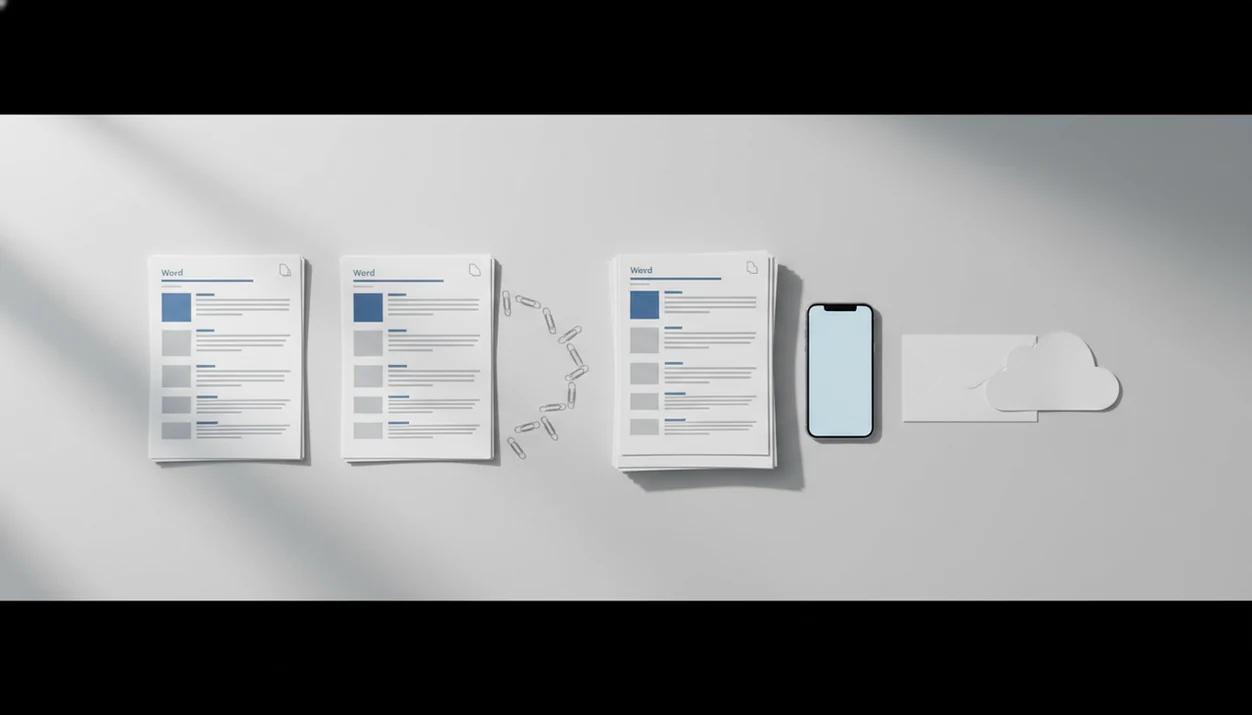
A tool that can merge Word documents lets you select several DOCX files, arrange them in the right order, combine them, and export the result as one PDF for email, upload, or sharing. For iPhone and Android users, the best workflow is a merge-capable mobile converter rather than a basic one-file converter.
Definition: A tool that can merge Word documents is an app or web service that combines multiple DOC or DOCX files into one ordered document and then saves or exports the combined file as a single PDF.
TL;DR
- Choose a tool that supports multiple Word file selection, not only one-file-at-a-time conversion.
- Merge Word files before PDF export when you want one continuous document with cleaner page order.
- Check formatting, headers, file-size limits, and privacy rules before sending the final PDF.
What a Word document merge tool actually does
A Word document merge tool combines multiple DOC or DOCX files, lets you reorder them, and exports the result as one PDF. That is different from a basic converter that accepts only one Word file at a time.
In practice, you might select a cover letter, a report, and an appendix, drag them into the right sequence, then create one exported PDF. The order matters. A recruiter asking for “PDF only” in an application form will not want three separate attachments.
Microsoft has reported that more than 1.2 billion people use Microsoft Office, including Word, worldwide (source: https://news.microsoft.com/bythenumbers/ms_numbers.pdf). That scale explains why Word document merging is still a normal file task, not a niche request. On mobile, the useful feature is the ability to turn ordered DOCX files into one PDF on iPhone or Android.
How a DOCX merge and PDF export workflow works
A DOCX merge and PDF export workflow usually imports the files, reads their document structure, places them in sequence, builds a merged document, renders pages, and then exports the PDF. The technical part is document rendering, which means turning Word layout instructions into fixed PDF pages.
Word-first merging combines the DOCX files before one PDF export. PDF-first merging converts each file separately, then joins the PDFs afterward. For reports and packets, Word-first often creates cleaner page flow because the tool can handle page order before the final render.
Small details can still shift. Headers, footers, section breaks, page numbering, and fonts may need normalization before export. We usually compare the Word file and PDF side by side when a shifted page break would change meaning. A good mobile converter should create shareable PDFs on iPhone and Android, not replace careful review of complex Word layout.
Before using a combine Word files app on iPhone or Android
Before you use a combine Word files app, prepare the files so the merge order and export settings are obvious. DOCX is usually safer than older DOC because it is the modern Word format and tends to behave better in mobile conversion tools.
- DOC and DOCX are common inputs, but DOCX is the format to choose when you can.
- Number file names before merging, such as `01-cover`, `02-report`, and `03-appendix`.
- Check file size and page count before uploading a long packet from mobile data.
- Remove or unlock password protection if the app cannot read protected Word files.
- Confirm cloud access first, especially if the files sit in Google Drive, iCloud Drive, or OneDrive.
Pew Research Center reported that 85% of U.S. adults owned a smartphone in 2021 (source: https://www.pewresearch.org/internet/fact-sheet/mobile/). That helps explain why mobile Word merging is common. The phone screen glare on a job listing is a real deadline condition, not an edge case.
How to use a Word document merge tool
To use a Word document merge tool, choose a workflow that supports multiple DOCX files, ordering, and PDF export in the same session. The goal is simple: merge docx export pdf, then check the file before sending.
- Select the Word files from Files, Downloads, Google Drive, or another supported location.
- Arrange the files in final reading order before starting the merge.
- Check merge settings for page size, orientation, margins, and file naming.
- Export the combined document as one PDF.
- Review the final PDF in a preview app, including the first page and section transitions.
- Share or save the PDF by email, chat, cloud folder, or portal upload.
For email work, the next step is often covered by Word to PDF for email attachments. The tiny paperclip icon in Gmail is where the merged file either looks finished or causes a second round of fixes.
Word-first merge versus PDF-first merge for DOCX files
Word-first merge combines DOCX files before one PDF export, while PDF-first merge converts each Word file separately and then joins the PDFs. Word-first is usually better for reports, contracts, applications, and packets that need continuous flow.
| Method | Best use | Benefit | Risk |
|---|---|---|---|
| Word-first merge | Reports, contracts, applications, appendices | Cleaner continuous page order and one export step | Headers, section breaks, or fonts may need cleanup |
| PDF-first merge | Separate forms, signed pages, fixed handouts | Each document keeps its own visual identity | Page numbers and combined structure may feel stitched together |
| Manual copy-paste | Short simple documents | Works without a special merge tool | Easy to lose styles, spacing, or tables |
For most mobile users, Word-first merge is often easier than PDF-first merge because you handle order before final PDF rendering. If the packet will later go to a portal, the upload step is separate from merging; our upload Word to PDF to portal guide covers that handoff.
Formatting checks after you merge Word documents
After you merge Word documents, open the exported PDF and inspect the parts most likely to shift. Basic text and simple layout usually survive, but complex Word features can change during rendering.
- Headers and footers: Check inherited text, dates, logos, and section-specific labels.
- Margins and page breaks: Inspect the first page, file transitions, and final page count.
- Tables and images: Make sure table borders stay clean and images do not push text.
- Fonts and hyperlinks: Test links and confirm unusual fonts did not substitute badly.
- Section breaks: Watch for changed numbering, orientation, or blank pages.
Business document workflows increasingly assume that files will be shared, stored, and reviewed digitally, which makes the layout check worth doing. Open the PDF in the iPhone Files preview before sending. Fast, but not blind.
For a broader post-export checklist, use a Word to PDF workflow after conversion.
Privacy and file limits in a combine Word files app
Privacy and file limits matter because some combine Word files apps process documents on your device, while others upload them to a server. On-device processing keeps the file local. Cloud processing may be faster for large files, but it depends on the provider’s rules.
Check encryption, file retention, deletion policy, account requirements, and watermark rules before uploading confidential content. Also review free-plan limits: number of files, pages, daily conversions, and maximum upload size. Those limits often appear only after you have already selected the files.
McKinsey estimated that knowledge workers can spend up to 19% of the workweek searching for and gathering information (source: https://www.mckinsey.com/industries/technology-media-and-telecommunications/our-insights/the-social-economy). Bundling monthly PDFs into one archive folder can reduce that hunting, but only if the final file is named clearly and stored where the team expects it.
Tools like WordPDF, Adobe Acrobat online tools, and Smallpdf may fit different needs, depending on merge support, storage rules, and mobile access.
Limitations
A merge and export workflow is useful, but it is not guaranteed to preserve every Word detail. Test the final PDF before sending it to a client, recruiter, school, or court portal.
- Not every mobile converter supports multiple file selection or Word document merging.
- Tracked changes, comments, and table of contents fields may flatten or display unexpectedly.
- Section-specific headers and footers can inherit the wrong text after merging.
- Unusual fonts may substitute if the app or device cannot embed them.
- Large files can trigger mobile crashes, upload timeouts, or failed exports.
- Password-protected Word files may not open unless unlocked first.
- Free versions may add watermarks or restrict files, pages, daily conversions, or upload size.
- Compression can reduce image quality if the exported PDF is made smaller afterward.
- Online tools may upload confidential files to servers with unclear retention policies.
If file size becomes the next problem, you can reduce Word to PDF file size after confirming the layout.
FAQ
Can I merge Word documents?
Yes. You need an app or web service that supports multiple DOC or DOCX files, file ordering, merging, and export.
Can I merge DOCX on iPhone?
Yes. iPhone users need a mobile app or cloud workflow that can select more than one DOCX file and export the merged result as PDF.
Can Android combine Word files?
Yes. Android users can select files from places like the Downloads folder, arrange them in a merge-capable app, and export one PDF.
Does merging keep Word formatting?
Basic text, spacing, and simple layout usually carry over. Headers, tables, section breaks, fonts, and hyperlinks should be checked in the exported PDF.
Can I export merged DOCX to PDF?
Yes. Merge-capable Word to PDF tools can combine the Word files first and then export the merged document as one PDF.
Is online Word merging safe?
It depends on how the tool handles files. On-device tools keep documents local, while online tools may upload files to servers with separate retention policies.
Why did my headers change?
Headers often change because section breaks, page setup, or header/footer inheritance differed between the original Word files. Review each transition after merging.
Do free merge tools add watermarks?
Some free or lite tools add watermarks or restrict file count, page count, daily conversions, or upload size. A mobile converter may be useful when the task is DOCX-to-PDF conversion, but you should still check the final export rules.